Regular Cablecast Server Maintenance
Keeping your Cablecast server healthy requires two types of routine maintenance: keeping Windows up to date and clearing out temporary files that accumulate over time. This article walks through both tasks, along with how to check for Cablecast software updates.
Keep Windows Up To Date
Windows updates are released on the second Tuesday of every month.
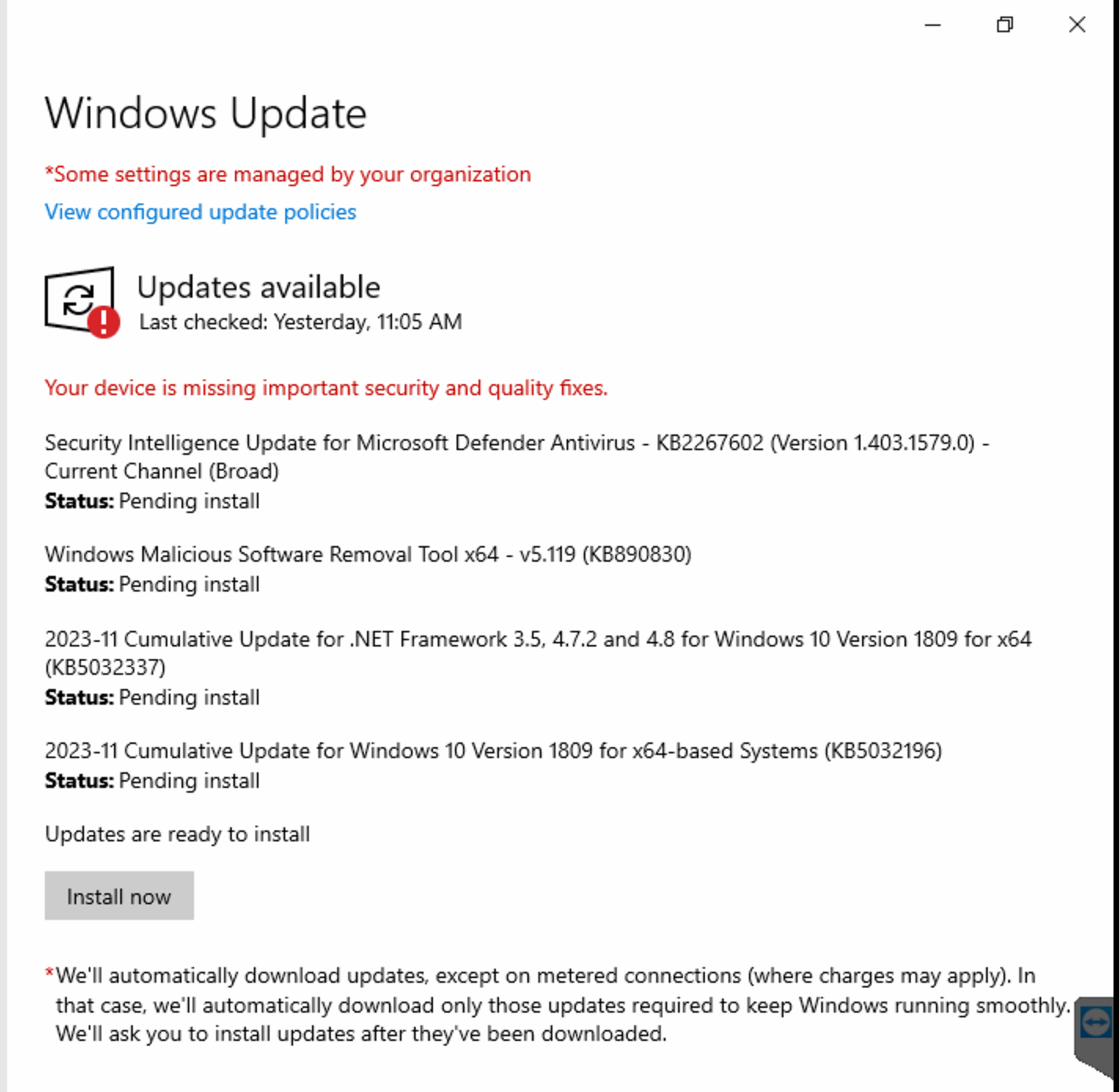
To check for updates, open the Windows Start menu and go to Settings > Windows Update, then select Check for updates to make sure your system is current.
Note: Most Windows updates require a server reboot, so plan to run updates during a window when no critical programming is scheduled.
Pending Updates
Pending updates don't directly impact performance, but they can initiate background processes and temporarily consume system resources while installing. Check for and install updates regularly to maintain optimal security, stability, and performance. If you're troubleshooting performance issues, checking for pending updates is a good first step.
When updates are available, the Windows update icon in the system tray — a small square with the Windows logo — will display an alert symbol such as an exclamation mark.
Disk Cleanup Utility
Running the Disk Cleanup Utility periodically clears out temporary files that can accumulate on your server's C drive. On video servers and VOD servers, you only need to run this against the C drive.
To run Disk Cleanup:
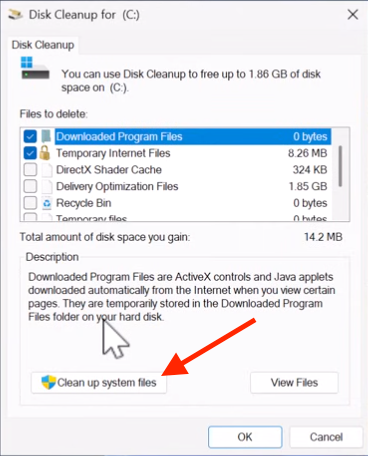
Search for Disk Cleanup in the Windows search bar and open the utility.
Select the C: drive when prompted.
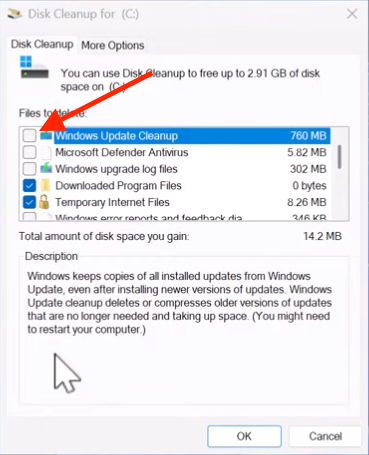
Select Clean up system files to expand the list of cleanup options.
Check Windows Update Cleanup to remove old update files, which can take up significant space over time.
Select OK to run the cleanup.
Make Sure You're Logged in as an Administrator
You must be logged into Windows as an Administrator to access the Clean up system files option.
Cablecast Software Updates
When a Cablecast software update is available, a notification bar will appear at the top of the Cablecast Main Menu.
You can also check for updates manually by going to Settings > System Settings > Software Updates. Any available updates will be listed there.
For more info on how to run software updates in Cablecast, check out this KB article.
Summary
Routine server maintenance keeps Cablecast running smoothly. Check for Windows updates monthly, run Disk Cleanup periodically to free up space on the C drive, and monitor the Cablecast interface or Settings > System Settings > Software Updates for software updates.
