Fading Background Audio on Cablecast CG
When you upload a video, such as a PSA, to Cablecast CG, you can fade out the channel's background audio while the video plays. This prevents the video audio and the channel's background audio from overlapping. This article explains how to enable that setting.
Fading Background Audio on Cablecast CG
This article explains how to fade background audio when uploading a video (such as a PSA) to Cablecast CG.
Access Cablecast CG
From the home screen, select CG, then select New Bulletin.
Select Upload and browse for your video file.
Configure Audio Fading
Once the video file is uploaded and your settings are configured, select Extras.

Scroll down to Audio Settings and set Fade the channel background audio? to Yes.
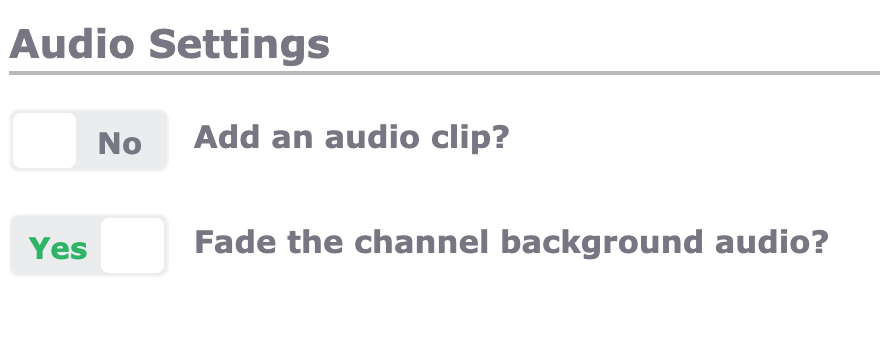
Note: This setting automatically fades out the channel's background audio while your video audio plays. After the video ends, the background audio fades back in.
Summary
Enabling Fade the channel background audio? in a video bulletin's Audio Settings keeps your video audio clear by fading the channel's background audio out during playback and back in afterward, avoiding overlapping audio.
