Cablecast CG Configuration Settings
Cablecast CG is part of the Cablecast software, so the settings for both Cablecast and Cablecast CG are found in one place.
Warning
Because all of these settings live in Cablecast, be careful with what you change — some adjustments can make drastic changes to your overall system. If you have questions, contact Cablecast Technical Support.
Settings Menu
To reach the Cablecast CG settings:
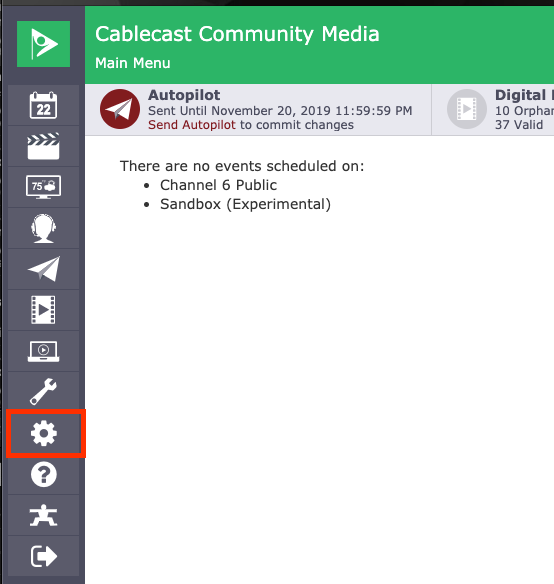
From the left-hand navigation menu bar, select the Settings gear icon.
Select Cablecast CG Settings.
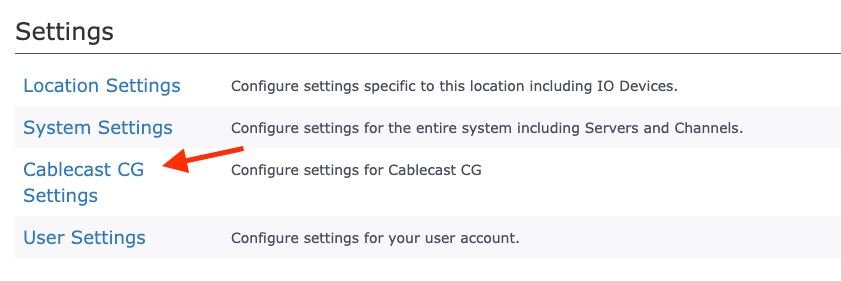
The settings menu lists four options: Location Settings, System Settings, Cablecast CG Settings, and User Settings. Selecting Cablecast CG Settings opens the Cablecast CG configuration screen.
Cablecast CG Settings
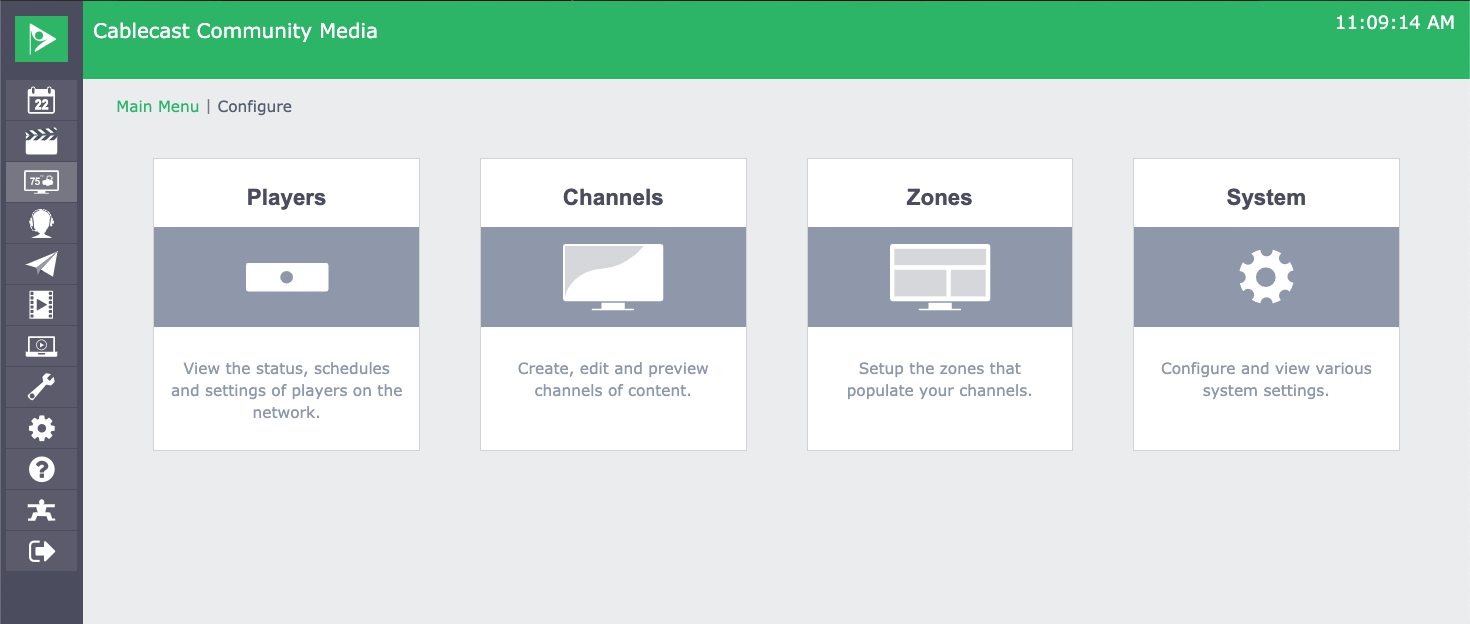
The Cablecast CG settings are divided into four sections you can use to adjust different aspects of Cablecast CG: Players, Channels, Zones, and System.
Players Settings
The Players menu shows the system's Players Dashboard, Initial Channel, and other options.
The Players Dashboard lists all Cablecast CG players configured with your system and lets you change which Cablecast CG channel is currently playing on each one.
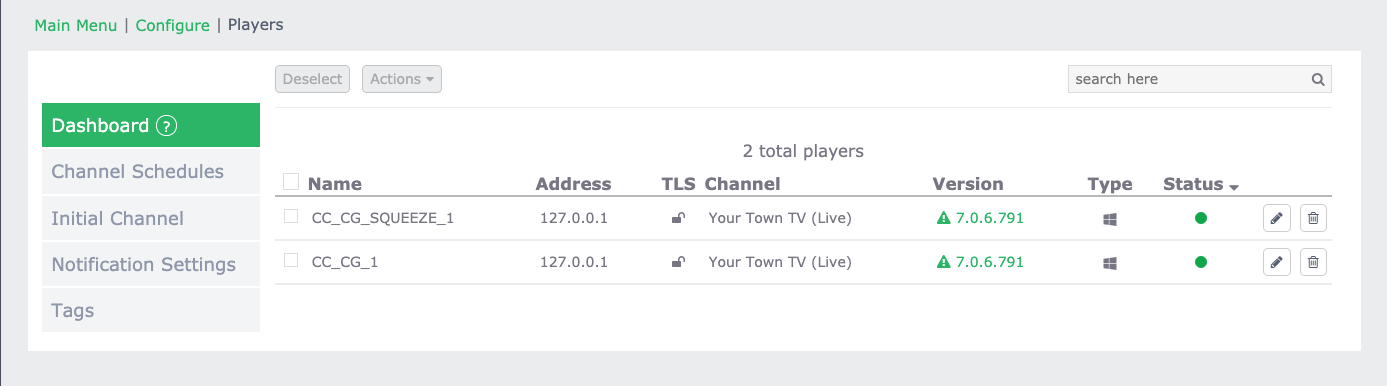
To edit a player:
In the Players Dashboard, select the pencil/edit button for the player.
Name the player, or — more importantly — set the Default Channel, which is what plays out when Cablecast CG is showing on your channel.
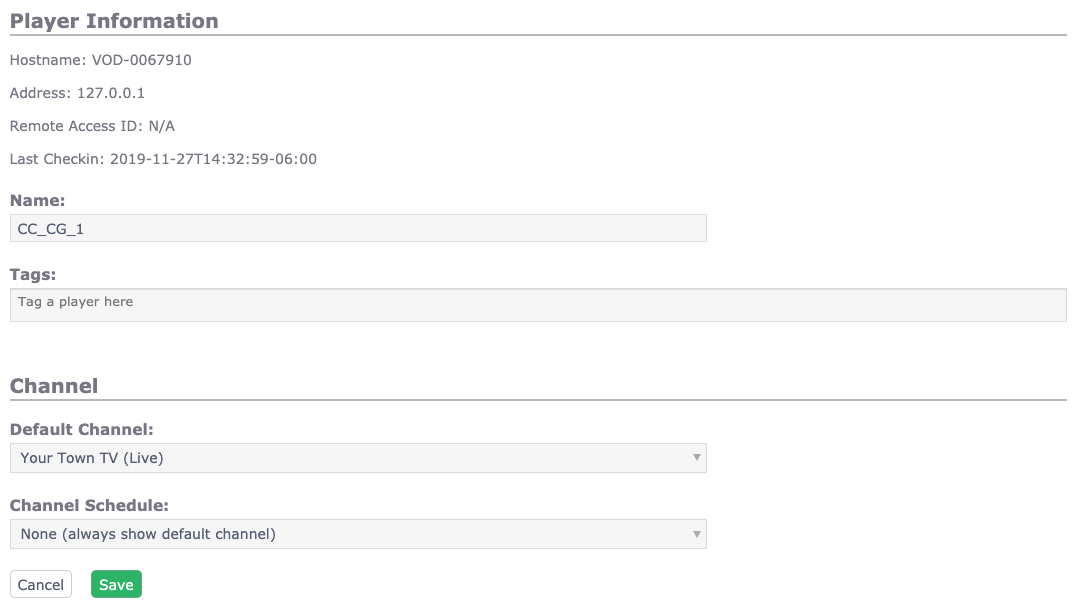
For more about player settings, see the Cablecast CG New User Training Webinar (Player Settings chapter).
Channels
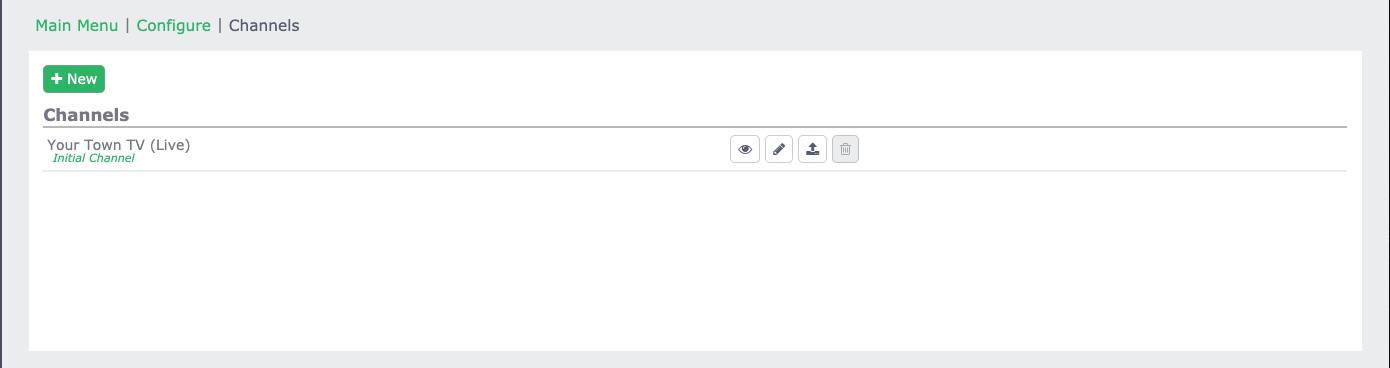
The Channels menu shows all of the Cablecast CG channels installed in your system. From here, select the eye/preview icon to open a web preview of a channel, or select the pencil/edit icon to edit a channel's subscriptions and crawl settings.
When editing a channel, you can adjust the Zone Layout, upload Background Audio files, subscribe to Full Screen Alert and Crawls zones, and edit the style of your Cablecast CG crawl.
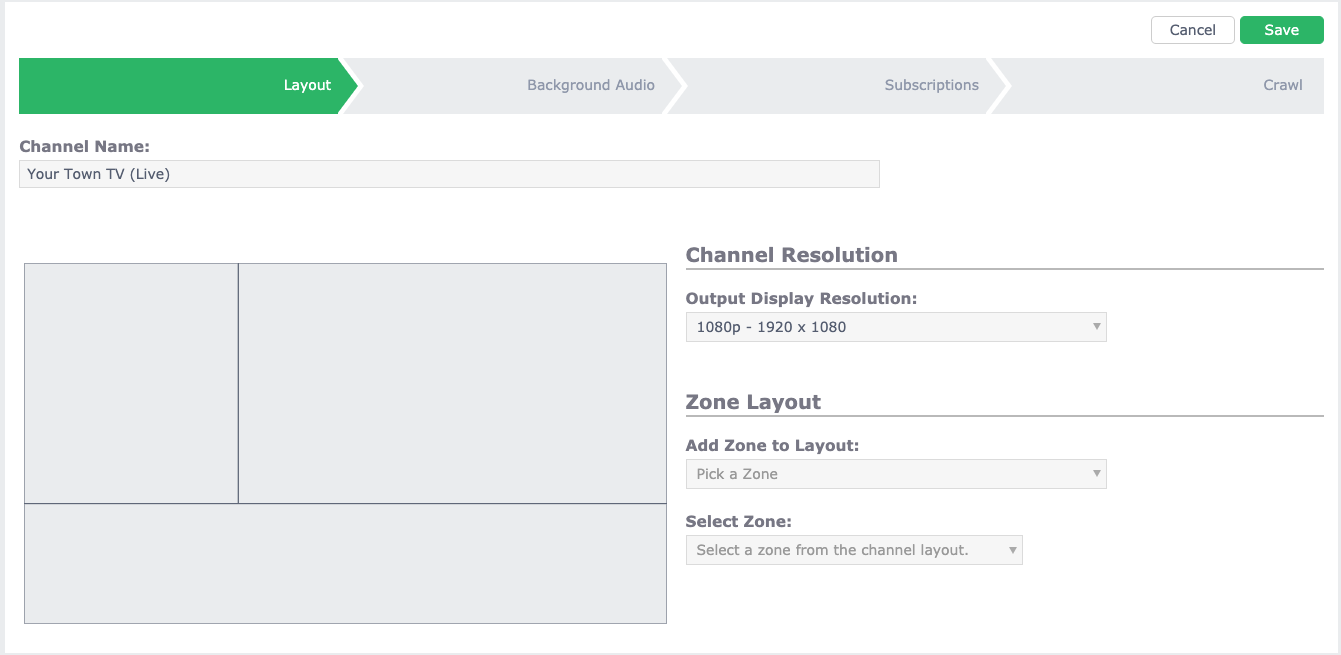
For more about editing the crawl in the channel settings, see the Cablecast CG New User Training Video (Crawl chapter).
For more about background audio in the channel settings, see the Cablecast CG New User Training Video (Background Audio chapter).
Zones
The Zones menu shows all of the zones currently created in Cablecast CG and used across your different channels. From here, you can create new zones or edit existing ones.
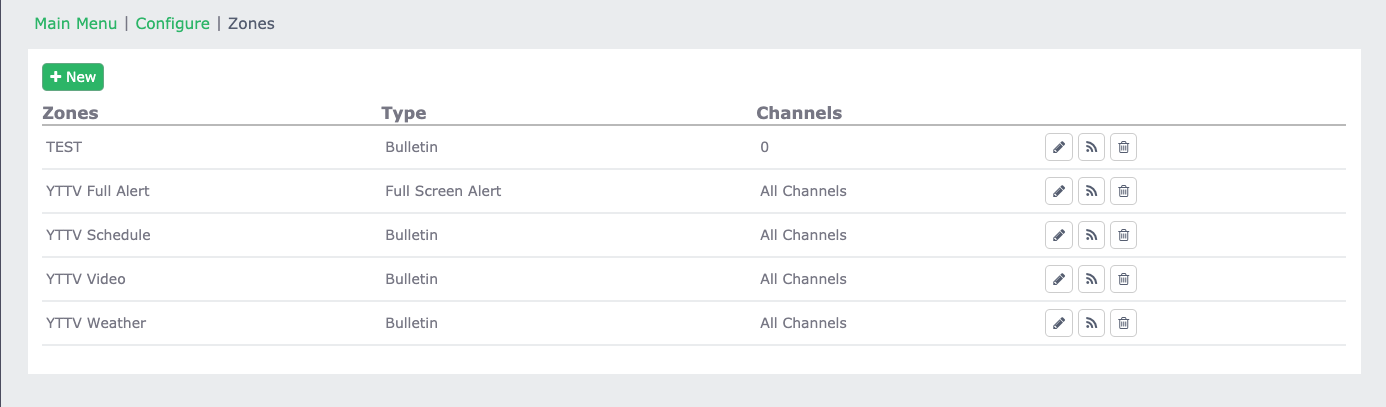
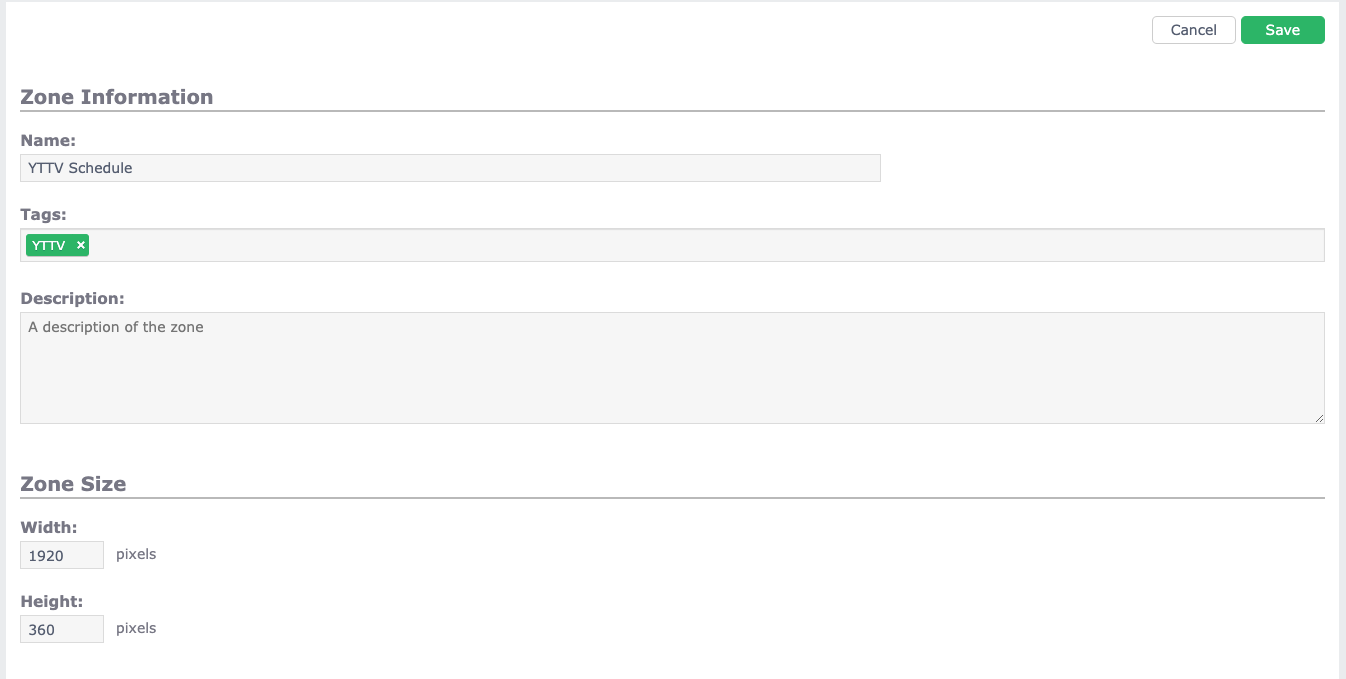
When editing a zone, you can edit its name, add zone tags for sorting, add a description, and set the zone size.
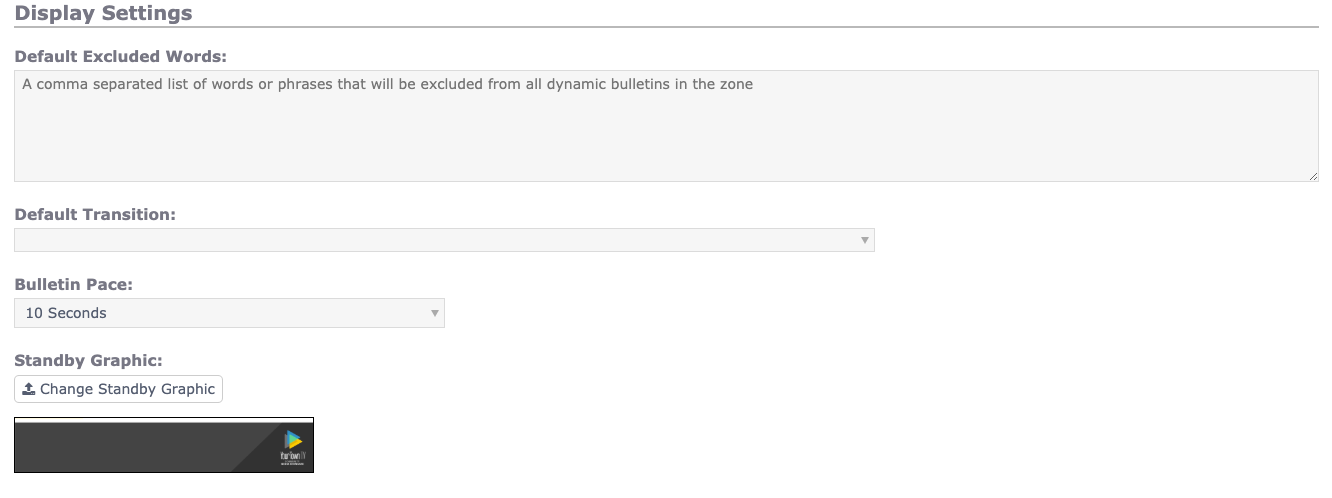
Further down are advanced settings for the zone. You can set zone-level Default Excluded Words, adjust the default bulletin pace, and set a Standby Graphic that plays in the zone when no bulletins are scheduled.
System
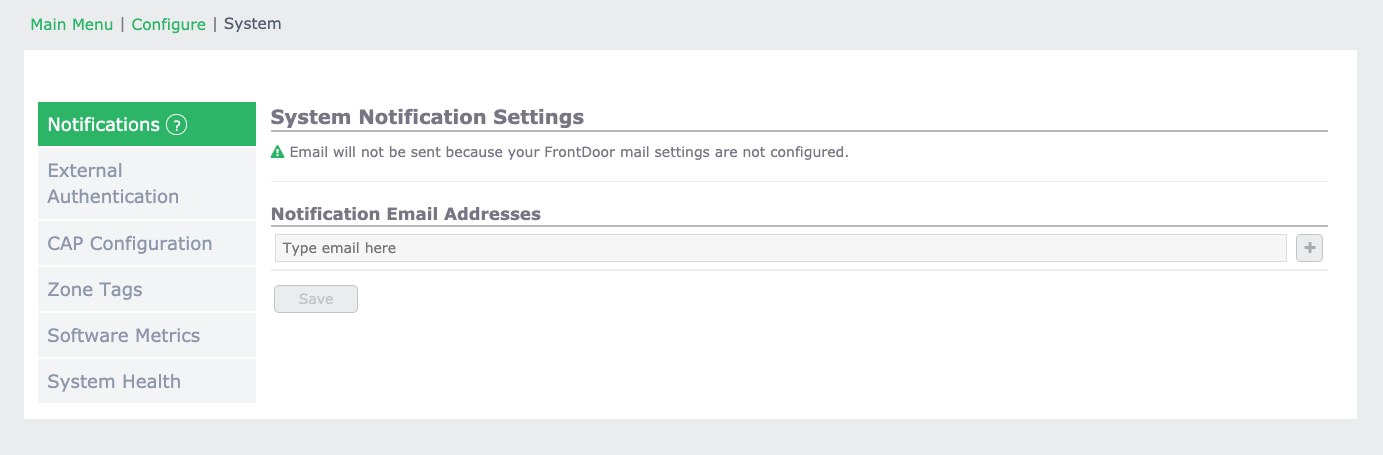
The System menu provides a variety of system-level options.
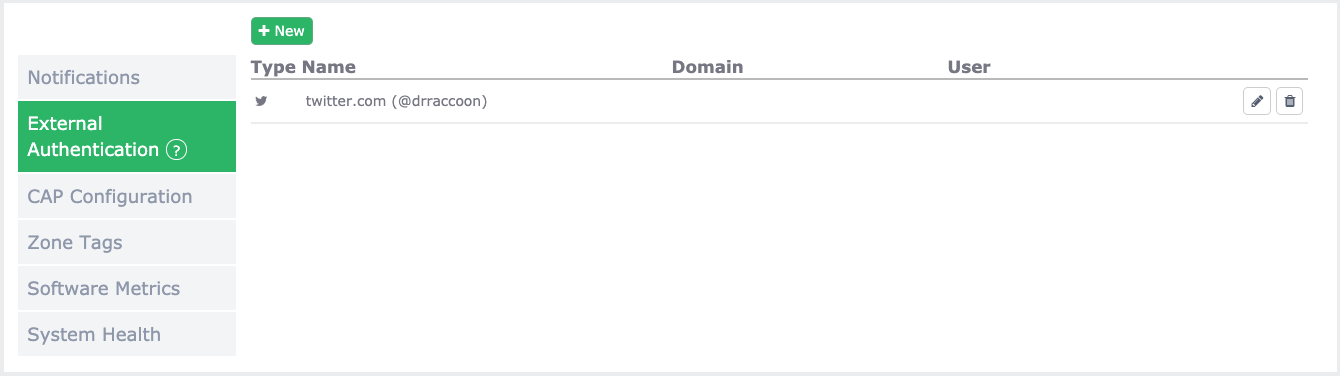
External Authentication lets you set up and manage authentication for sources such as Twitter accounts or calendar feeds. Some dynamic bulletins require authentication with an external source, and this is where you add and manage those connections.
External Authentication lets you set up and manage authentication for external sources such as calendar feeds. Some dynamic bulletins require authentication with an external source, and this is where you add and manage those connections.
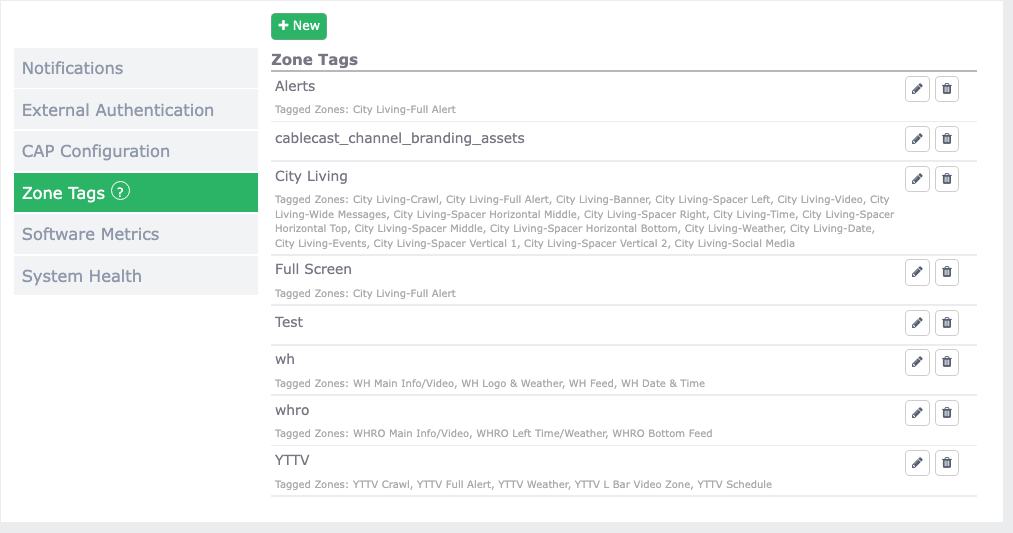
Zone Tags is where you manage your zone tags. From here, you can see which zones are assigned to each tag, change a tag name, and add or delete tags.
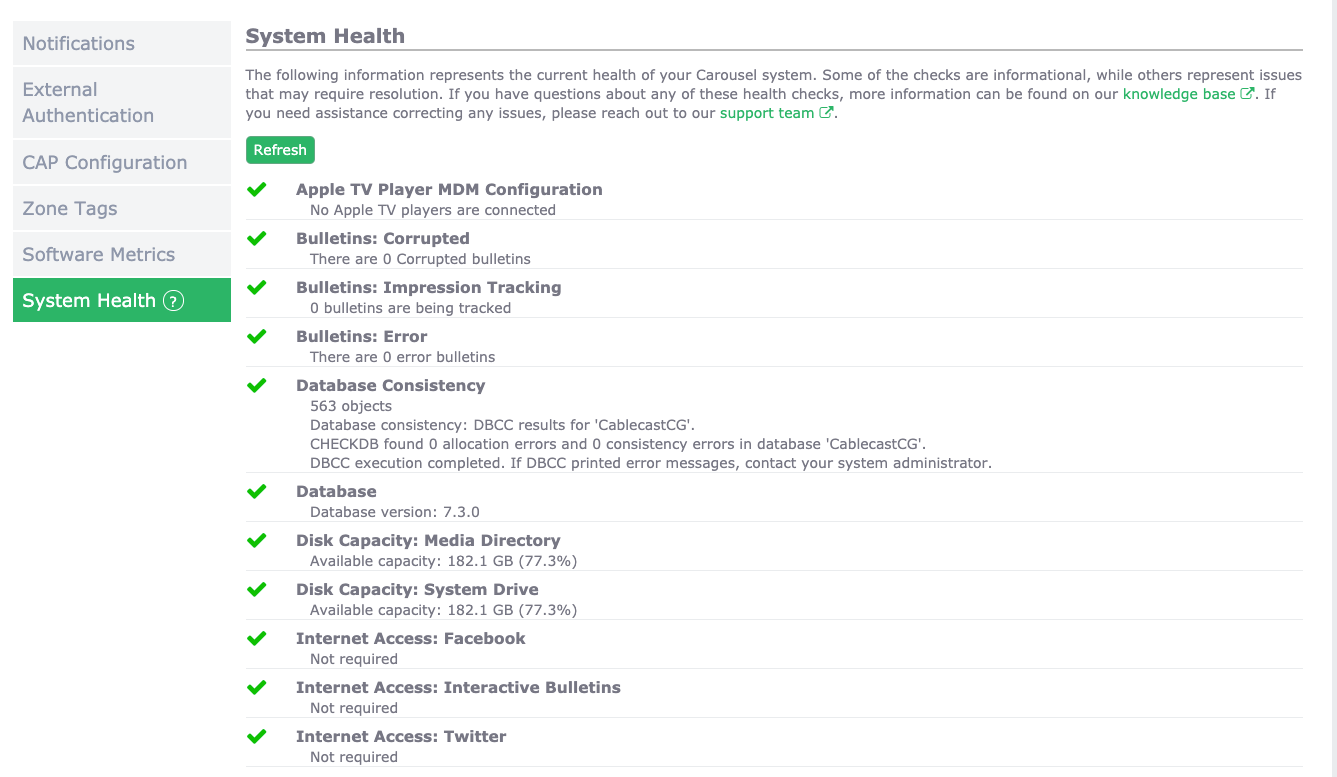
System Health is a resource for diagnosing issues with Cablecast CG. It runs a check to confirm that the components needed to run Cablecast CG are checking in and operating properly, giving you a thorough rundown of all the working parts.
Summary
All Cablecast CG configuration lives alongside your Cablecast settings under Settings → Cablecast CG Settings, organized into four sections: Players for managing players and default channels, Channels for channel layout and crawl settings, Zones for zone content and behavior, and System for external authentication, zone tags, and system health. Make changes carefully, and reach out to Cablecast Technical Support if you have questions.
