The Extras section in Cablecast CG
Every bulletin you create in Cablecast CG includes an Extras tab — the final tab in the bulletin editor, where you'll find settings that control how and when your bulletin displays. This article walks through each option so you can get the most out of your bulletins.
The Extras Tab
Every bulletin includes the Extras tab, no matter its type: Template, Uploaded, or Dynamic. It's always the last tab on the right in the bulletin editor. The number of tabs varies depending on the bulletin type, but Extras is always the final one.
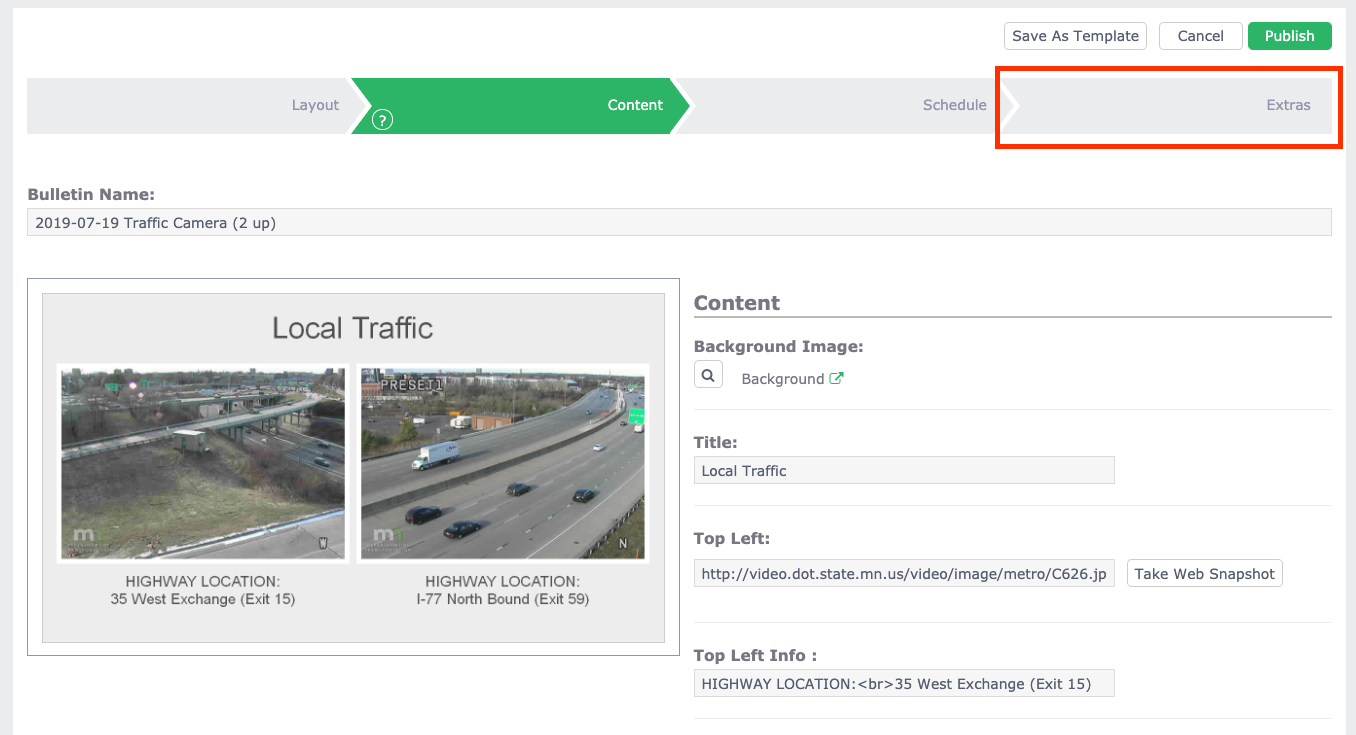
Select the Extras tab to see the additional options available to you. The options are grouped into a few categories, the most commonly used being Display Settings.
Display Settings
Each option under Display Settings is presented as a question you can answer.
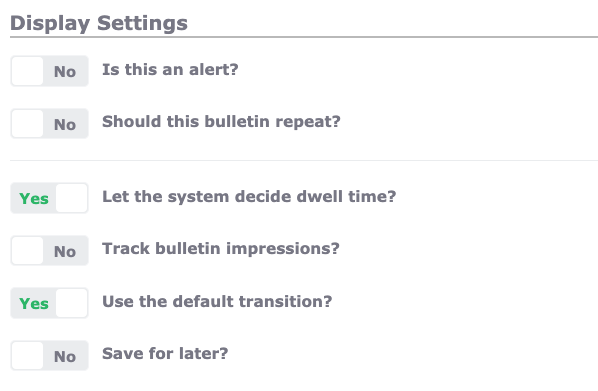
Is this an alert?
Setting Is this an alert? to Yes creates a zone-level alert. When you publish the bulletin, it overrides every other bulletin in that zone and displays on its own. This is useful for something important, such as an upcoming meeting or special office hours.
An alert follows the schedule you set for it. An Always Active alert stays up until you manually disable it, while an alert with a start and end time expires on its own.

Should this bulletin repeat?
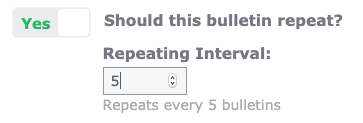
Should this bulletin repeat? lets you control how often a bulletin appears relative to the normal rotation. By default, a published bulletin shows once per full rotation of all active bulletins in its zone — so in a zone with 30 bulletins, yours appears once every 30 bulletins.
Set this to Yes and choose a Repeating Interval to override that. A lower interval makes the bulletin appear more often — useful for something like contact information or office hours that you want seen frequently, without creating duplicate bulletins to scatter through the rotation. A higher interval makes it appear less often, which is handy for a bulletin you want in the mix but don't need on screen as regularly.
Let the system decide dwell time?
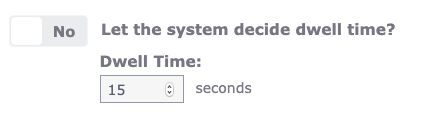
Let the system decide dwell time? controls how long a bulletin stays on screen before the next one appears. The system minimum dwell time is 10 seconds.
For Template bulletins, Cablecast CG estimates reading time based on the amount of text in the bulletin: a short blurb shows for the 10-second minimum, while a longer paragraph stays up longer so viewers have time to read everything. This automatic timing applies only to Template bulletins — Uploaded and Dynamic bulletins display for the 10-second minimum.
To set your own timing, change this to No and enter a Dwell Time in seconds.
Save for later?
Save for later? lets you save a work-in-progress bulletin without publishing it — useful when you're still waiting on details, such as contact information for an upcoming event, but don't want to lose the work you've already done.
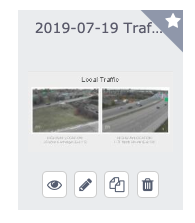
Set Save for later? to Yes and select Publish. Instead of going live, the bulletin moves to the expired section in Bulletin Management, marked with a star icon in its top-right corner so you can spot saved bulletins at a glance. When you're ready, edit the saved bulletin, set Save for later? back to No, and select Publish to send it to your channel.
Audio Settings
Audio Settings lets you add sound to a bulletin and control how it interacts with your channel's background audio.
Add an audio clip?
Add an audio clip? lets you add an audio clip to play along with the bulletin — ideal for a voiceover or a short clip that accompanies what's on screen. Set it to Yes, then open Audio Clip to choose your sound. You can search for and select a clip that has already been uploaded, or upload a new one by dragging a file into the dialog or selecting browse to upload.
When you add an audio clip, the bulletin's dwell time automatically matches the run time of the clip, so the bulletin stays on screen for as long as the audio plays. Enabling this option also turns on Fade the channel background audio? by default.
Note: This is not where you set up your channel's background audio. Background audio is configured in the Cablecast CG channel configuration, not at the bulletin level.

Fade the channel background audio?
Fade the channel background audio? keeps your channel's background audio from playing over a bulletin's own audio, which is especially useful when you've added video as an Uploaded bulletin. Set it to Yes, and the background audio fades out when the bulletin plays, then fades back up when it finishes. This toggle is enabled by default whenever you turn on Add an audio clip?, but you can switch it off if you want the channel's background audio to keep playing.

Training Video
A video tutorial covering the Extras section is available as a chapter in the New User Cablecast CG video.
Watch the Extras section tutorial video
Summary
The Extras tab gives you fine control over how each bulletin behaves on your channel. Use Display Settings to turn a bulletin into a zone-level alert, adjust how often it appears, change how long it stays on screen, or save it for later without publishing. Use Audio Settings to add an audio clip to a bulletin or fade your channel's background audio while it plays. Together, these options help you make the most of every bulletin in Cablecast CG.
