Website Links to Update After Reflect Activation
The Cablecast REFLECT service is a great addition to your workflow because it takes the heavy lifting off of your IT infrastructure, delivering your content to web-enabled devices and websites. If you were using custom links prior to activating REFLECT, or if you have a custom website that links to your live stream and VOD content, you'll need to update those links to utilize the full abilities of Cablecast REFLECT. This article provides guidance on what those updated links look like and how to configure them.
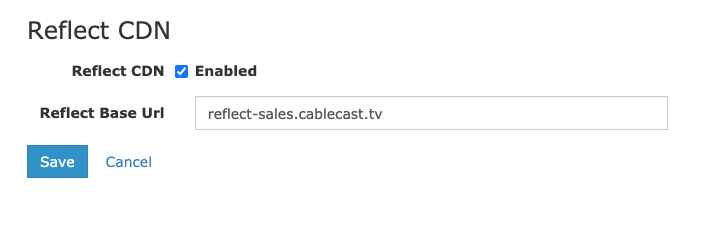
Your REFLECT URL is what you'll use instead of your Public Address for things like embed codes, direct links to VOD and Live Streams, and your Public Site.
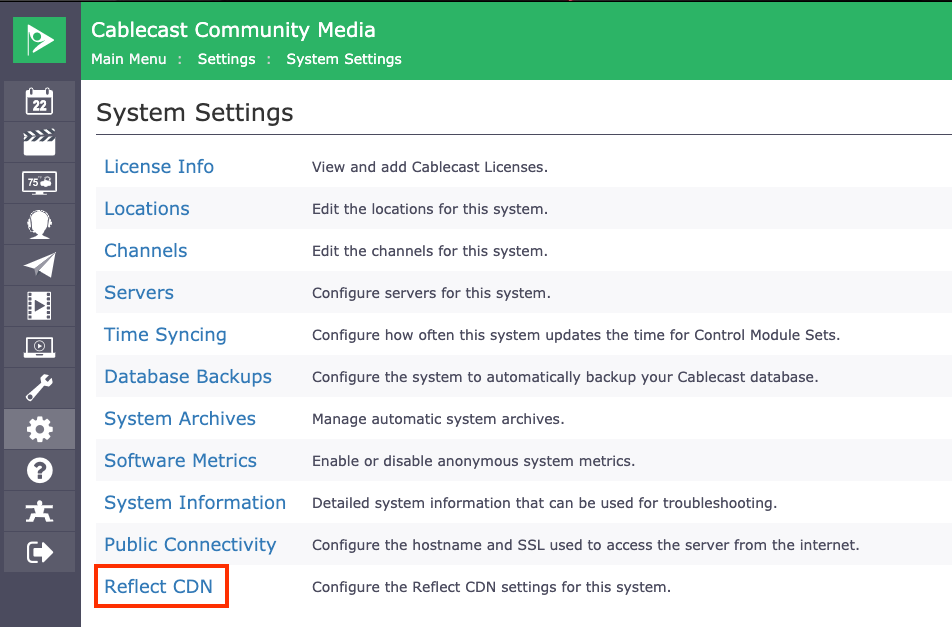
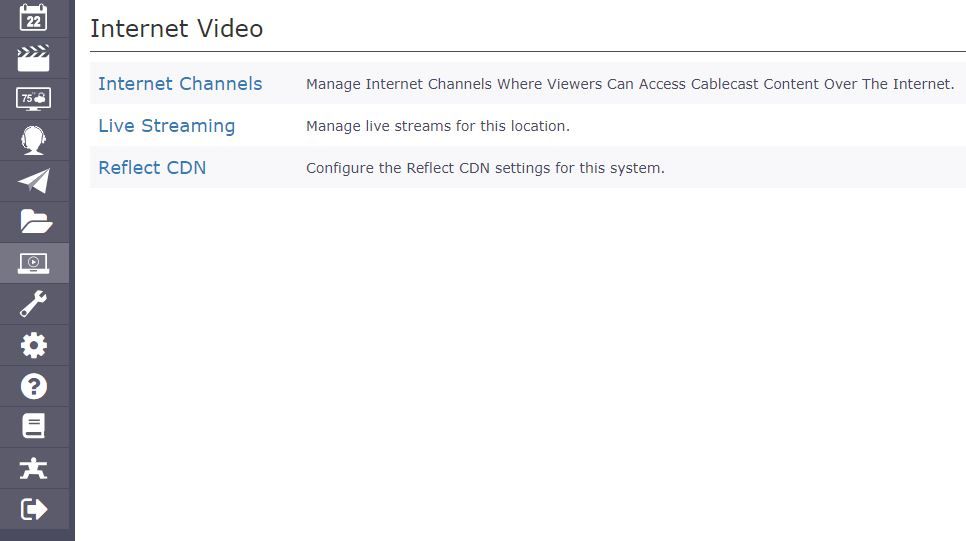
You can find your REFLECT URL in the Cablecast User Interface. Depending on your Cablecast version, REFLECT CDN is located in one of two places:
Cablecast 7.4: Settings → System Settings → REFLECT CDN
Cablecast 7.5+: Settings → Internet Video → REFLECT CDN
This will give you the REFLECT URL for your system.
Warning
Do not edit, change, or delete this URL in any way, or your Live and VOD content will not work.
Updating Your Public Site Link
This REFLECT URL can be used instead of your Public Address to access things like your Public Site. For instance, this was the original link to the Public Site of a channel using the bandwidth of the network the system is on:
https://sales.cablecast.tv/CablecastPublicSite/?channel=1
To utilize the REFLECT service, use that REFLECT URL in place of the Public Address by changing the front portion of the address and leaving the back half the same:
https://reflect-sales.cablecast.tv/CablecastPublicSite/?channel=1
The content and site will look identical — it will now just be utilizing the REFLECT CDN.
Updating Embed Codes
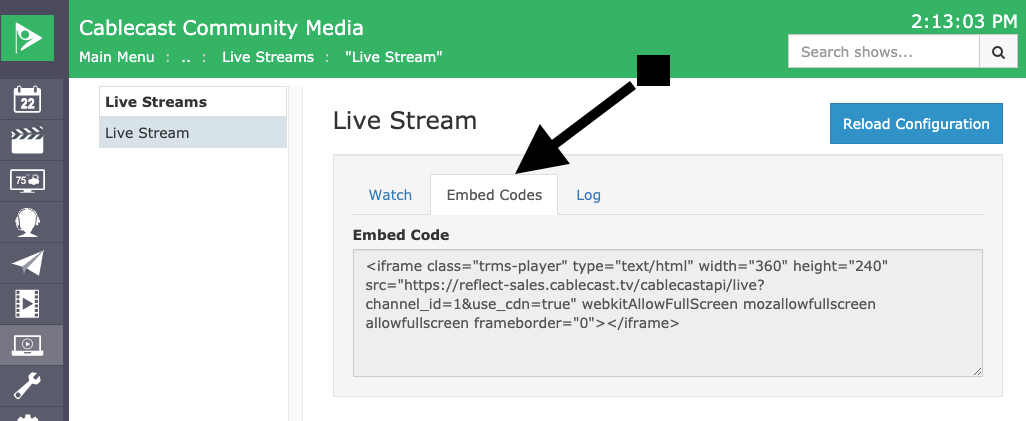
Cablecast provides an Embed Code for your Live Streams, which you can quickly copy and add to your website. Once REFLECT is configured for your system, those embed codes will automatically start using the REFLECT URL.
To find the embed code for your live stream, go to Internet Video → Livestreams → (your live stream) → Embed Codes.
Note
The REFLECT URL will not give you access to the Cablecast User Interface. You'll still want to use your Public Address to access the User Interface.
These tips will give you the fullest use of your REFLECT service and peace of mind when streaming your important events.
