Using Closed Captioning Sidecar Files with Cablecast
Sidecar files let you add closed captioning to your programs by placing a caption file alongside the video file on your content drive — no transcoding required. Because sidecar files are text-based and small relative to video files, they are easy to move, replace, and update.
Many captioning products and services can produce sidecar files, including ENCO enCaption and Telestream CaptionMaker.
Note
Sidecar files require a VIO or Flex server. They are not supported on legacy SX servers.
Supported File Formats
Cablecast supports the following sidecar file formats:
MCC (MacCaption) — CEA-708
SCC (Scenarist) — CEA-608
File Naming Requirements
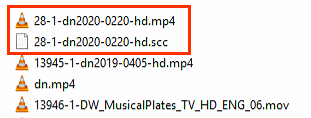
For Cablecast to recognize a sidecar file, it must have the exact same name as the source video file, with the caption file extension in place of the video file extension.
Example:
Video file | Sidecar file |
|---|---|
28-1-dn2020-0220-hd.mp4 | 28-1-dn2020-0220-hd.scc |
Note: If the filenames do not match exactly, Cablecast will not associate the caption file with the video.
Placing the Sidecar File
Place the sidecar file in the same location as the source video file on the content drive. You can add or replace a sidecar file at any time without modifying the video file itself.
Uploading a Sidecar File Through the Assets Section
You can also upload a sidecar file directly through the Assets section of the Cablecast UI, the same way you would upload a video file. The file must still follow the naming requirements above so Cablecast can associate it with the correct video.
How Captions Are Delivered
Once the sidecar file is in place and correctly named, Cablecast delivers captions automatically. If the show is enabled for video on demand (VOD) or played via a live stream, the captioning data is included in both.
