Uploading a File Within Cablecast
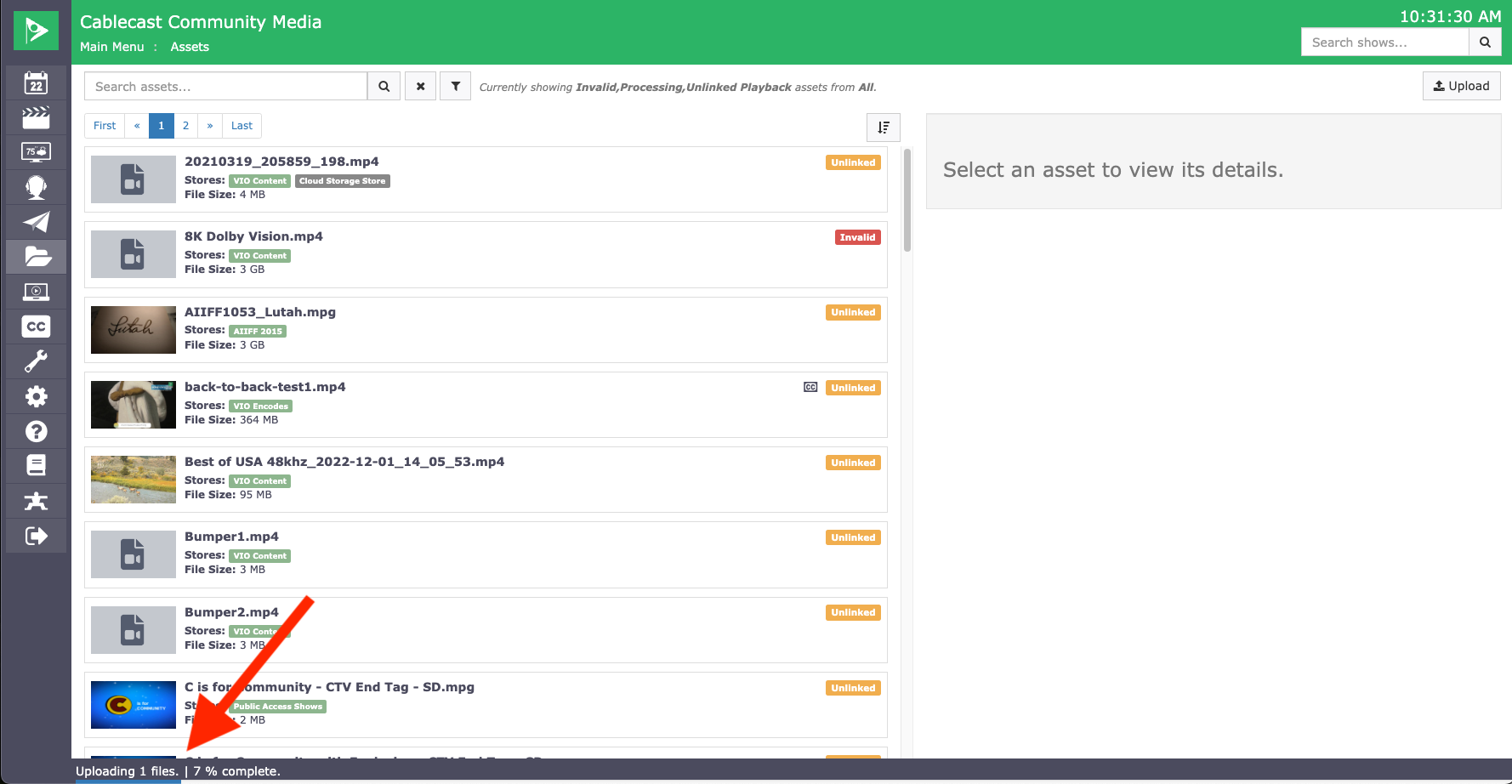
In Cablecast, you can upload content files to your video server directly through the Cablecast interface. Files are uploaded in 10 MB segments and reassembled into a complete file after all segments have been transferred. Because of this, there is no file size limit, though a faster internet connection will result in faster uploads.
Uploading Assets in Cablecast
Learn how to upload a video file to your Cablecast video server directly through the browser. This video walks you through selecting a file, choosing a File Store, monitoring upload progress, and what to expect once the upload is complete.
How to Upload a File
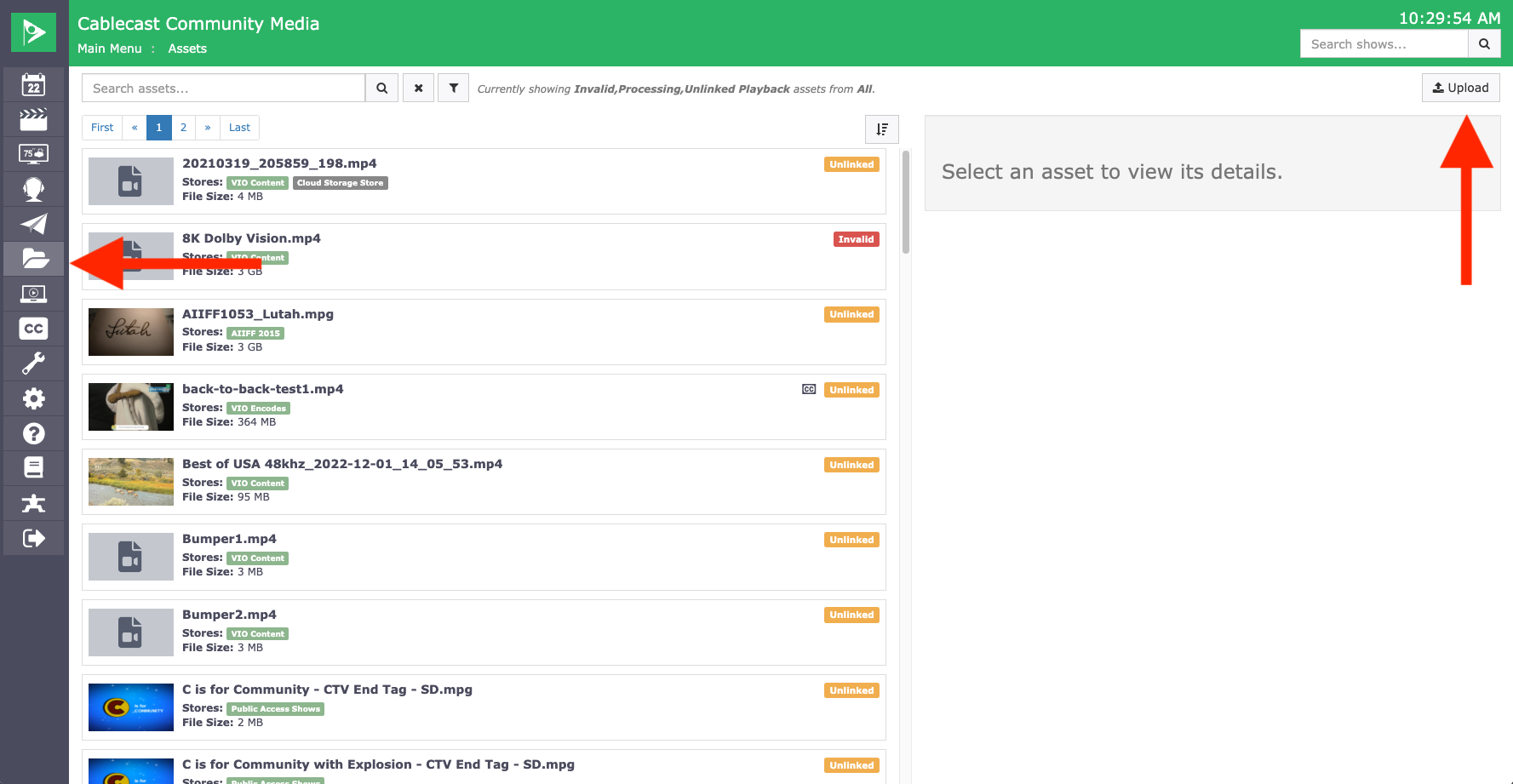
Go to Assets in the left-hand menu.
Click the Upload button in the upper-right corner of the screen.
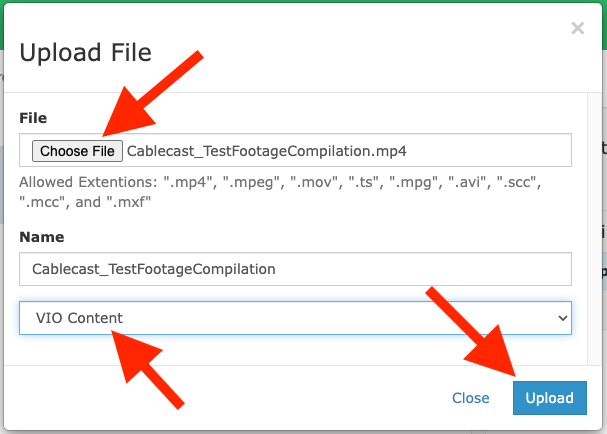
In the Upload File dialog, click Choose File and select the file you want to upload. You can optionally rename the file in the Name field.
Use the dropdown menu to choose the File Store you want to send the file to.
Click Upload to begin.
Warning: Do not refresh or close the browser tab while an upload is in progress. The upload runs through your browser connection, and closing or refreshing the tab will cancel it.
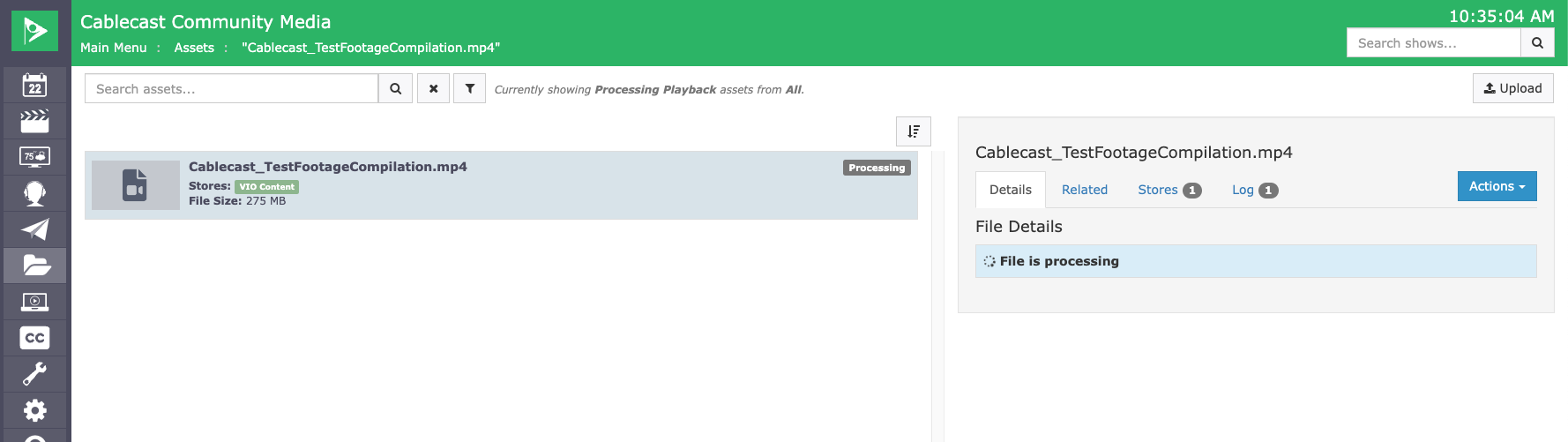
After the upload finishes, it is normal for the file to take 1–2 minutes before it is fully available. During this time, Cablecast is reassembling the file from its upload segments and transferring it to the selected video server. You may see the file appear with a Processing status in the Assets screen during this period.