System Archives in Cablecast 7.1
Overview
In Cablecast 7.1 we have added a convenient way to backup your system without having to think about it. Our new System Archives feature will nightly create backups of your Databases, Cablecast CG Media, and other Cablecast reference files. It then takes all this information and contains it in a single file that is then saved to your Content drive when available. This makes Restoring a system after a catastrophic loss much easier.
Things To Note
This feature does NOT backup any of your video content or VOD content. You are still going to want to have a plan in place to backup that content regularly.
The contained archive file gets stored in the server's content drive when available which is nice and convenient. But you are going to want to make a copy of that archive and store it somewhere else as well. That backup isn't going to be any help if the content drive is also lost in a server failure.
To access the archived content, you can simply change the file extension to .zip and then extract just like any other Zip file.
System Archives In the User Interface and Storage
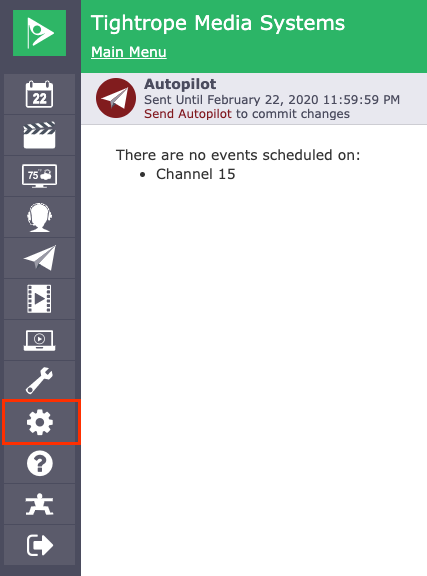
To find the information about your system archives, click the Settings icon in the menu bar on the left hand side.
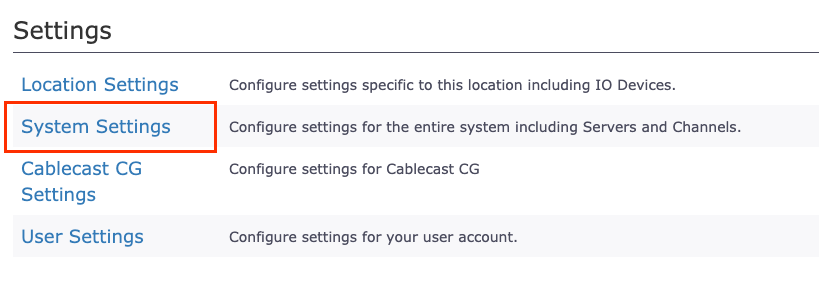
Then choose System Settings.
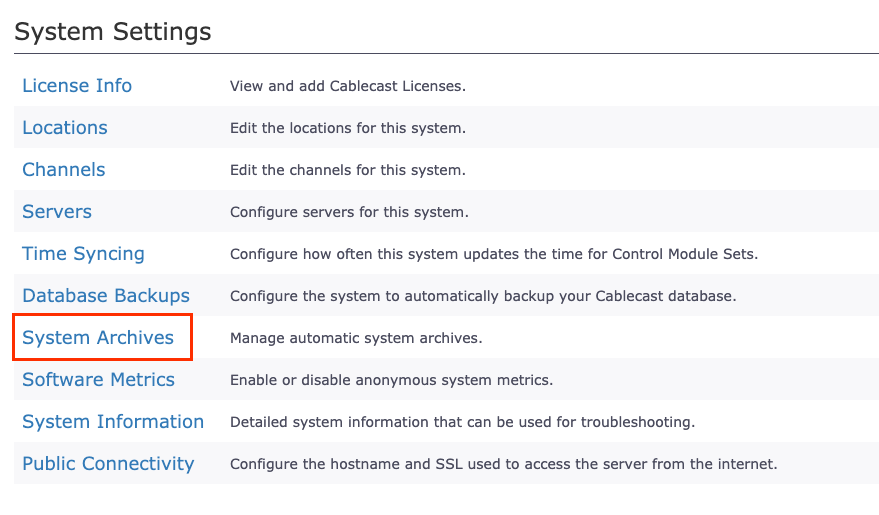
Once in the System Settings Page, select System Archives.
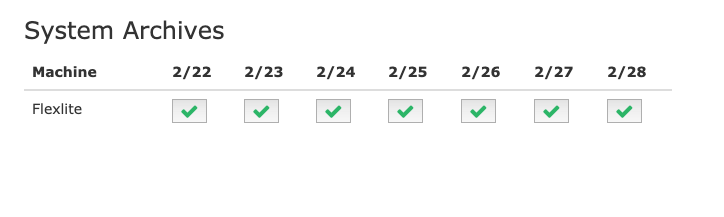
We will save archives for the last 7 days. This screen will tell you that an archive has been successfully made for that day with a Green Check Mark. If for some reason an archive was not made, there will be a Yellow Question Mark instead.
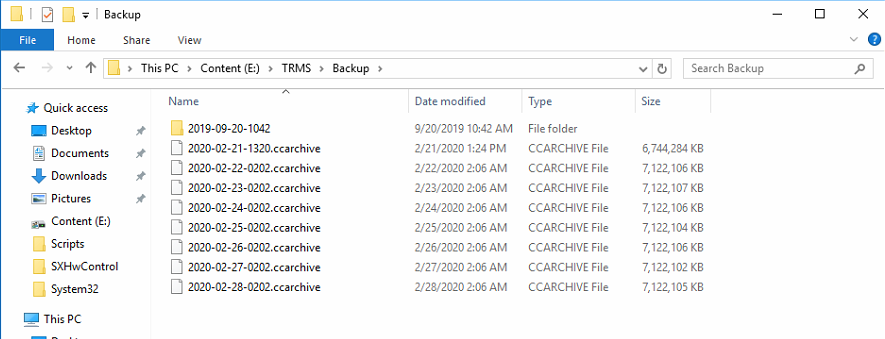
On the video server, in your content drive there will be a TRMS folder. Inside that folder there will be a Backup folder that holds all of the archive files. These files will automatically delete after 7 days, so there is no need to worry about these taking up space on your content drive. Like mentioned earlier, you will want to make copies of the archive files and store them somewhere other than the server.