Finding a Zone's Pixel Dimensions in Cablecast CG
Overview
Cablecast CG scales images and videos to fit the zone they're loaded into, so you don't have to match a size exactly. But for the best-looking results — especially for uploaded bulletins and seamless backgrounds — it helps to size your file to the zone's actual dimensions so it isn't stretched or resized. This article shows how to find a zone's exact pixel dimensions.
Related: How to Create an Uploaded Bulletin and Uploading Seamless Backgrounds in Cablecast CG.
Finding a Zone's Dimensions
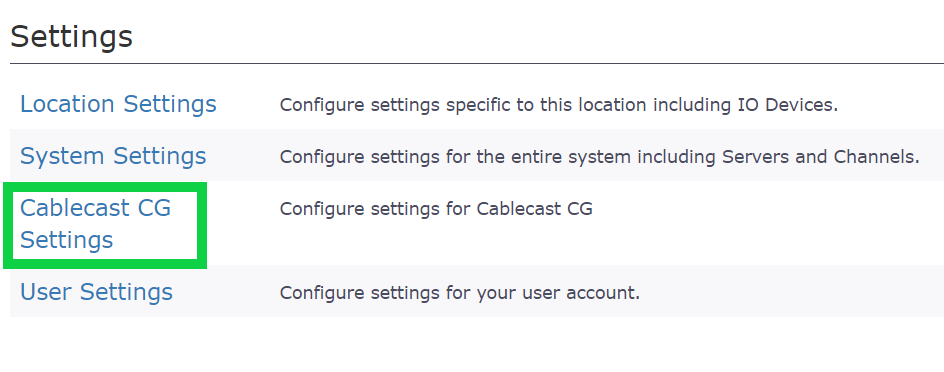
Go to Settings and select Cablecast CG Settings. (For more on the settings menu, see Where Are the Configuration Settings in Cablecast CG?)
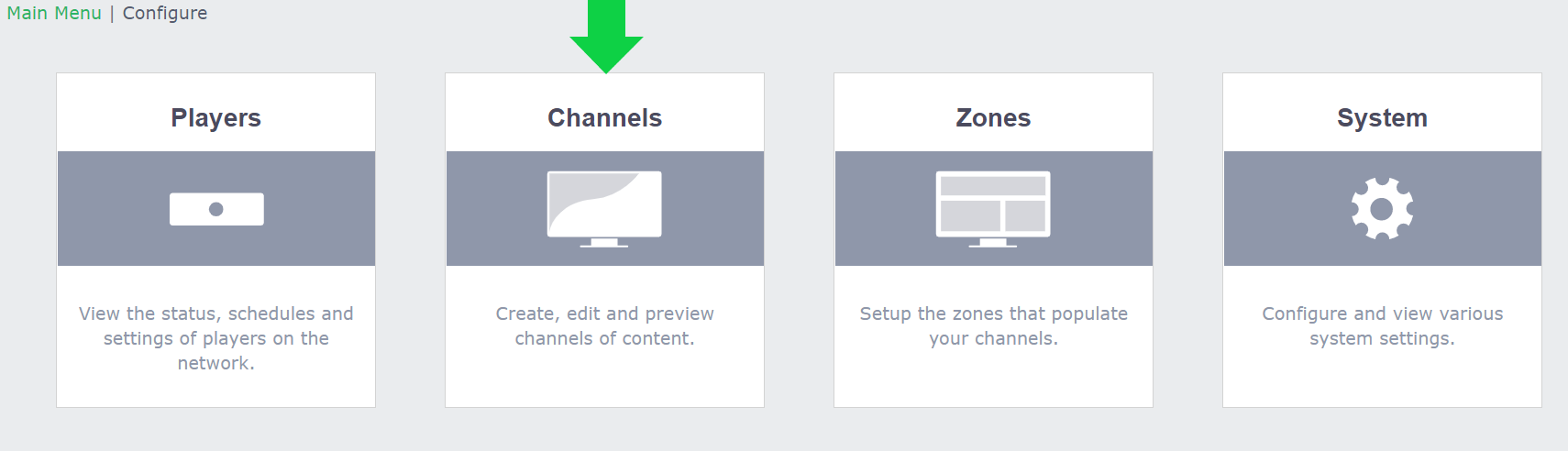
Select Channels.
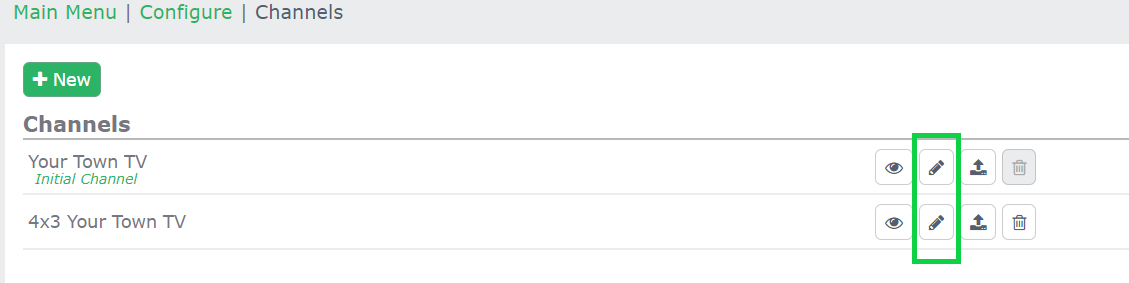
Select the pencil (Edit) icon for the channel you want to check.
Select the zone in the channel layout. The zone's settings appear at the lower right.
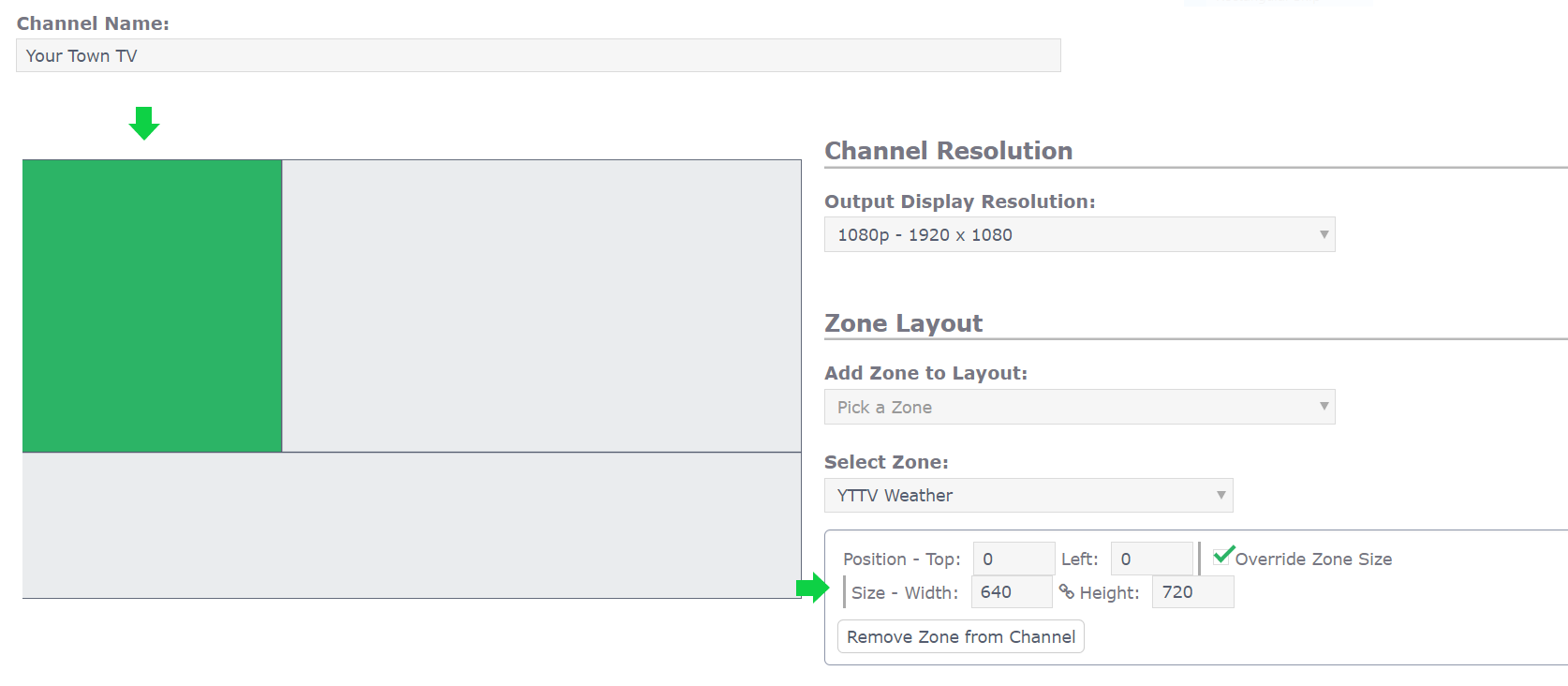
In the zone settings, the Size fields — Width and Height — show the zone's pixel dimensions. Those are the dimensions to match when sizing your image or video. (The Channel Resolution shown above the zone settings is the full channel output, such as 1920 × 1080, not the individual zone size.)
Summary
Cablecast CG scales files to fit a zone, but sizing your image or video to the zone's actual dimensions gives the cleanest result. To find those dimensions, go to Settings → Cablecast CG Settings → Channels, edit the channel, and select the zone. The zone's Width and Height under Size are the pixel dimensions to design to.
