Screenfeed Sources with CablecastCG
Screenfeed is a subscription based service that provides ready-made content that can be used directly in Carousel. More information about their services can be found on their website. Tightrope Media Systems and Screenfeed are not affiliated, and should also not be confused with our product "Screenweave".
While we happily accept using Screenfeed subscriptions in Carousel & CablecastCG, we don't offer technical support on their product. Any issues with Screenfeed subscriptions should be addressed with Screenfeed directly.
Screenfeed provides sources like traffic maps, animated radars, static radar maps, weather, pollen indexes, and more.
Licensing for broadcast use
Screenfeed requires the purchase quantity of "two players" for feeds intended for use in a broadcasting environment. Cablecast cannot be held responsible for incorrect player licensing counts.

Supported Delivery Methods
Delivery methods that CablecastCG supports out of the box:
Media RSS (Images only)
Data RSS
Methods that currently don't work natively with CablecastCG:
Flash Playback
Media RSS (Video playback)
FTP
Webpage / HTML (Interactive)
Content Types & Carousel
Carousel will work without issue with most of their static image based feeds and some animated feeds. However, Content feeds that include video currently don't work in CablecastCG.
Usage
The best method to use Screenfeed content is using Media RSS (Using "RSS" bulletin). Create a zone and fill the zone with the "Web Picture" block.
Quick Start Guide
You can also watch this step-by-step video tutorial here: https://soapbox.wistia.com/videos/suENDaEVNX
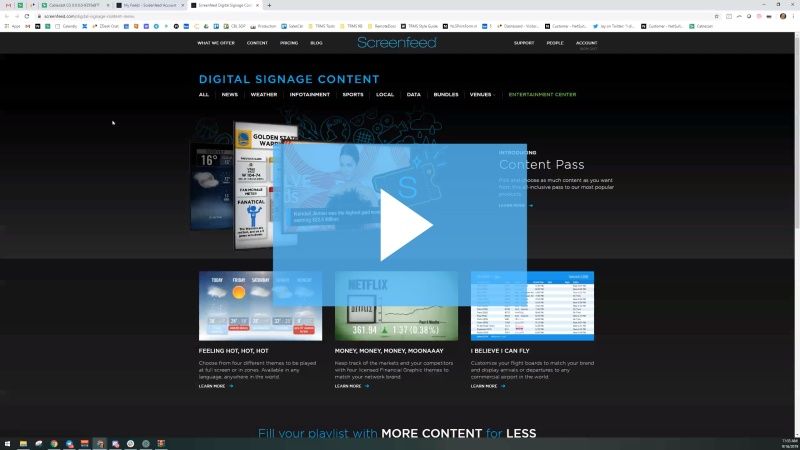
Soapbox - Screenfeed in CablecastCG
Go to screenfeed.com and purchase / start a trial for the feed type you want.
Create a new feed. Try to match your zone size (16:9 or 4:3).
Once you have created your feed, you'll get the URL for using in Carousel. Copy this Media RSS feed. Remember we do not support media RSS with video sources.
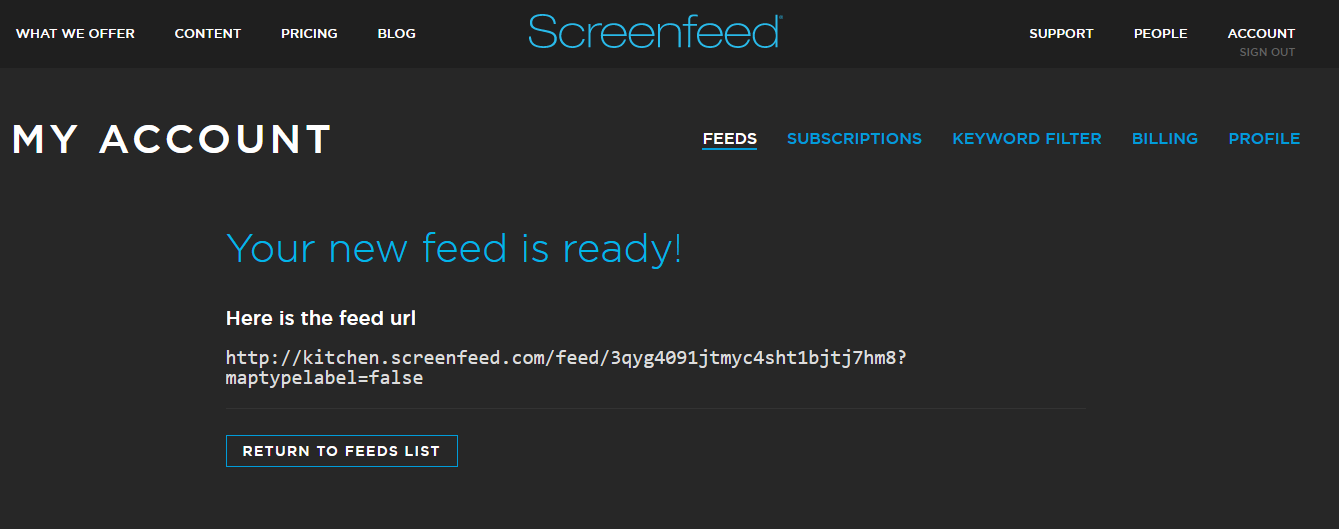
Go to CablecastCG (Formally, Carousel) and create a new Dynamic bulletin > RSS
Paste your URL from Screenfeed into the Feed URL section

Go to the Layout tab, and delete all the blocks.
Create a new block, Fill the zone with it and change the type to "Web Picture". (Its in good practice to also name your block something like "URL")
Next you're going to go to the "Content" tab. Go under "Dynamic Fields List" and find the item that contains the .jpg image. Copy the "Item tag" (surrounded in #hashtags#) and paste it into the URL block you made in step 7. In most cases, its going to be #ItemImageURL#.
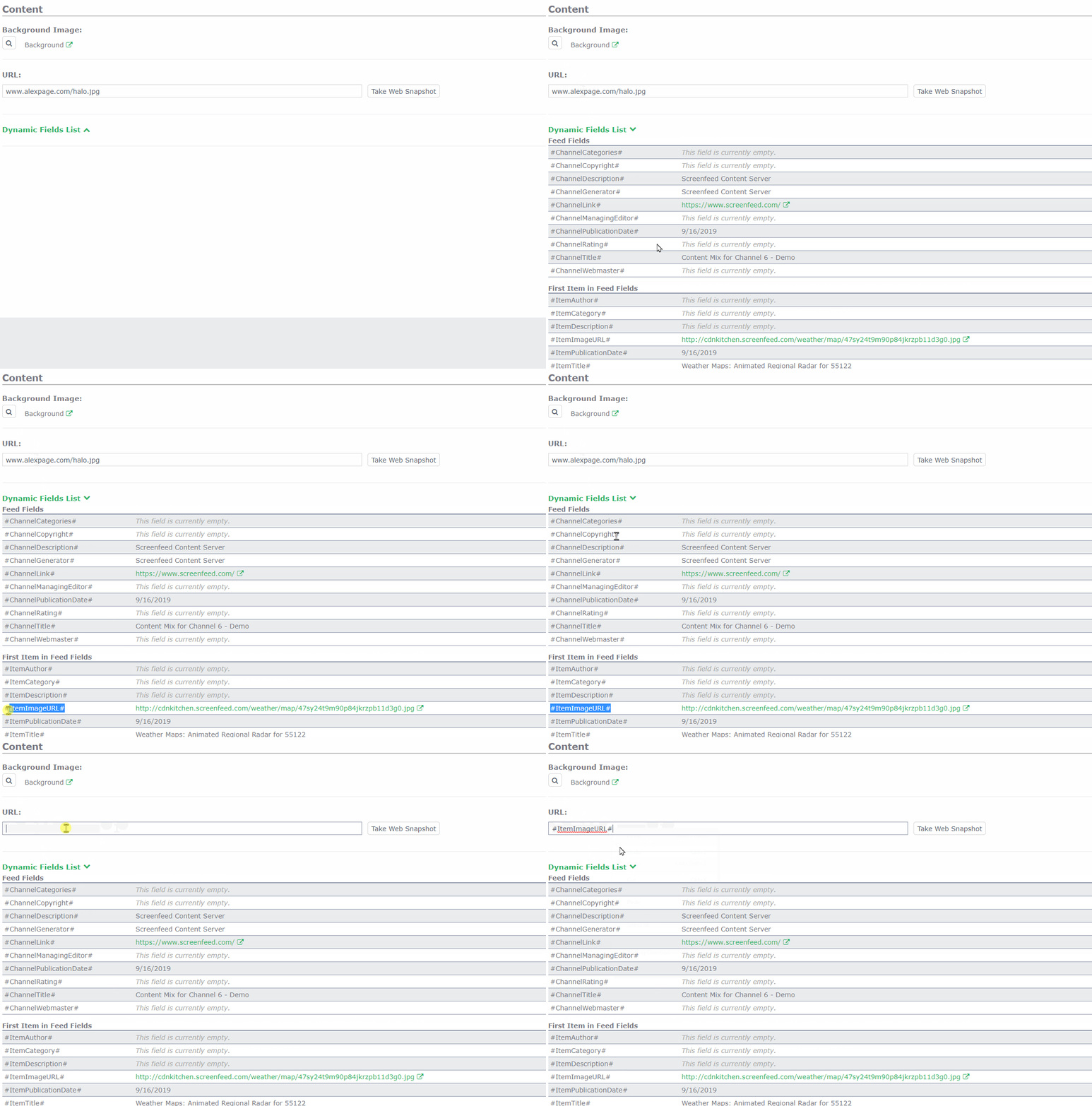
This next part is important.
If you are doing a Animated Radar Map, Go to the "Extras" tab and change the dwell time to 1 second.
All other media types can remain as a automatic dwell timer, or manually set one.
Publish / save, and you're done!