Restarting Cablecast Video Server Engine
Overview
There are certain situations that might require you to restart the Cablecast Video Server Engine. This restarts the video server process on your server without requiring a full reboot. For example, if you change zone sizing in Cablecast CG or add an MP3 playlist to your CG, you'll need to restart the Cablecast Video Server Engine on your CG server for those changes to be reflected on playout.
This article walks you through restarting the engine step by step.
Warning
Restarting the Cablecast Video Server Engine stops playback and encoding on that server. If you output CG from the same output as your scheduled programming, don't restart the engine while a live event is running on the channel or while an encoder on the server is recording.
This Article Applies To
These steps apply to VIO and Flex (non-legacy) servers. If you're running a legacy server, contact Cablecast Support for assistance.
Restarting the Engine
On your VIO or Flex (non-legacy) server, search for Services in Windows and open it.
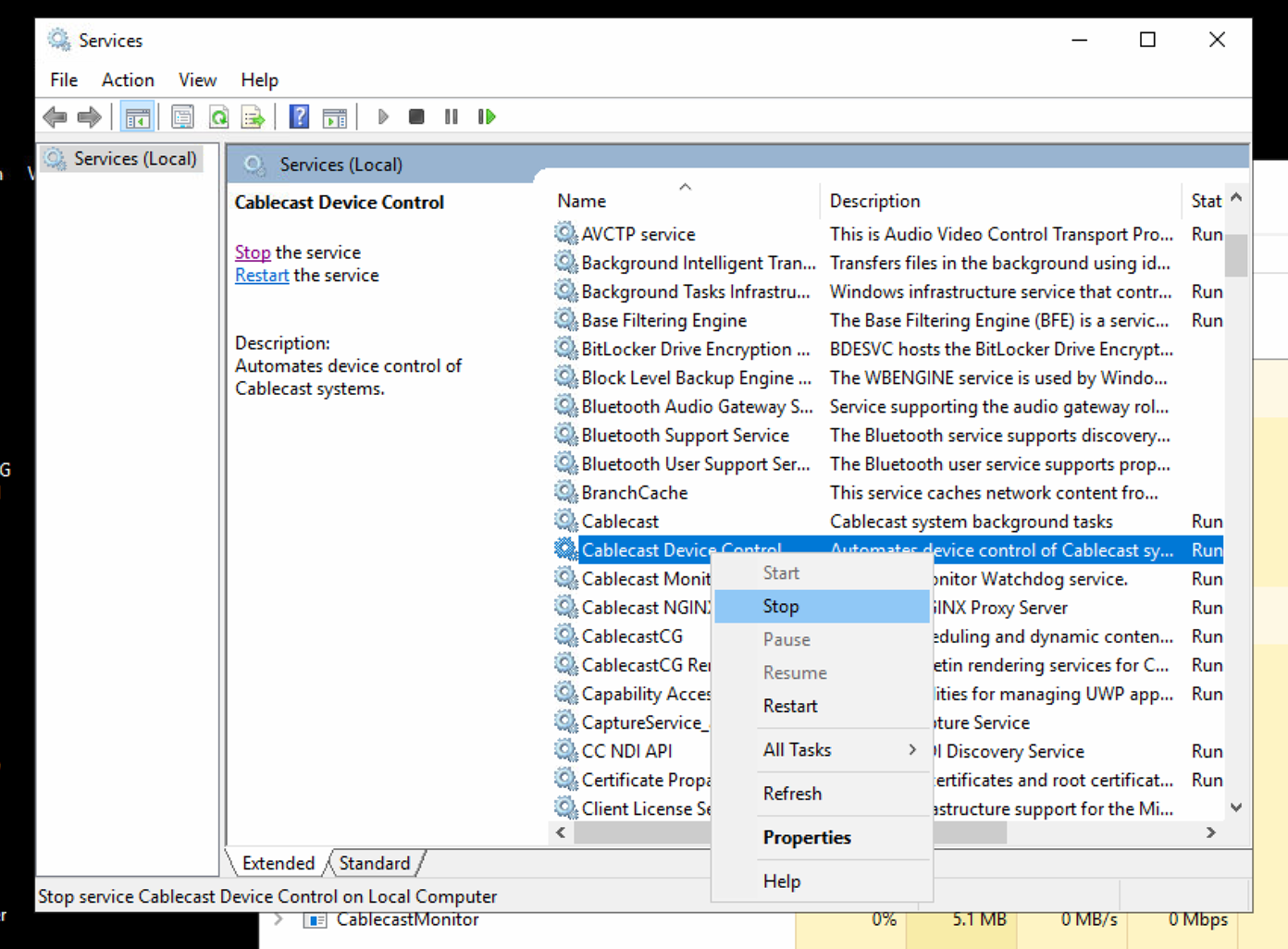
Right-click the Cablecast Device Control service and select Stop.
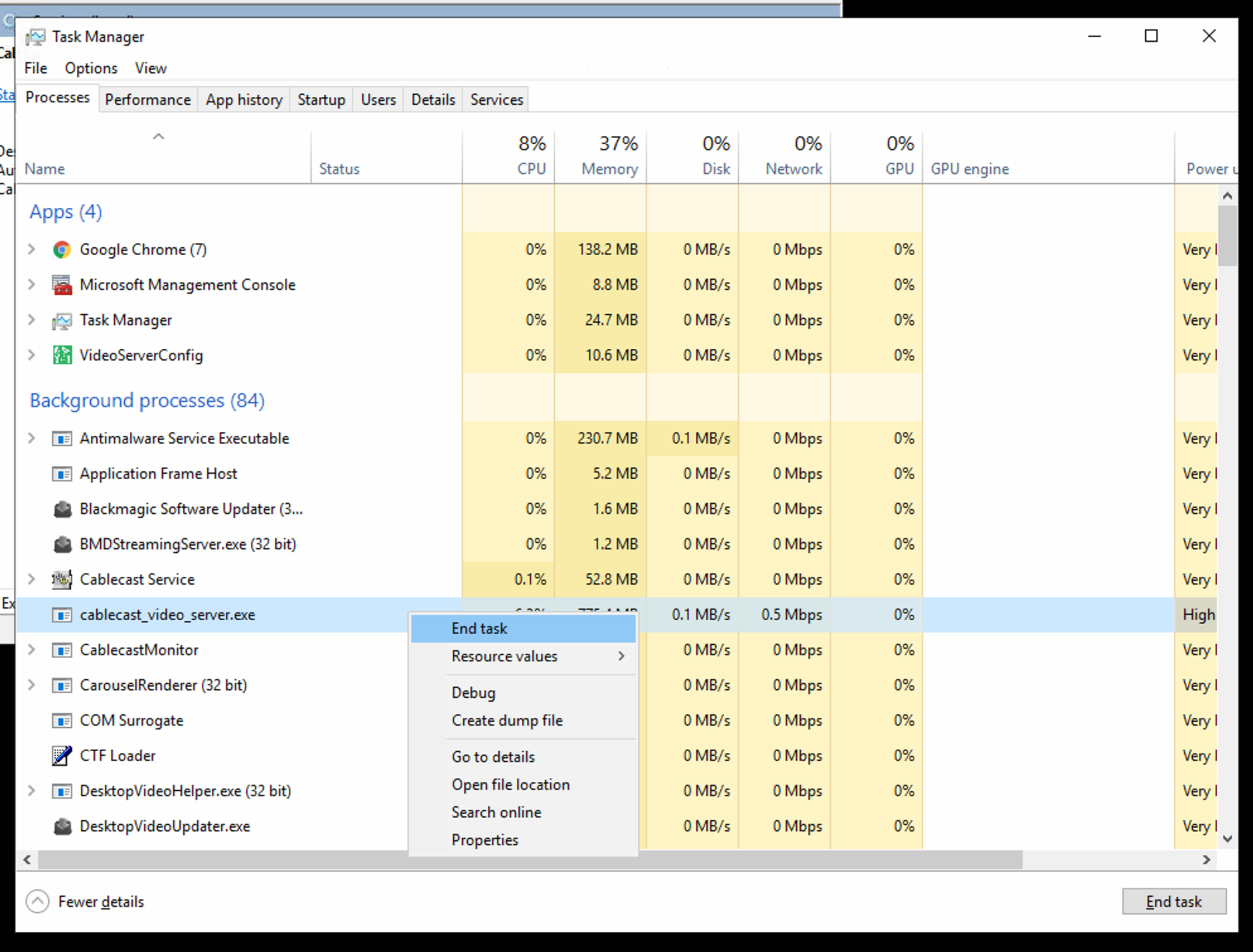
Open Task Manager by pressing Ctrl+Shift+Esc, or by searching for Task Manager in Windows.
On the Processes tab, right-click cablecast_video_server.exe and select End task.
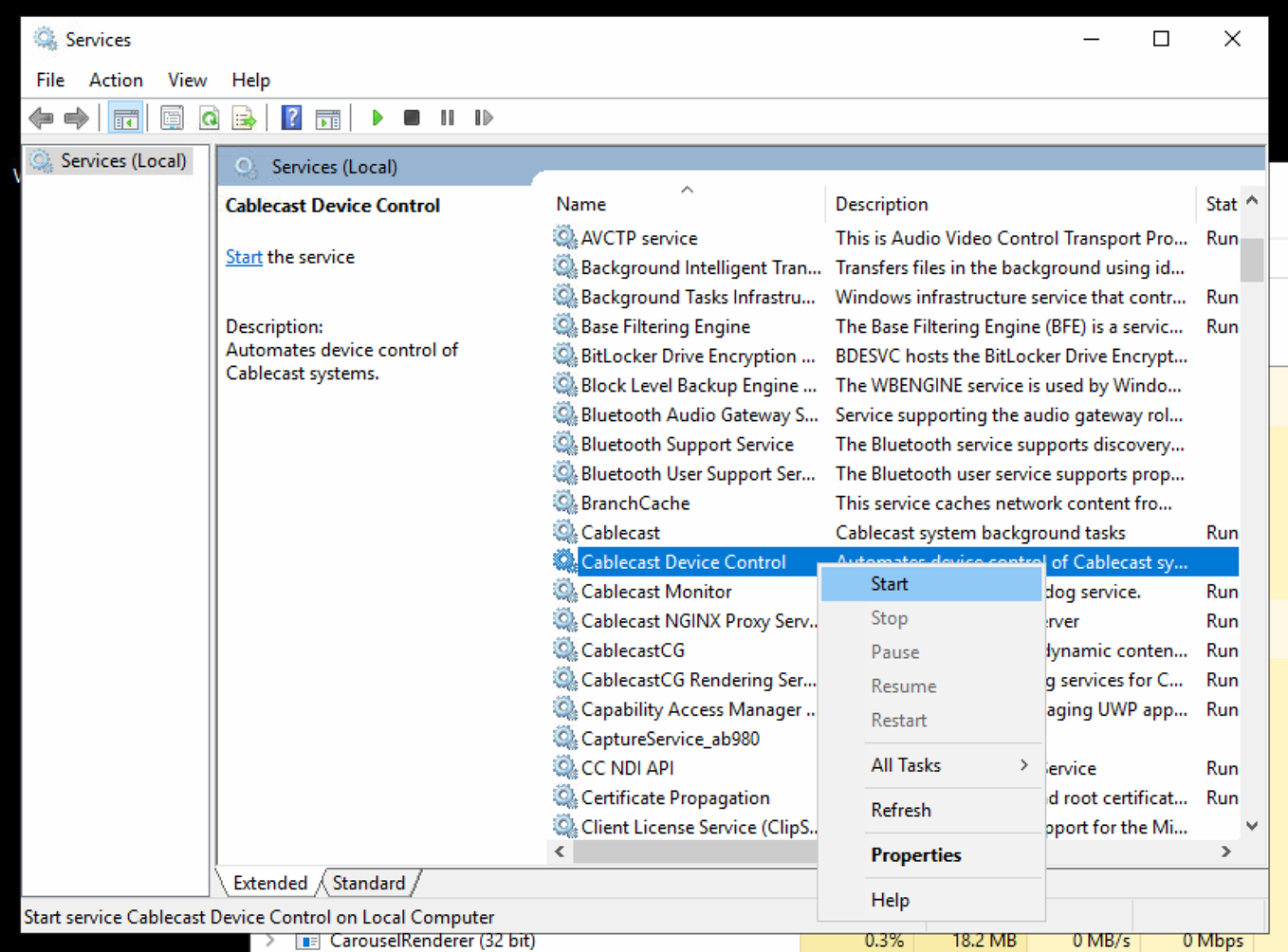
Return to the Services window.
Right-click the Cablecast Device Control service and select Start.
Summary
Restarting the Cablecast Video Server Engine stops the Cablecast Device Control service, ends the cablecast_video_server.exe process, and starts the service again — no full server reboot required. Once the service restarts, your changes should be reflected on playout. If you run into issues with any of these steps or if your changes still aren't appearing, reach out to Cablecast Support for additional assistance.
