Recording A Network Stream In Cablecast 7.1
Question
How do I record a network stream in Cablecast 7.1?
Answer
To record a network stream we need to tell Cablecast that we want to record the video server that will be playing the network stream. Scenarios where one uses the force matrix to force the live stream to air, like a city council meeting hosted on Zoom for example, we might not have a scheduled playback run to record.
Solution 1 - Manually Encode Using Force Matrix
In this solution we will manually control the router and the encoder to switch our video server output to the encoder, and then start a record.
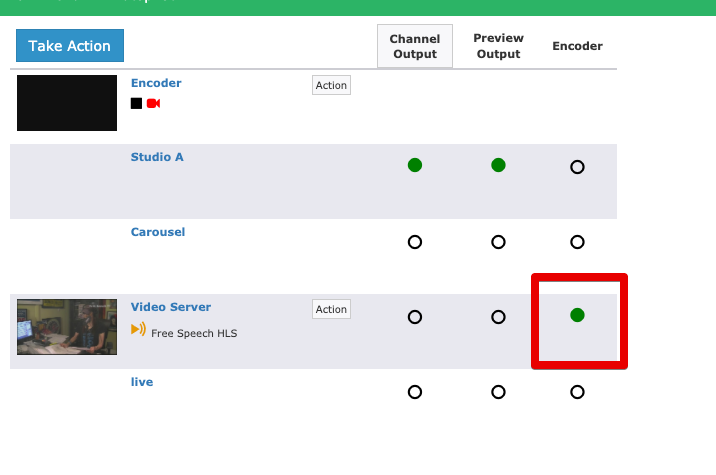
Click the cross point routing your Video Server ouput playing the stream to the encoder.
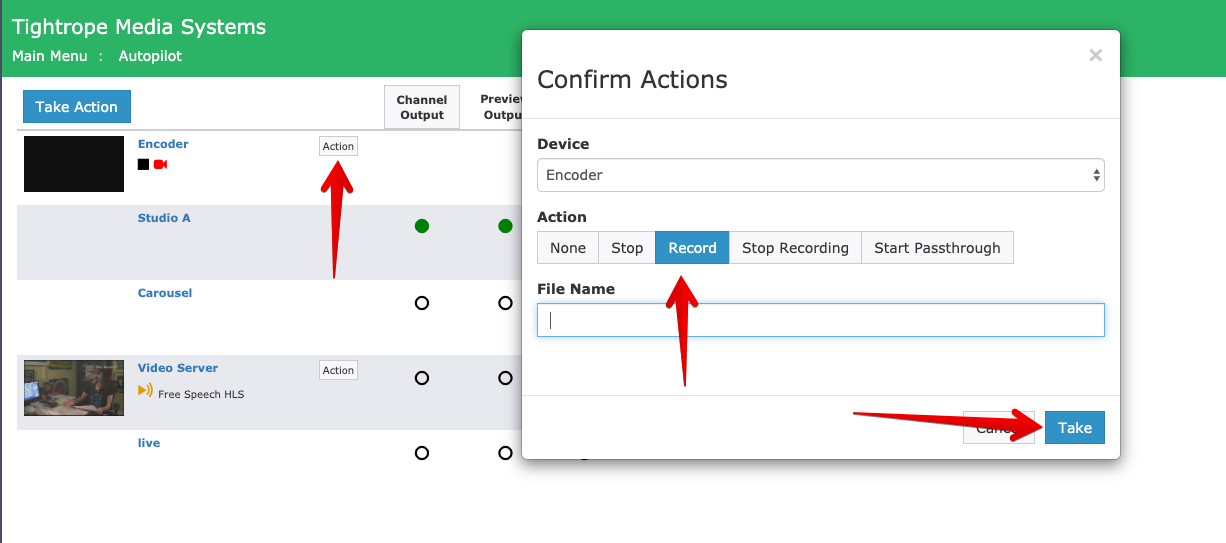
Click Action on the encoder and choose Record and then click Take
You can optionally give the encode a name.
Solution 2 - Record Schedule
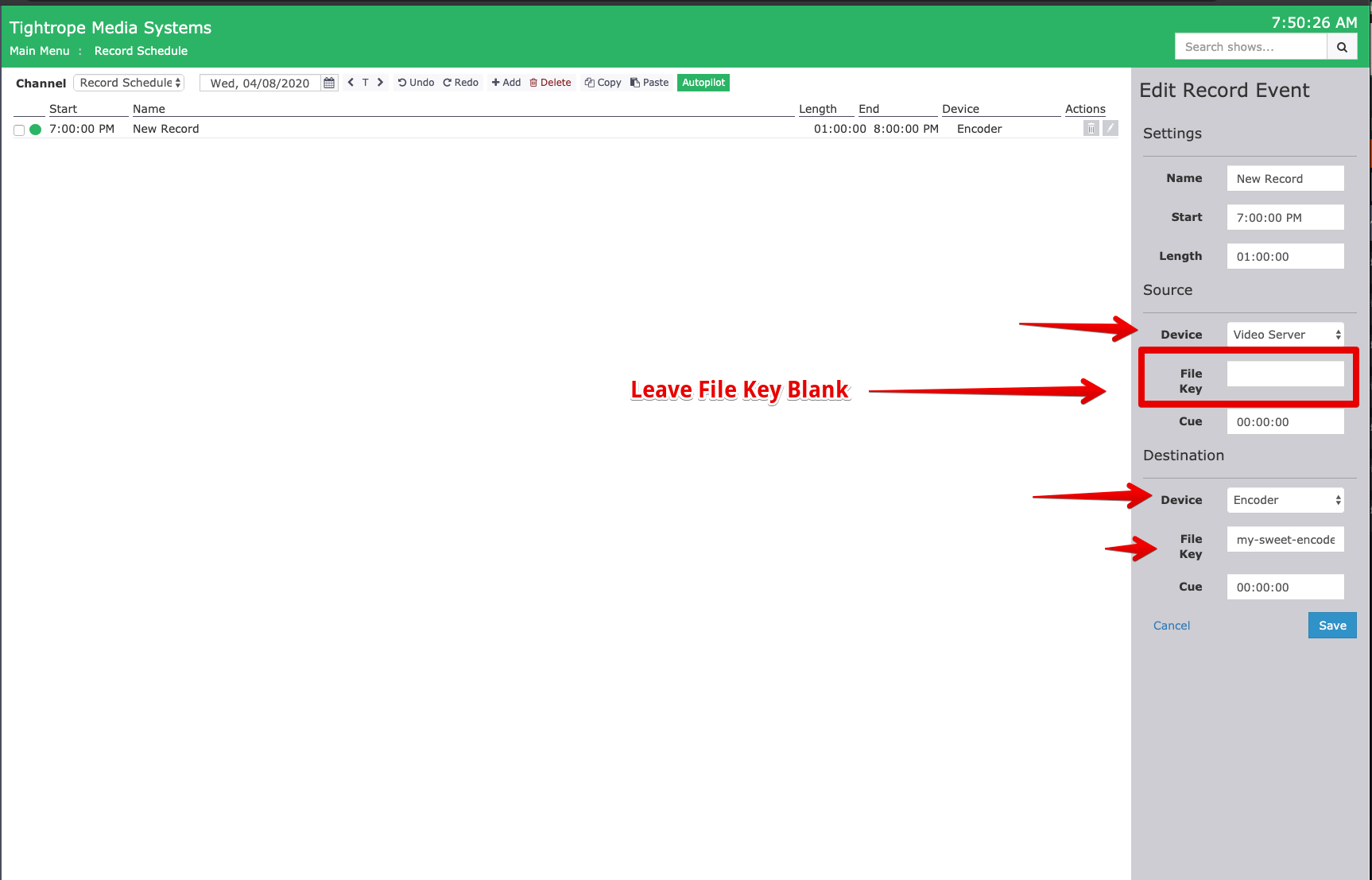
In this solution we will use the record schedule to schedule a record. We will choose our video server that will be playing the stream as our source device and choose a video server encoder as the destination. This solution is advantageous as it will automatically start and stop the record at the correct times and switch the video server to the encoder automatically.
It is important to leave the the File Key blank, or else the Cablecast will try to play a show and disrupt the network stream playback.
In the record schedule create a new record event.
Set the Start and Length fields to values appropriate for your event.
Set the Source Device to the video server that will be playing the network stream.
Set the Destination Device to an encoder.
Save and Send Autopilot.
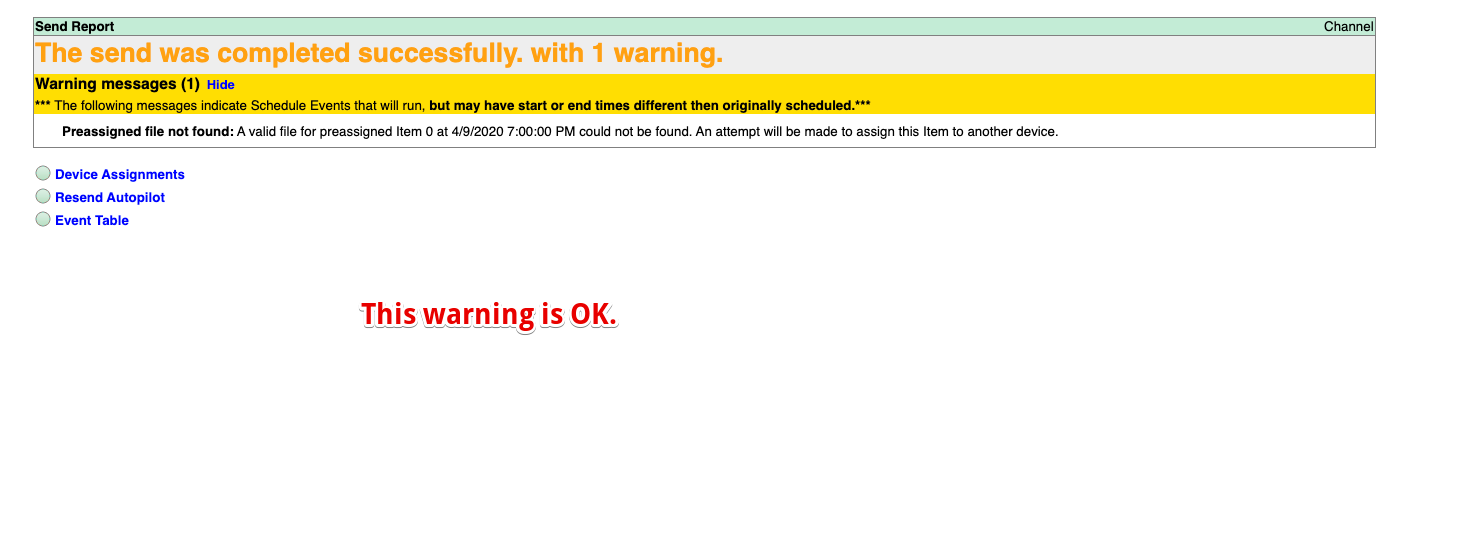
Note you will get an autopilot warning about not being able to find a pre-assinged device. This is fine, it's just complaining about not being able to find a blank file to play. The record events will still be created correctly.