Managing Bulletins in Cablecast CG
Overview
Cablecast CG lets you create bulletins with a wide variety of information, and it makes the bulletins in your zones simple to manage and edit. This article covers the bulletin categories, the per-bulletin action buttons, reordering and grouping, and bulk actions.
Navigating to Bulletin Management
Go to Cablecast CG in the left-hand menu.
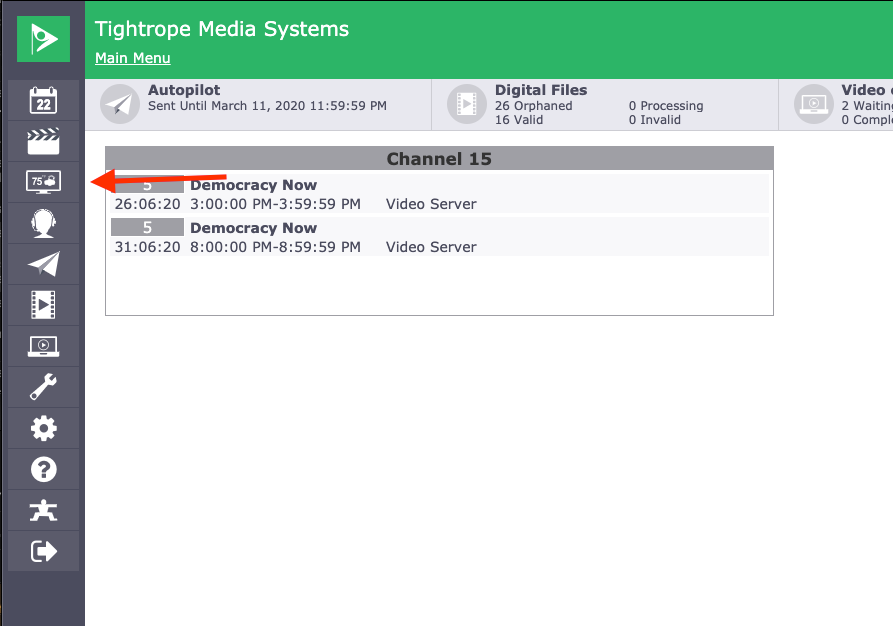
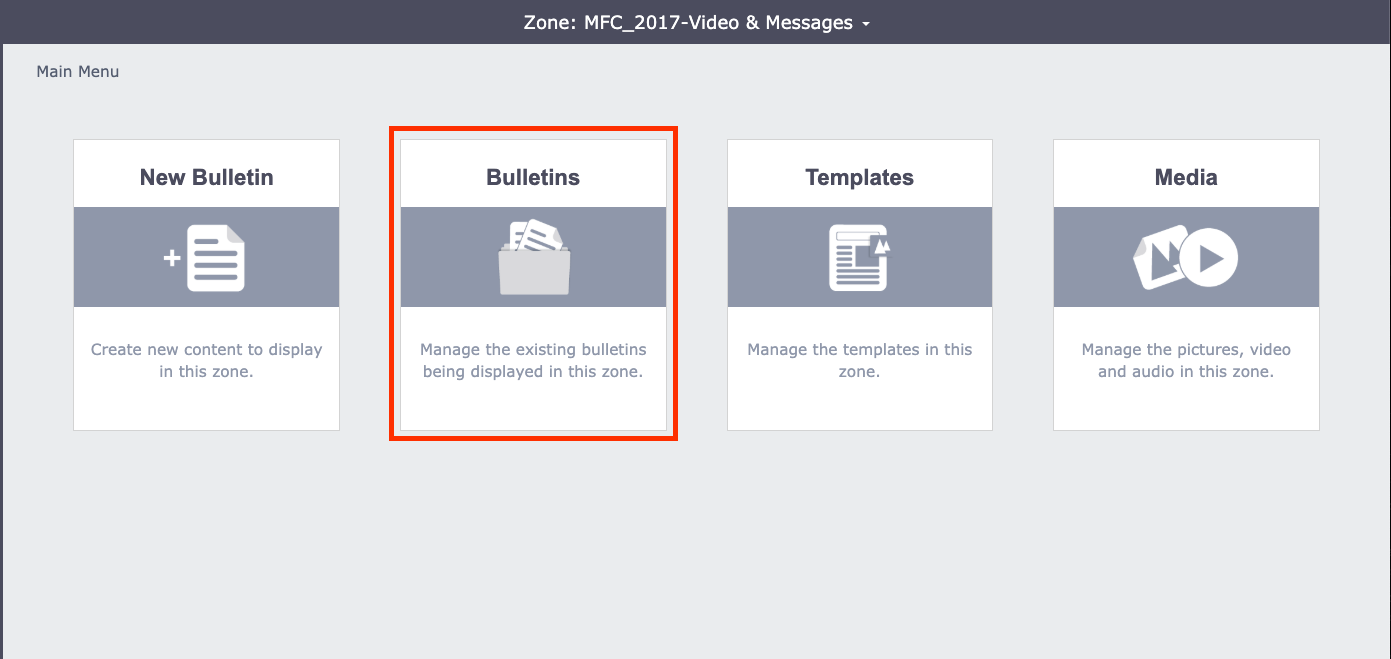
At the Cablecast CG main menu, make sure you are in the zone you want to work in. To learn more, see Navigating Between Zones in Cablecast CG. Each zone works independently, so in bulletin management, you are only working with that zone's bulletins.
Once you are in the correct zone, select Bulletins from the main menu.
Bulletin Categories
In bulletin management, the top right shows four categories your bulletins can fall into: Active, Unapproved, Upcoming, and Expired.
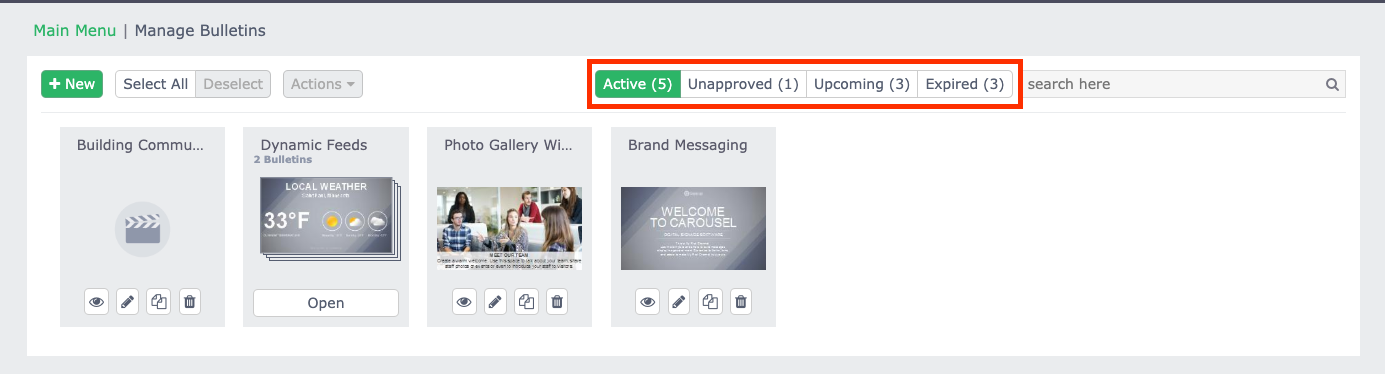
Select a category to toggle it; when it's highlighted in green, you're viewing those bulletins. You can view multiple categories at once, or unselect the others to view just one.
Active Bulletins
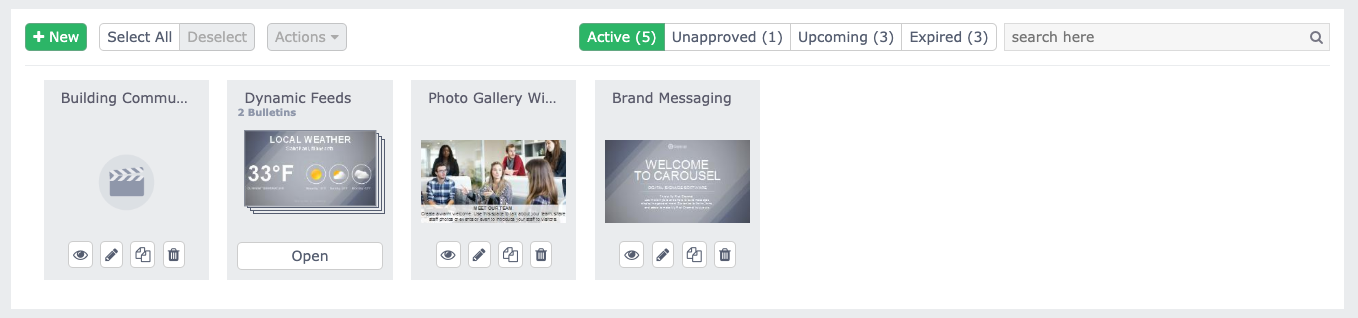
Active bulletins are the ones currently playing in rotation in that zone.
Unapproved Bulletins
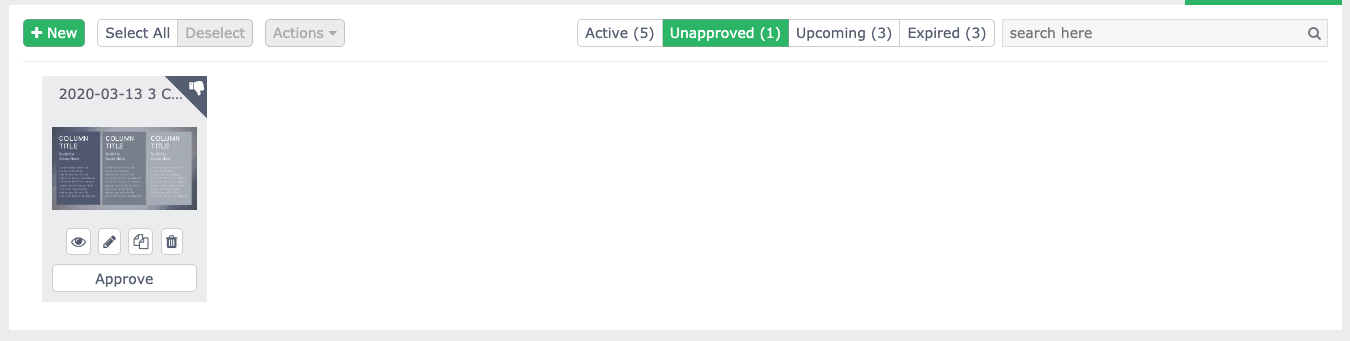
Cablecast CG lets you create individual user accounts with assigned roles and permissions. One available role requires that every bulletin a user creates be approved by an administrator before it is published. The Unapproved category shows those bulletins waiting for approval; each has a thumbs-down icon in the top-right corner and an Approve button at the bottom.
Upcoming Bulletins
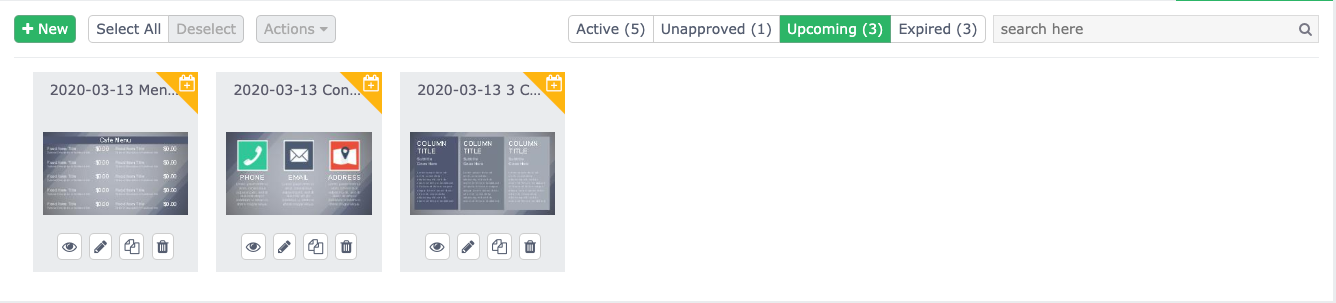
Upcoming bulletins are scheduled to start at a future date and time — they're waiting for their publish date, at which point they move automatically into Active. Each shows a calendar icon with a plus sign, indicating it's scheduled for the future.
Expired Bulletins
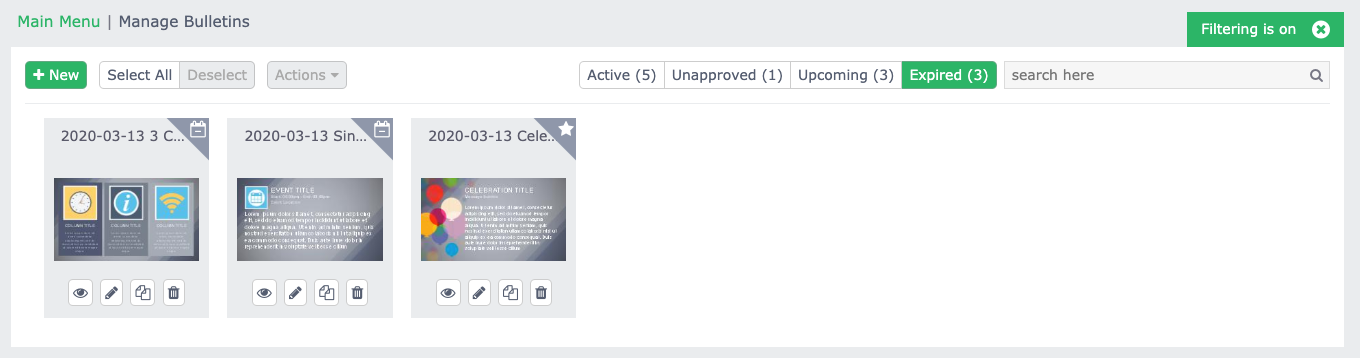
The Expired category shows two kinds of bulletins. The first is expired bulletins — bulletins past their scheduled time, which move automatically from Active to Expired and show a calendar icon with a minus sign. The second is saved bulletins — bulletins you set aside with Save For Later in the Extras section when creating a bulletin (see What Is the Extras Section in Cablecast CG?). Saved bulletins show a star icon.
Bulletin Action Buttons
Each bulletin has four action buttons along the bottom for quick access to common tasks.
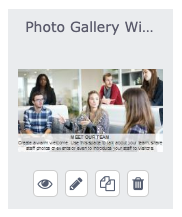
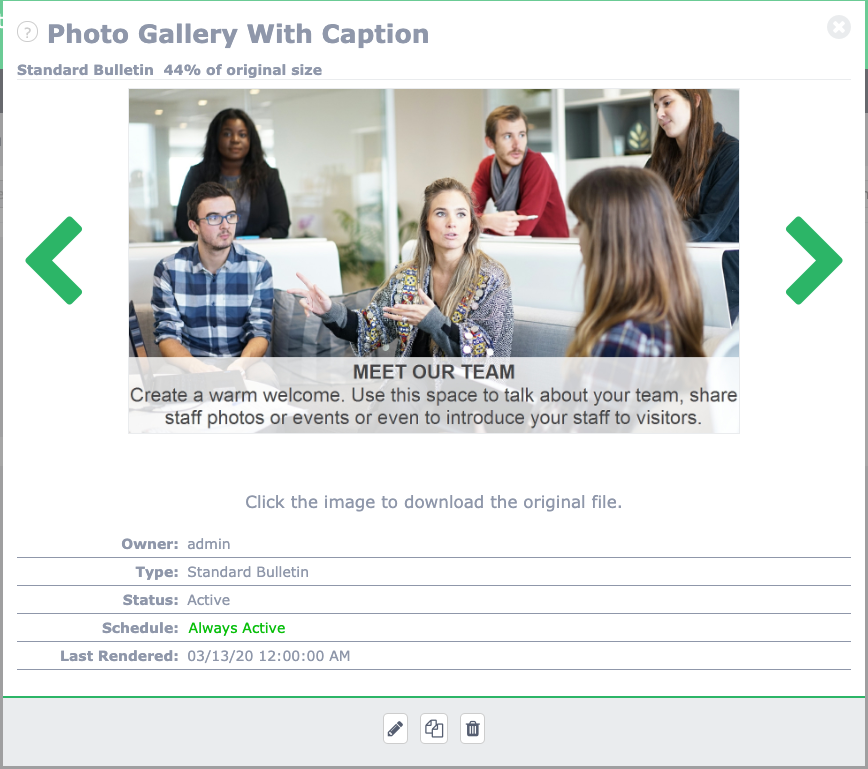
Starting from the left, the eye icon opens Preview, a larger view of the bulletin with details about its type, schedule, and the user who created it.
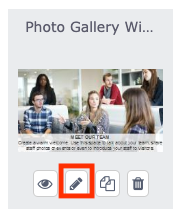
The pencil icon opens Edit — useful for fixing a typo without deleting and rebuilding the bulletin; just edit and republish.
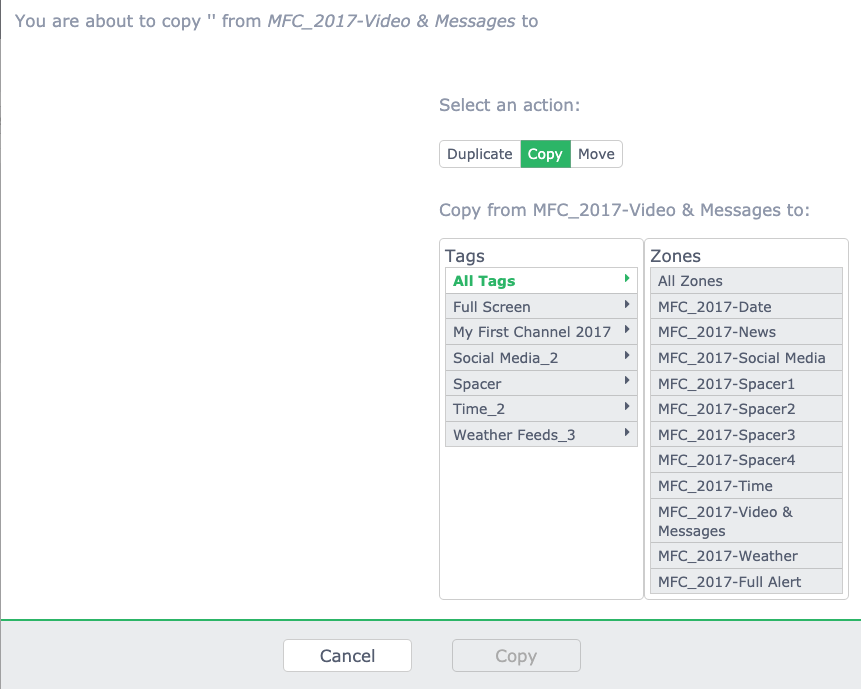
The third icon is Copy/Move. It lets you duplicate the bulletin within this zone, copy it to a different zone, or move it to a different zone entirely.
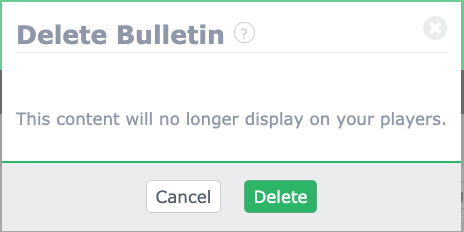
The trash can icon is Delete.
Note
Deleting is permanent — once a bulletin is deleted, it can't be recovered. A confirmation window appears before the bulletin is removed.
Rearranging and Grouping Bulletins
To reorder bulletins, drag a bulletin and drop it between the two you want it to sit between; the bulletins spread apart, and releasing places it there.
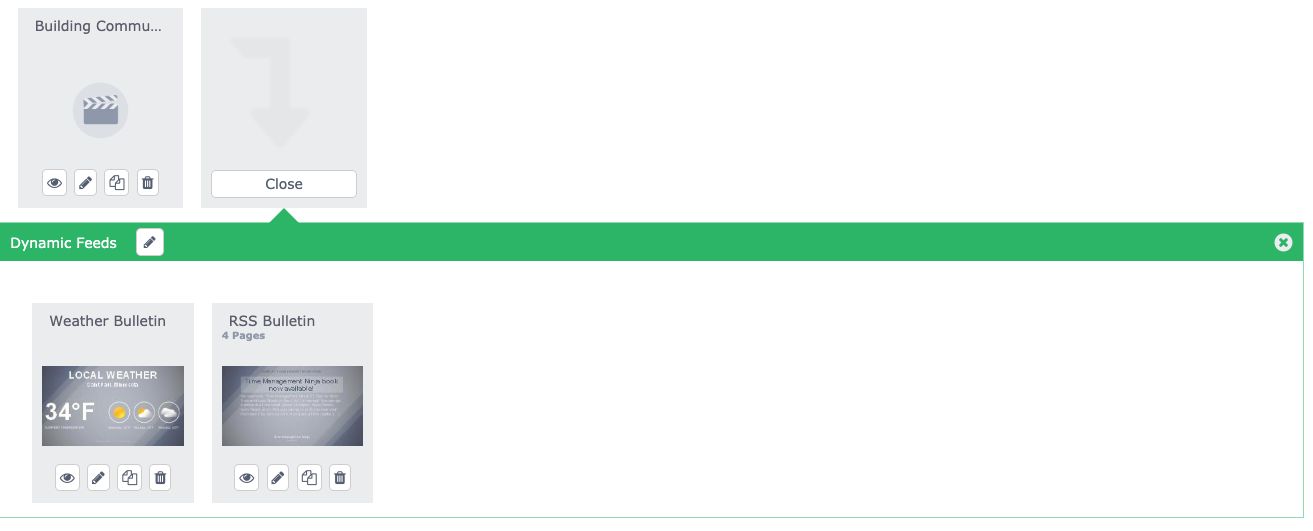
You can also group bulletins to keep them organized and make sure a set plays together in sequence. To create a group, drag bulletins on top of one another — they form what looks like a stack.
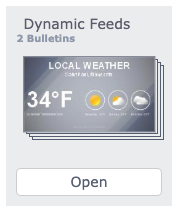
Open a group to reorder the bulletins inside it or pull them back out.
Bulk Actions
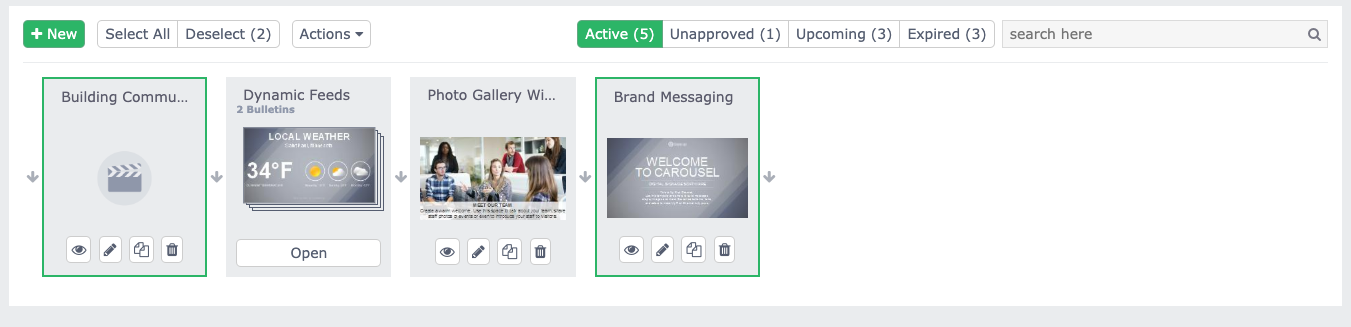
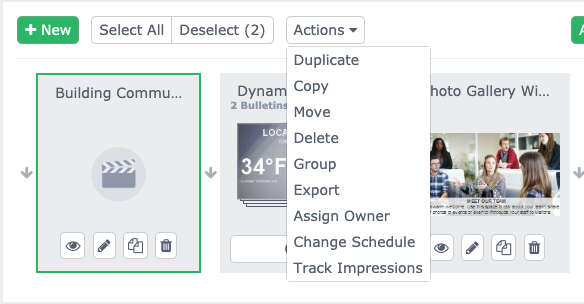
To change several bulletins at once, use bulk actions. First, select the bulletins you want to change — each bulletin gets a green outline to show it's selected.
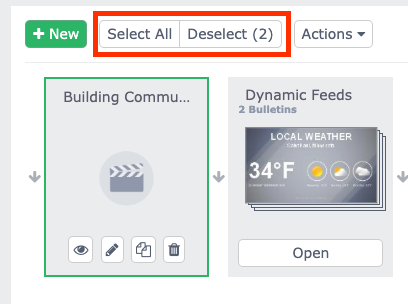
There are also Select All and Deselect options.
With your bulletins selected, open the Actions dropdown to choose a bulk action. Options include Duplicate, Copy, Move, Delete, Group, Export, Assign Owner, Change Schedule, and Track Impressions.
Summary
Bulletin management is per zone. The four categories — Active, Unapproved, Upcoming, and Expired (which also holds saved bulletins) — let you filter what you're viewing. Each bulletin has Preview, Edit, Copy/Move, and Delete actions, and deleting is permanent. Drag bulletins to reorder them or stack them into groups, and use Select All plus the Actions dropdown to apply changes to many bulletins at once.
To see this in action, watch the Bulletin Management section of the Cablecast CG Training Video.
