Linking Digital Files to Show Records in 7.2
Overview
In Cablecast 7.2 we changed the way that digital files are associated with show records. You no longer need to rename the digital file with the Show ID prefix like you need to in Cablecast 7.1 and older. You are now able to directly link a file within the show record. With this new functionality, you are also able to link that same file to multiple show records or even reels within a show record.
In this article we will demonstrate how to link a digital file to a show record.
Creating a Show Record
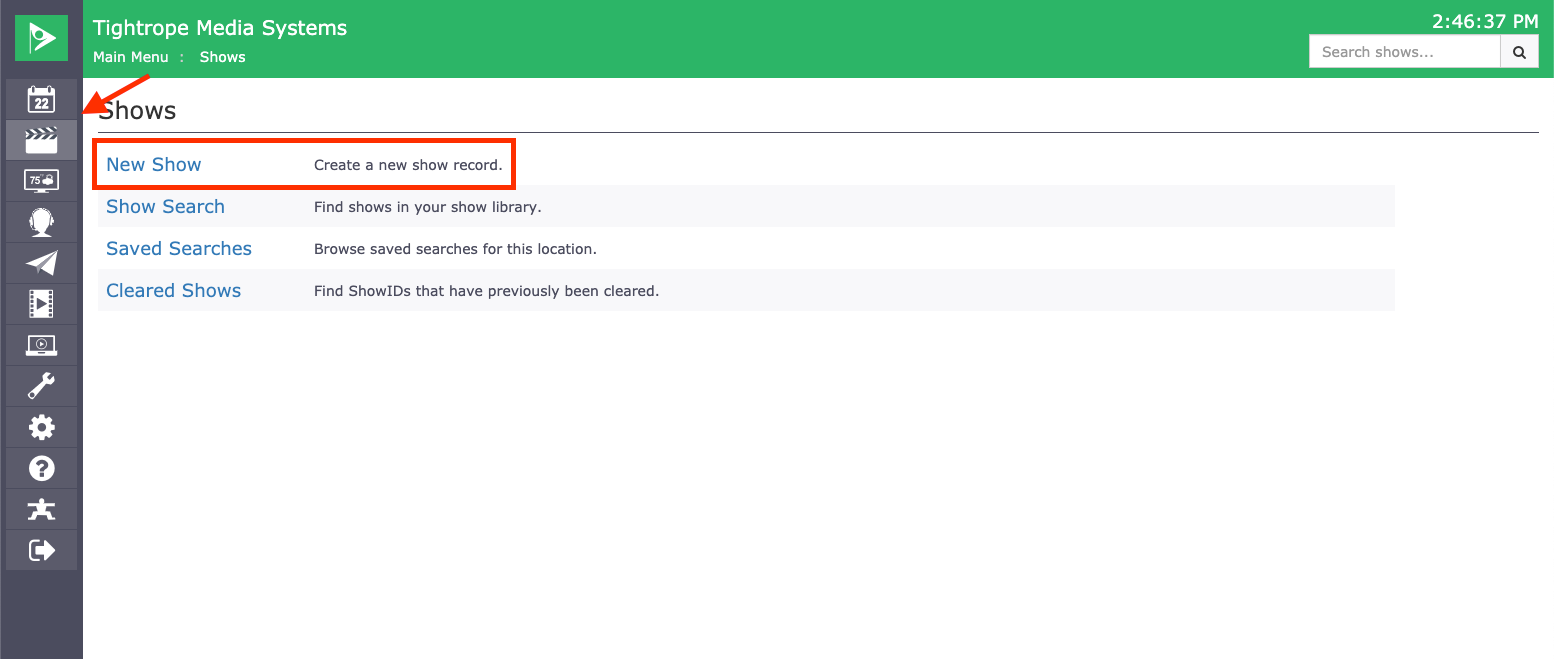
To link a file you will first need to create a new show record for the file. Click the Shows menu option in the menu bar on the left, then select New Show.
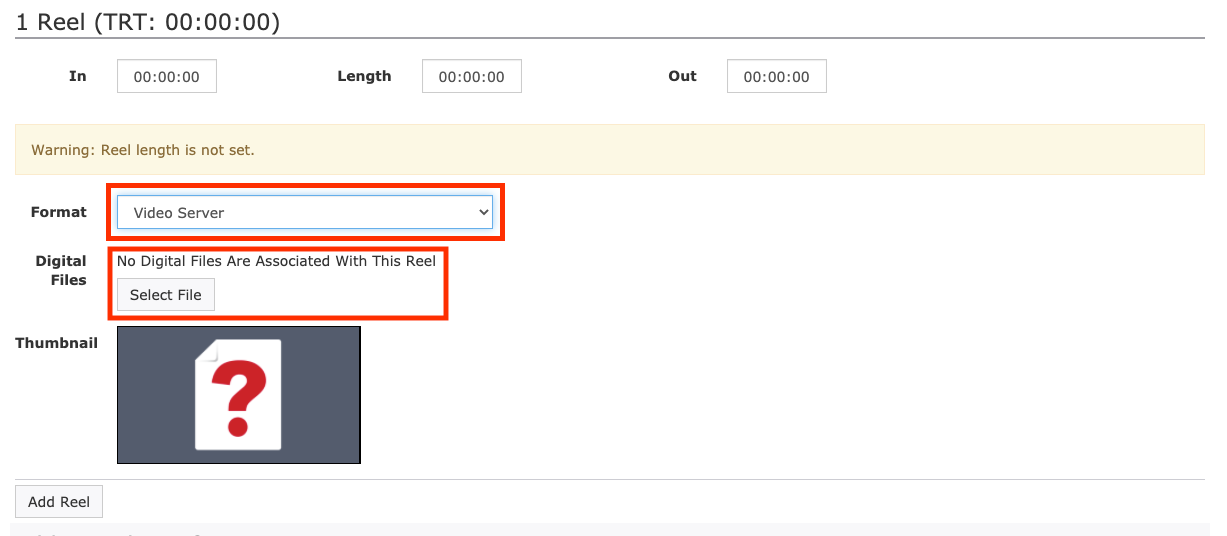
Once in the New Show Record scroll down to the Reel section. First under Format, choose Video Server. You will then see that there is no Digital File Associated with this Reel. Click the Select File button to be able to search for the file.
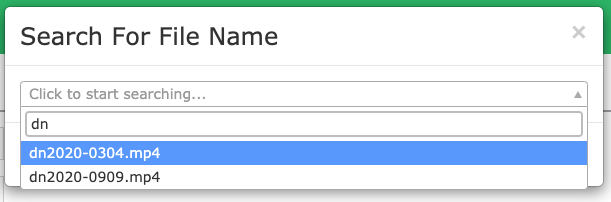
This will open a new search window where you can start typing in the name of the file. Select it from the list and that file will be added to that real in the show record.
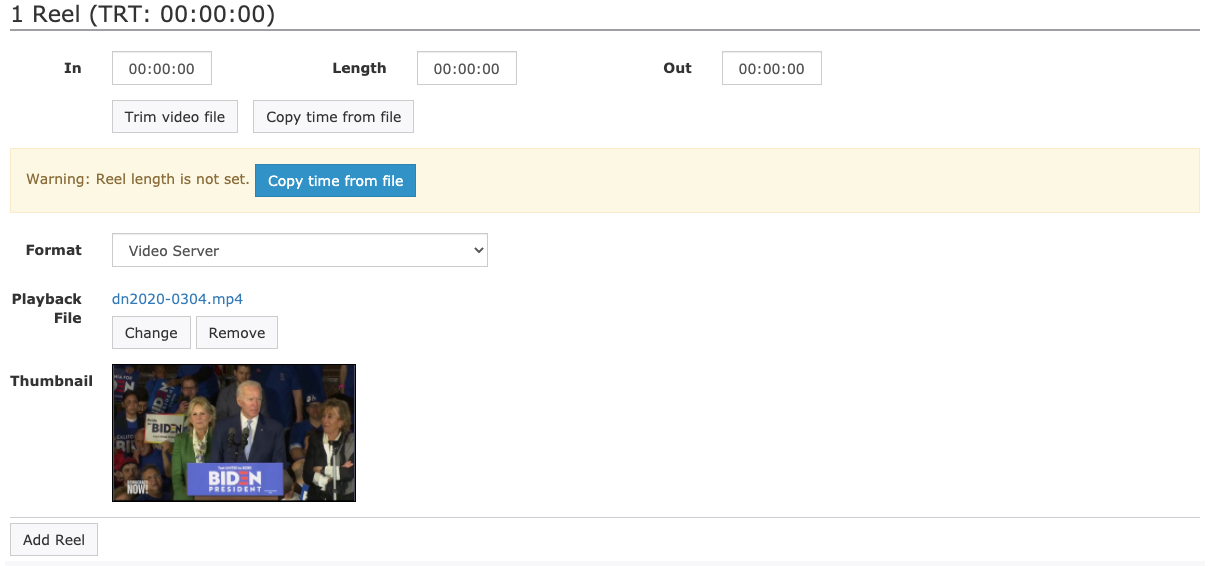
Once the file is attached to the show record, you can trim your file, copy time from file, and continue to fill out the rest of the fields in your show record.
To learn more about Trimming Files in Cablecast 7.2 be sure to check out our KnowledgeBase article on that topic.