How to Update the Crawl Placement and Style in Cablecast 6
With a lot of people looking to use the crawls during this time I thought we should have a quick overview on where to find the crawl settings and style.
Cablecast 6
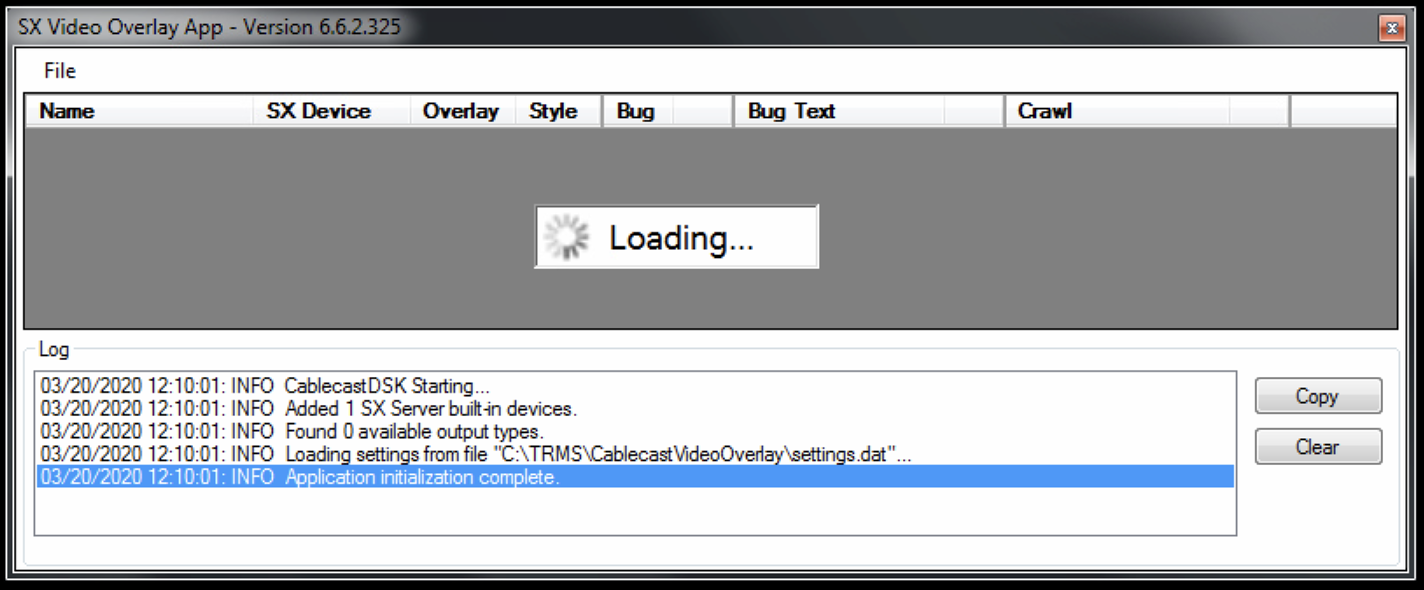
For crawls during video playback from your Cablecast system you will need to use the SX Video Overlay App on either your SX or Flex series of video server:
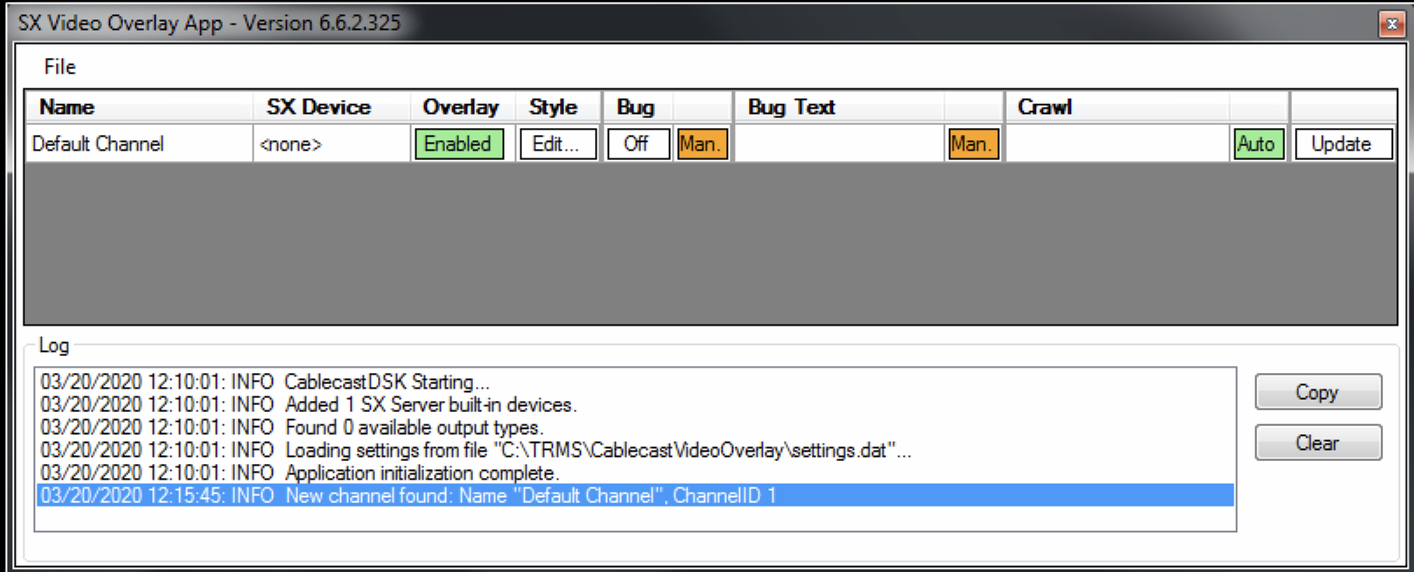
If you have never configured the app, it will probably look like this^
If the SX Video Overlay App is not running, there should be a desktop icon to launch the program like this:
In order to get this app communicating with the system you will need to know the IP address of the Primary server. Some system it's a VOD, other systems it might be the SX or Flex server itself.
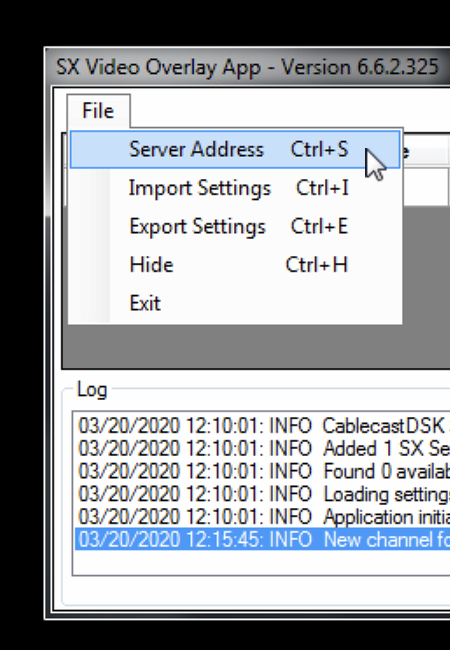
Once you know the IP address of the Primary server you will want to click "File" and select "server address":
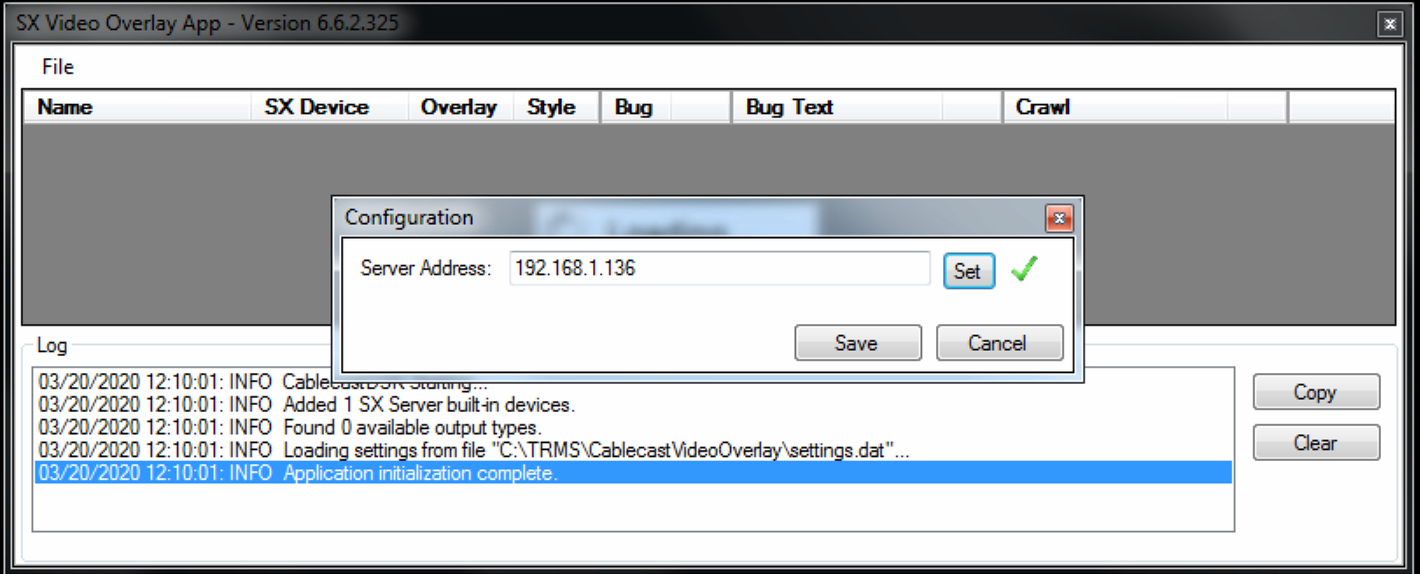
Input the IP address of the Primary server and click "Set". If the SX Video Overlay App is able to communicate you will get a green checkmark next to the address box:(On systems with a video server as the Primary server, "localhost" will work as the server address)
Once the address is set you should be able to see your channels:
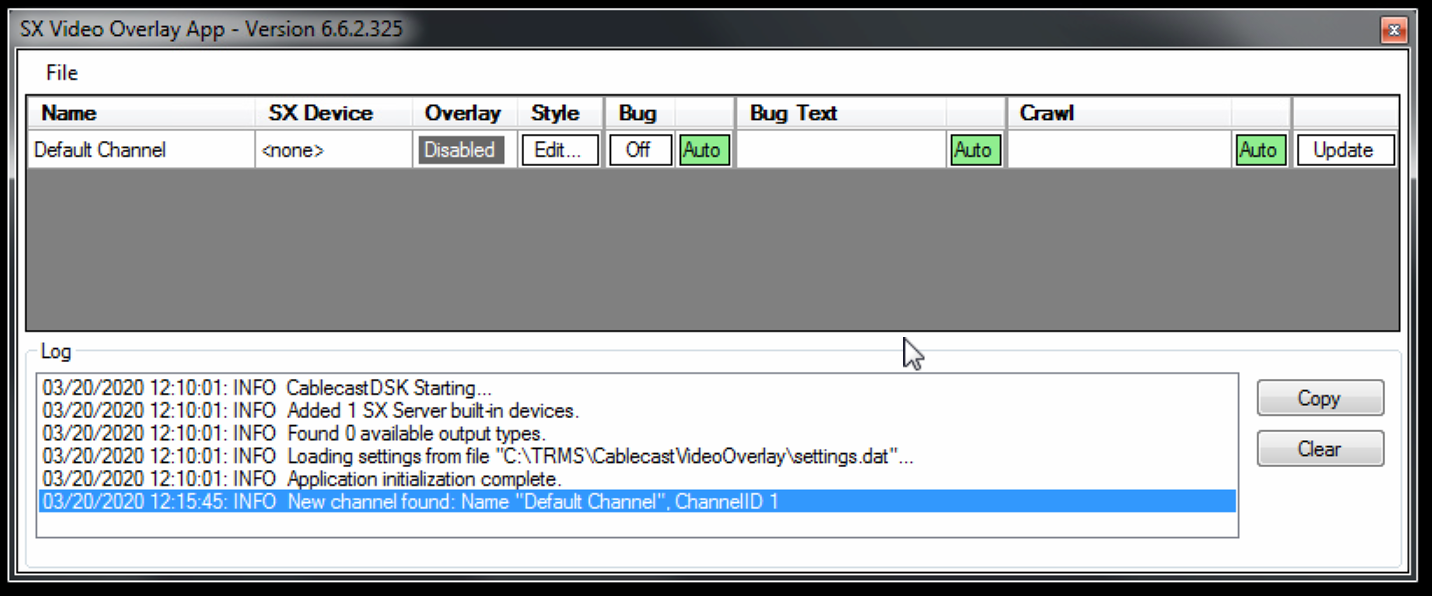
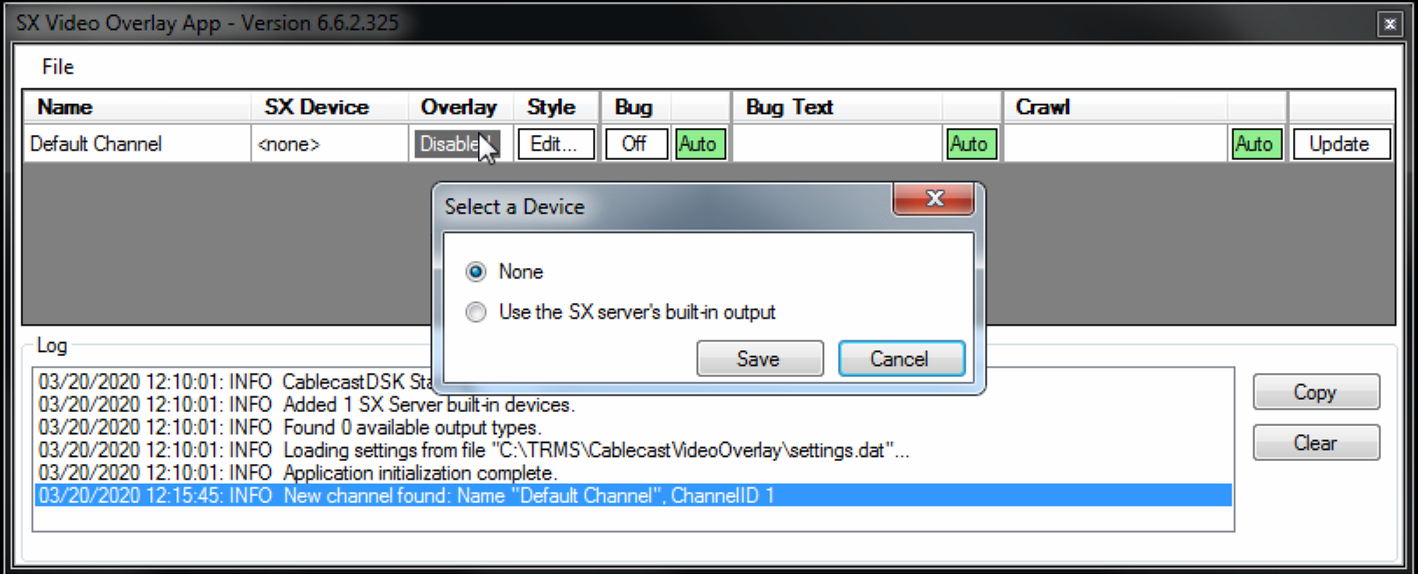
First you will want to enable the overlay by clicking the "Disabled" box under the Overlay column for the channel you want to enable. This will open a selection box to use the built in output. Select that and click "Save":(If you run into an issue where the crawl never activates please read through this article on SX Video Overlay Application never activates because it can not determine which devices it controls.)
Now to edit they style and positioning of the Crawl, the Bug graphic, or Bug Text you will want to click the "Edit" button under the Style column. This will open the options menu:
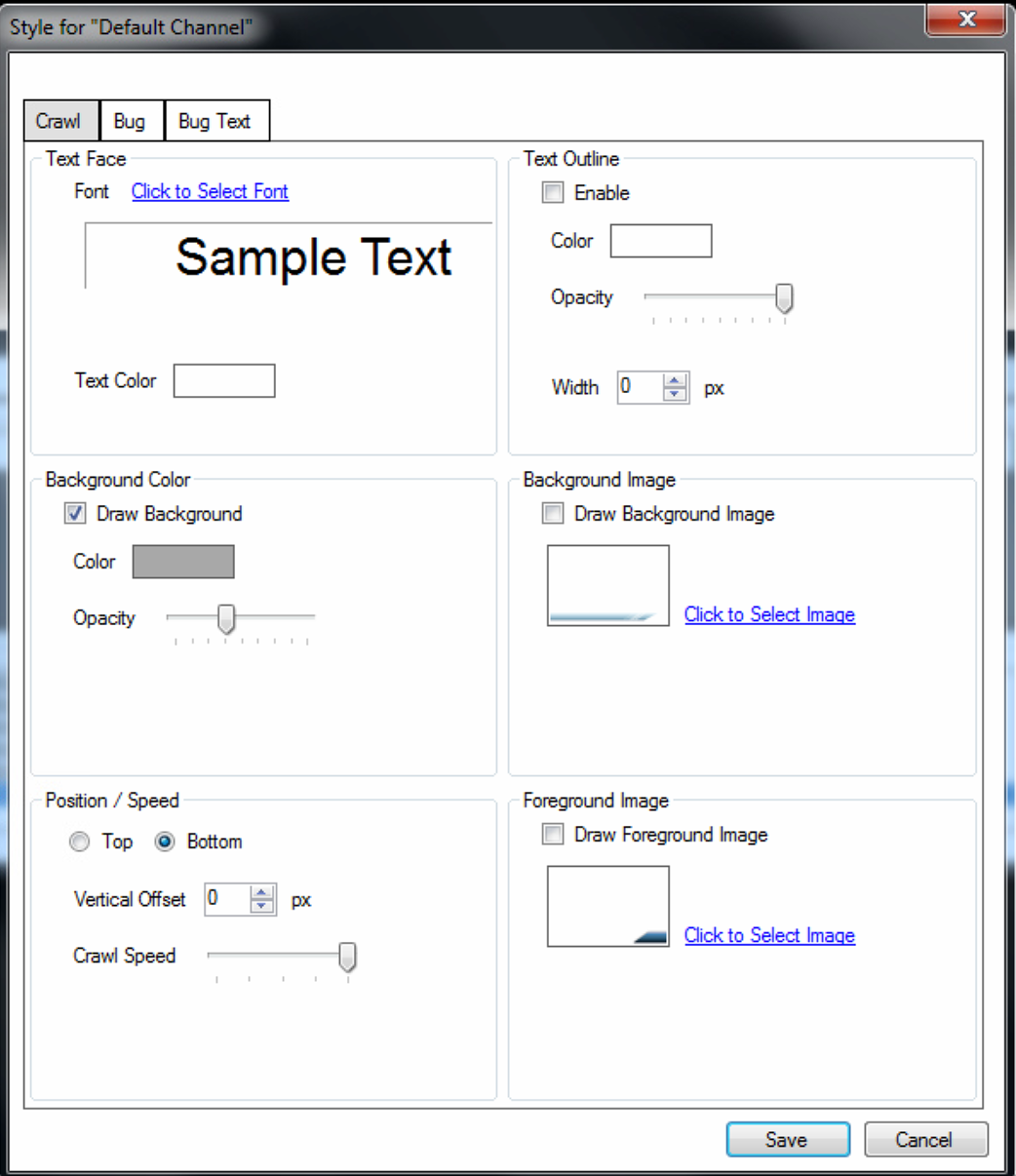
At the top there are three tabs. One for Crawl, Bug, And Bug Text. It should default to the crawl tab when opened.
In here you can change the font style, background color, speed, and positioning.
If you have a bug graphic available, you can navigate to the "Bug" tab and upload that there, otherwise I recommend disabling the bug and bug text by clicking the green box where it says "Auto" under the Bug column and and the green box under the Bug Text column. They will change to an orange color and say "Man." (short for manual). make sure the other button in the Bug column remains off:
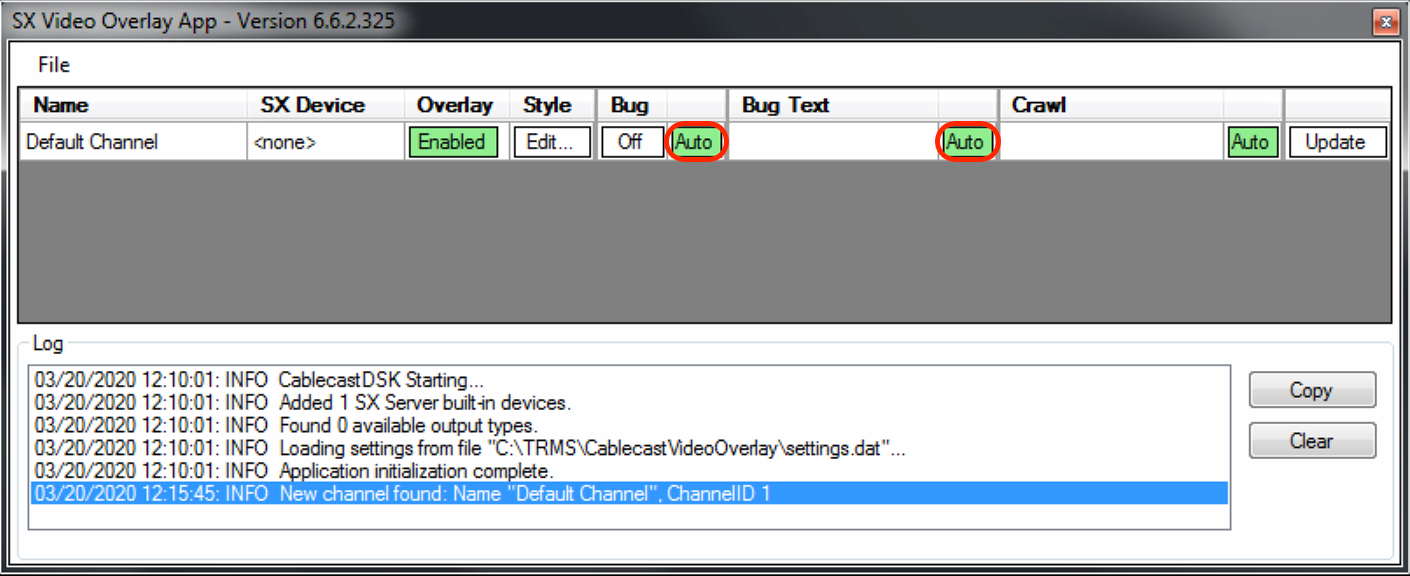
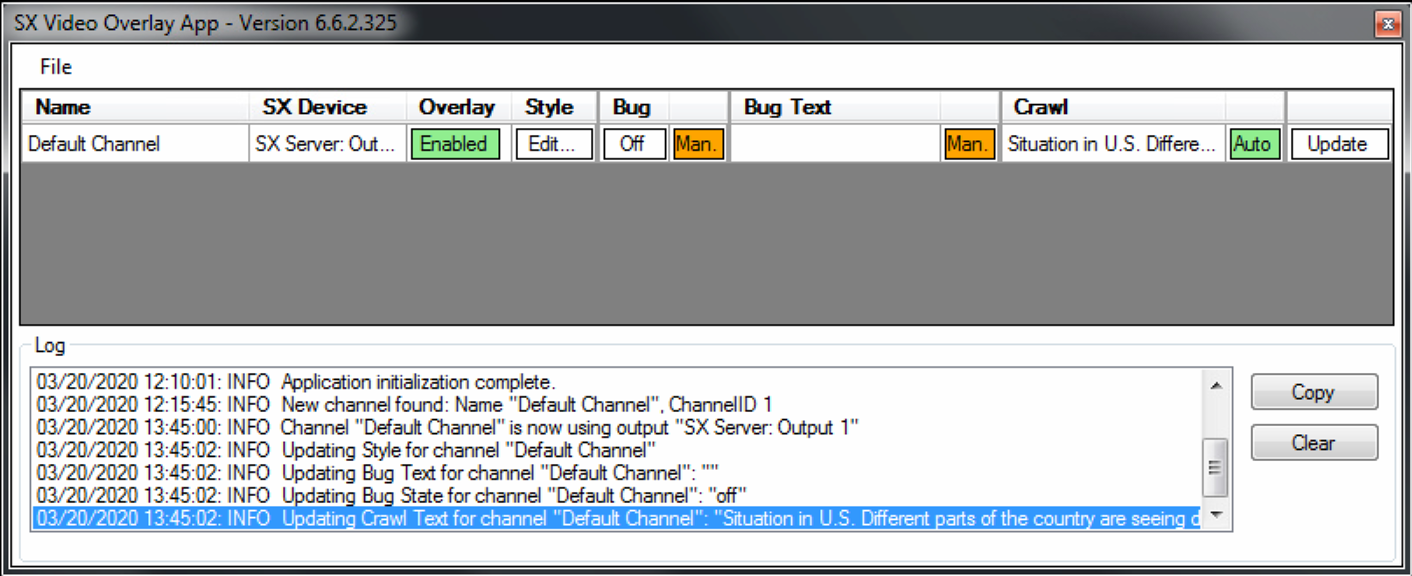
When a crawl is active on the channel the SX overlay app will look like this:
If you have any questions or require clarification please reach out to us at support@Cablecast.tv