How to Create a Template Bulletin in CablecastCG
Overview
Cablecast CG is the bulletin board system built into Cablecast. It lets you create bulletins that play between scheduled programming as your default source. There are three bulletin types: Template, Uploaded, and Dynamic. This article covers Template Bulletins.
Navigating to CablecastCG
Go to Cablecast CG in the left-hand menu.
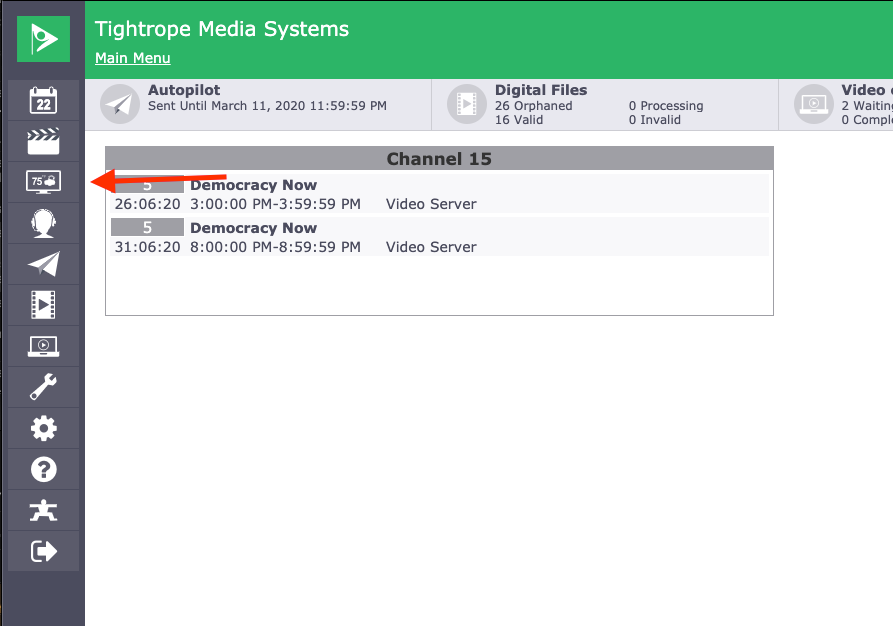
Before creating a bulletin, confirm you are in the correct zone. For more on zones, see Cablecast CG Zone Navigation.
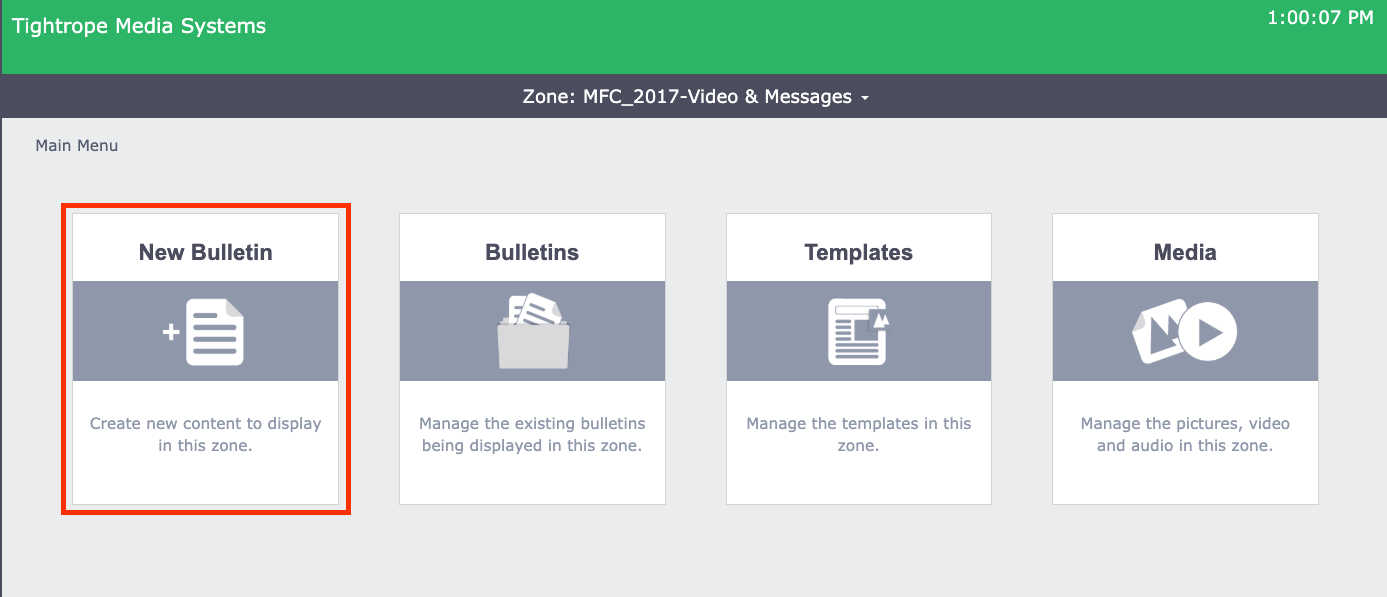
Once you are in the correct zone, you will see four options: New Bulletin, Bulletins, Templates, and Media. Select New Bulletin.
Creating a Template Bulletin
Template Bulletins are created directly in the Cablecast CG interface using a built-in template as a starting point.
Choose a Template
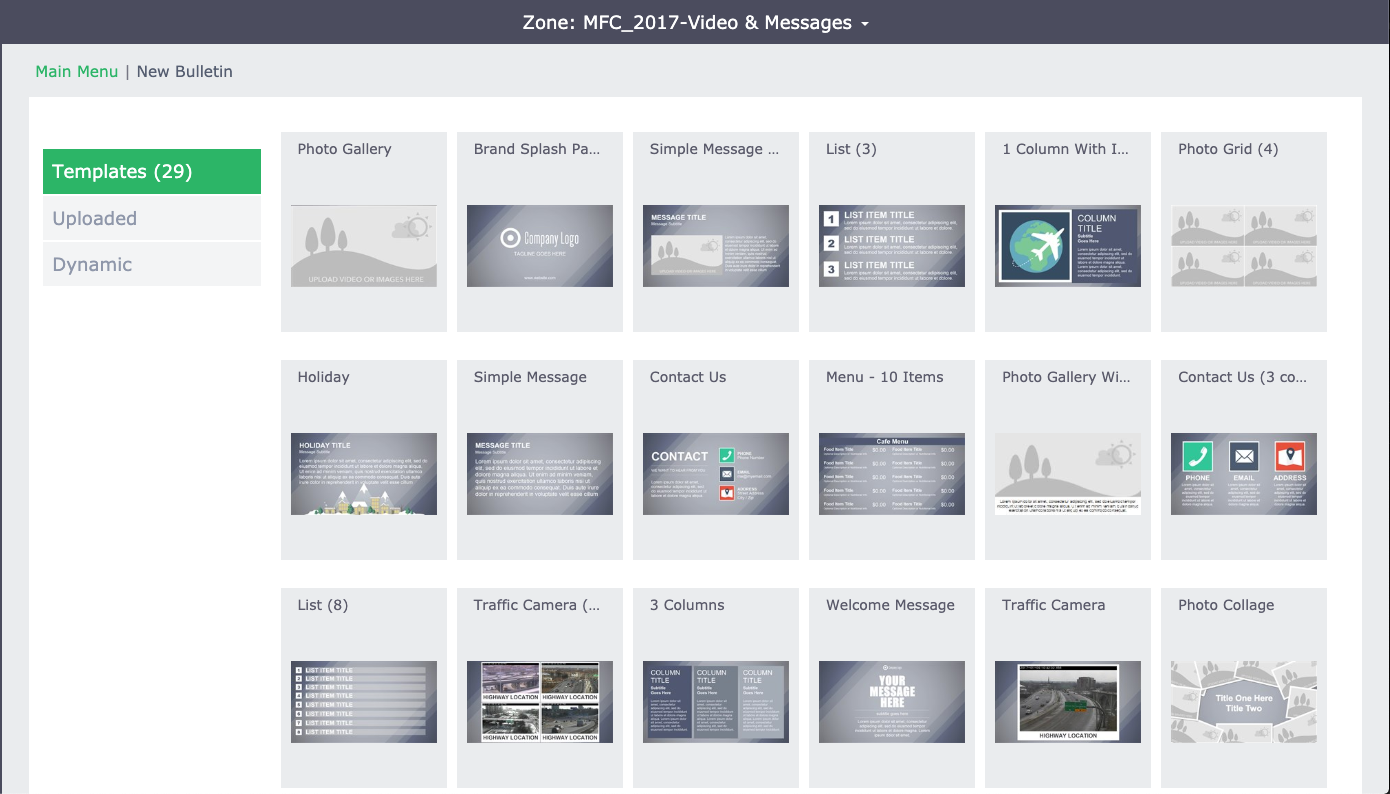
A grid of available templates is displayed. Select the template that fits the message you want to create.
Edit the Content
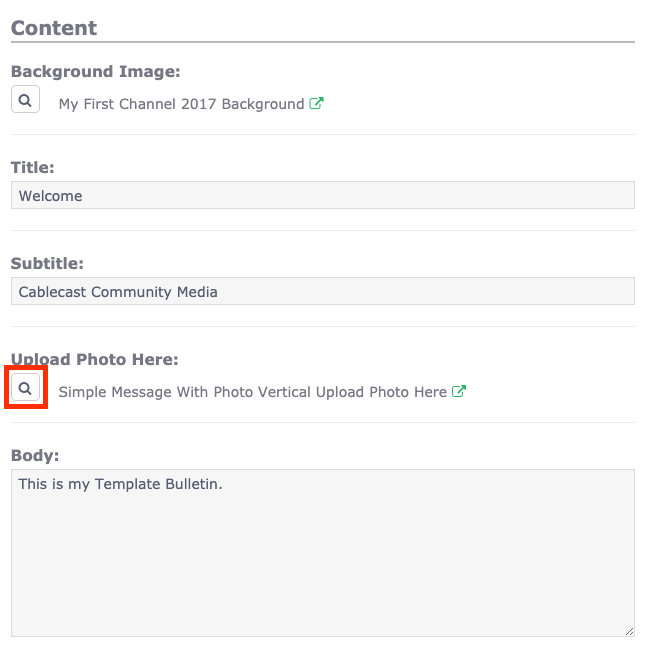
After selecting a template, a preview appears on the left and editable fields appear on the right. To update text, clear the existing content in a field and type your own. The preview updates in real time.
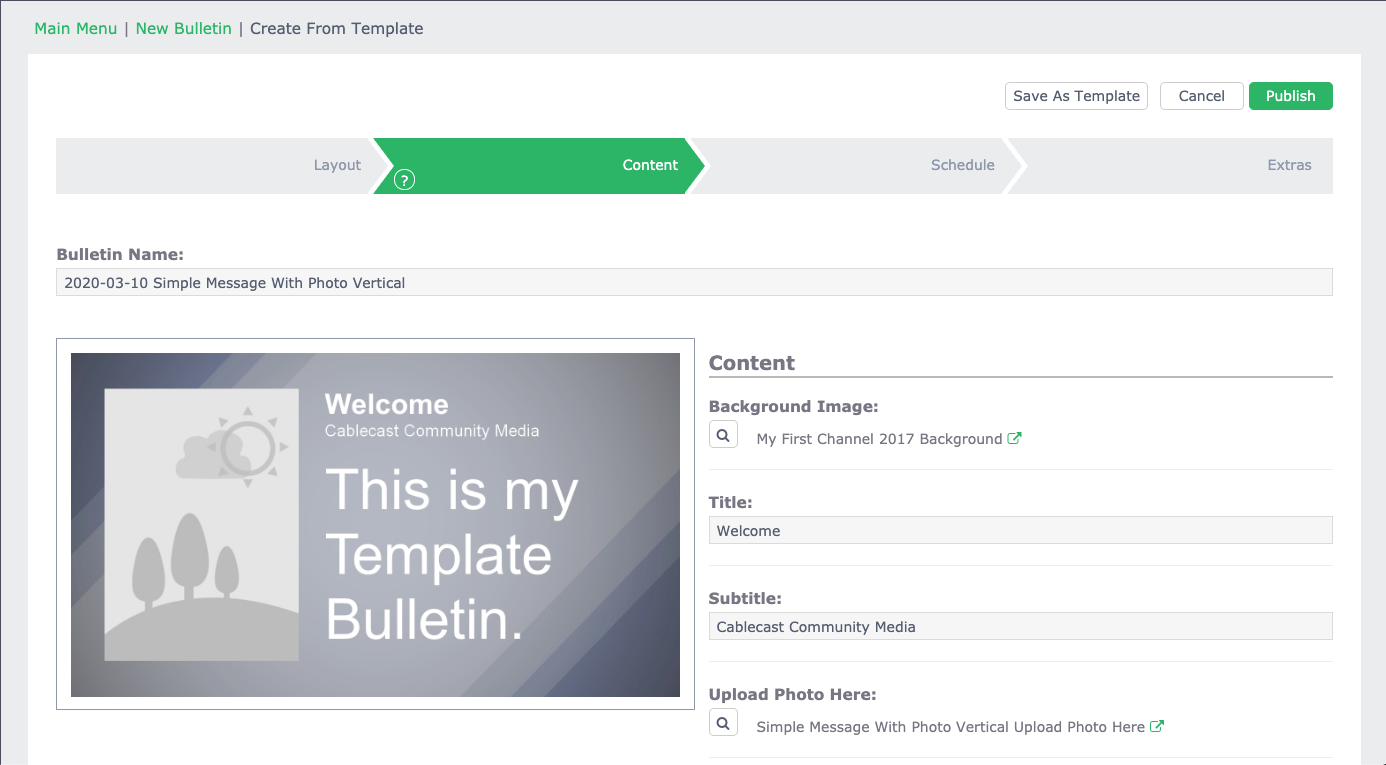
If the template includes a photo, you can replace it with your own image. Select the magnifying glass icon next to the Upload Photo Here field.
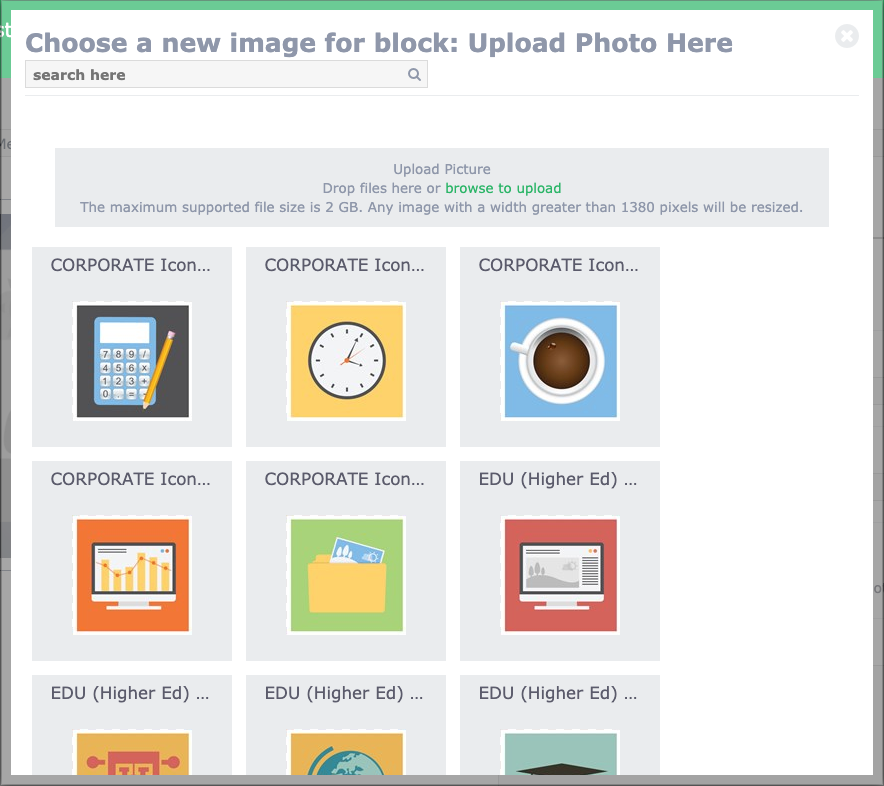
This opens the media picker, which shows all images in the current zone's Media section. Select an existing image or drag a new image into the Upload Picture area at the top of the window. You can also select Browse to locate a file on your computer.
Adjust Layout and Style
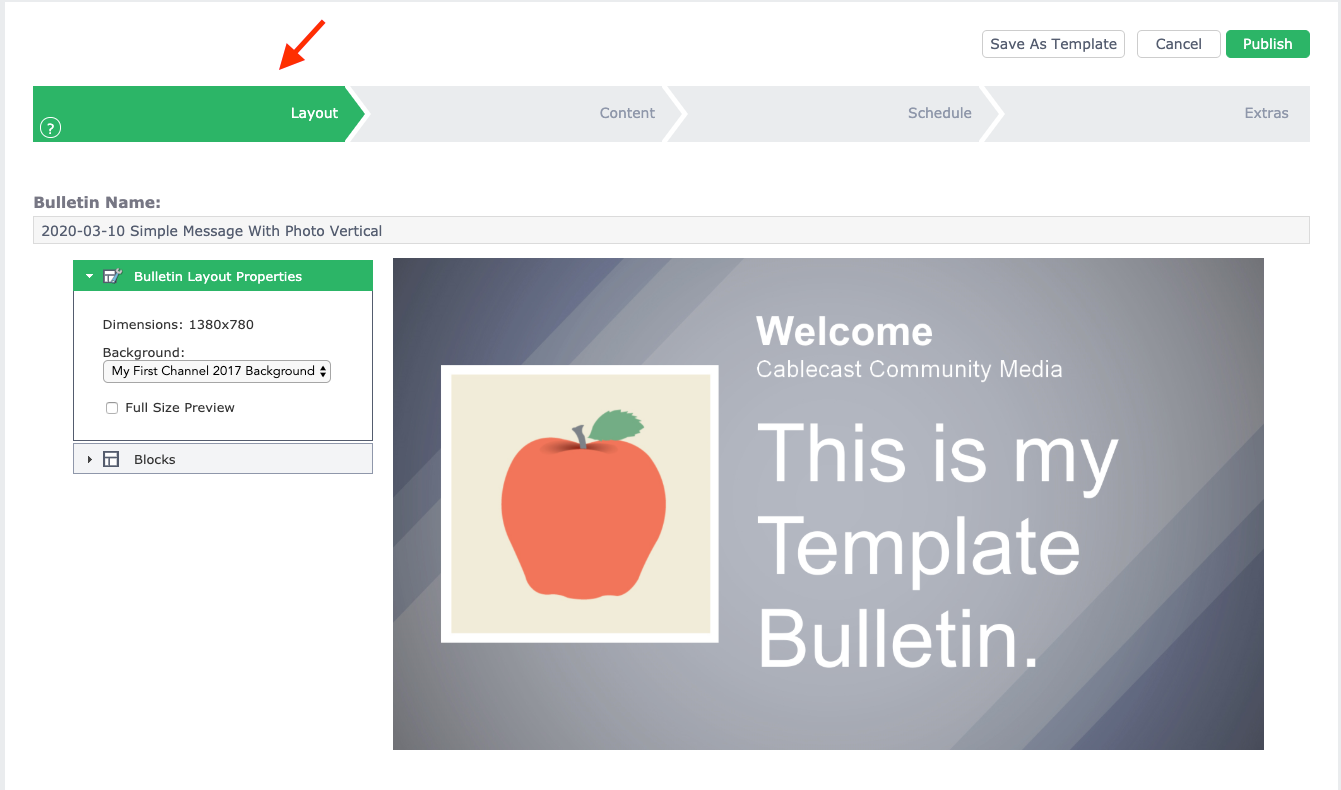
To change font, alignment, or other style properties, select the Layout tab at the top of the editor.
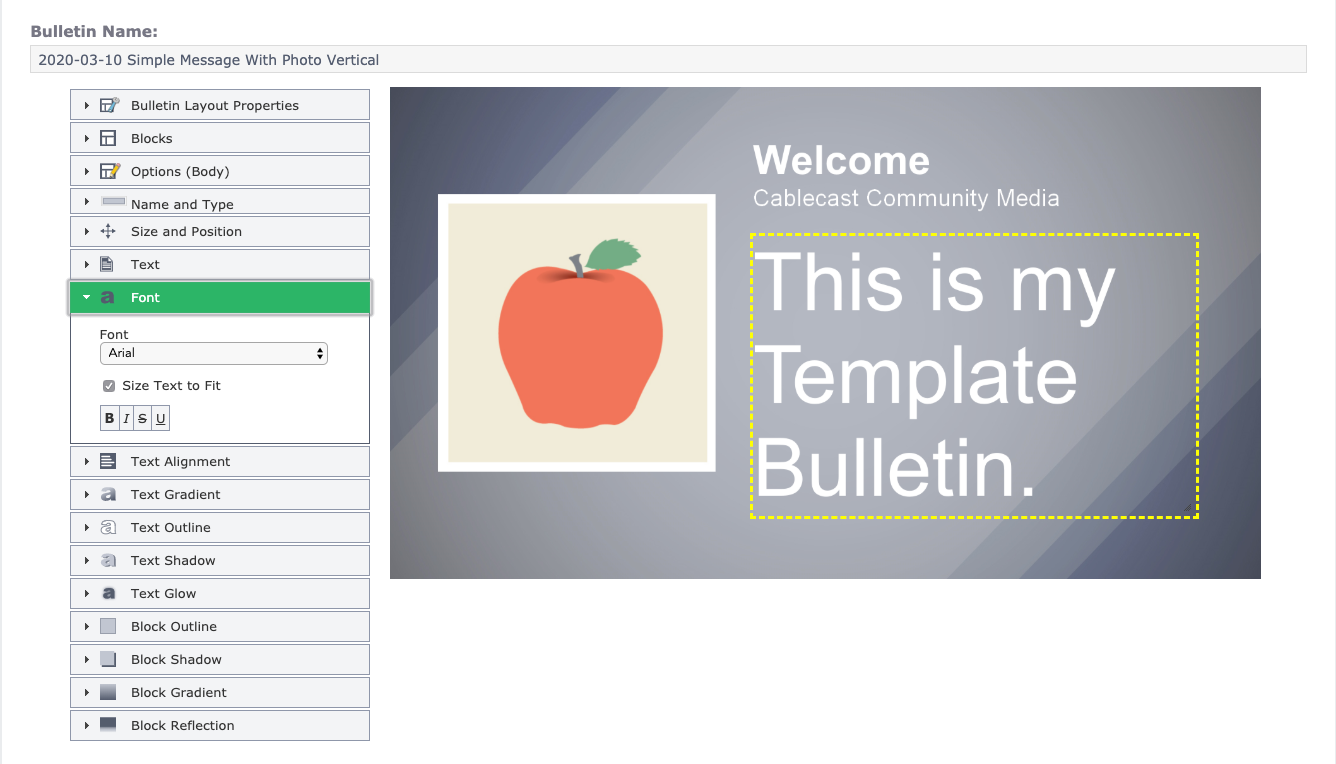
To edit a specific element, select it in the preview window. A yellow outline appears around the selected block, and its properties — including font, alignment, and other formatting options — appear in the panel on the left.
Tip: If you've made changes you'd like to reuse for future bulletins, select Save As Template in the upper right corner of the editor. This saves your customized bulletin as a new template in your zone.
Scheduling Your Bulletin
When your content is ready, select the Schedule tab at the top of the editor.
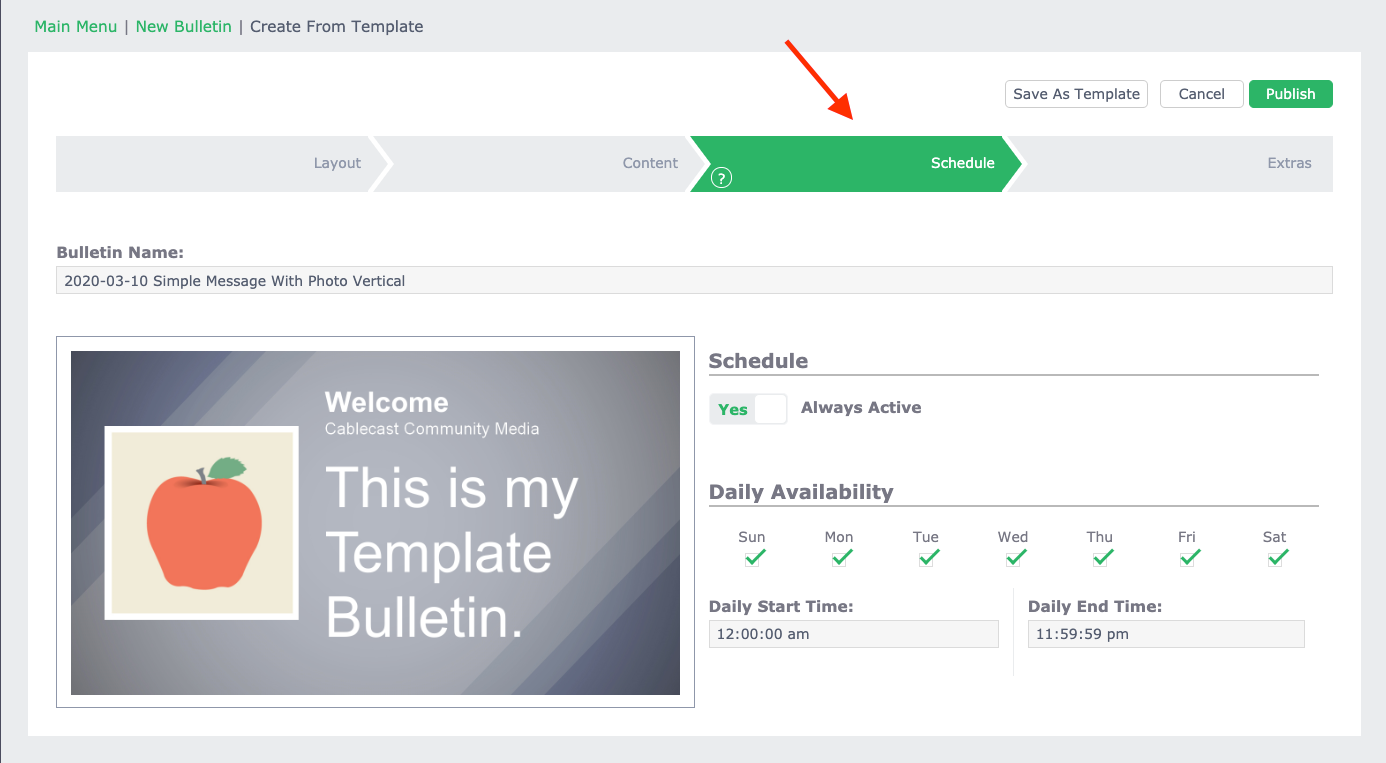
In Cablecast CG, multiple bulletins can play in a single zone. Scheduling tells the system when a specific bulletin should be active.
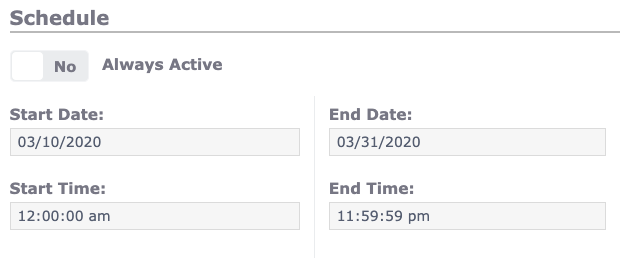
By default, new bulletins are set to Always Active, which keeps the bulletin in rotation indefinitely. To limit the bulletin to a specific date range, set Always Active to No and enter a Start Date/Time and End Date/Time. Cablecast will automatically add and remove the bulletin from the zone's rotation based on those dates.
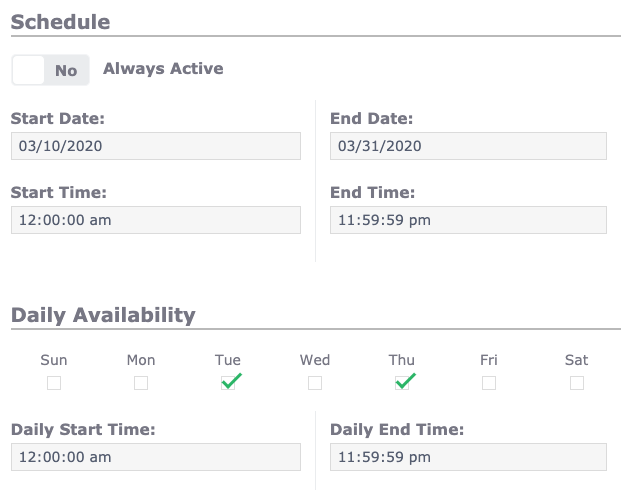
The Daily Availability section lets you restrict the bulletin to specific days of the week. Uncheck any days when the bulletin should not appear.
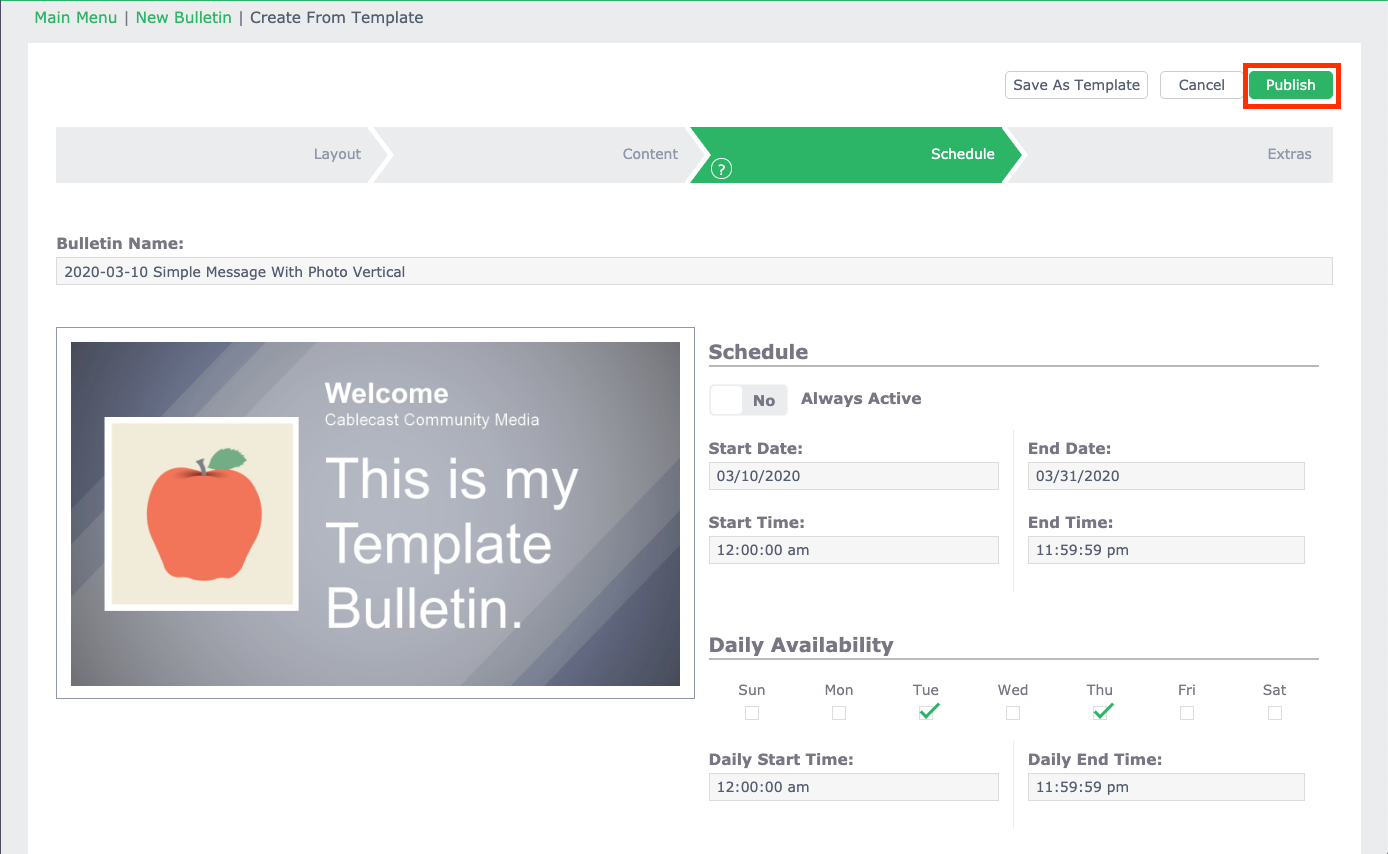
Publishing Your Bulletin
When the bulletin is scheduled and ready, select Publish in the upper right corner of the editor.
Summary
Template Bulletins are created inside the Cablecast CG interface using a built-in template as a starting point. After choosing a template, you edit text, replace photos, and adjust layout properties. The Schedule tab controls when the bulletin is active, either always or within a specific date range and set of days. Selecting Publish makes the bulletin live in the zone's rotation.
For a video walkthrough, watch the Creating a Template Bulletin section of the Cablecast CG Training Video.
