How to: Animated Weather via ScreenFeed
For users wanting to add a Radar Map in motion into Carousel or CablecastCG.
Video Walkthrough
This method uses Screenfeed, which is a paid subscription service. We cannot provide technical support for issues with the Screenfeed RSS feeds. Screenfeed is a service not to be mixed up with Screenweave. Cablecast is not affliated with Screenfeed.
Steps
Creating the feed
Navigate to https://www.screenfeed.com/
Go to "Content" / "Weather" / "Animated Weather Radar"
Its recommended you try the trial before subscribing
Once you've started your trial (or purchased), go to your account feeds (https://www.screenfeed.com/account/feeds)
"Create a feed beneath "Animated Weather Radar"
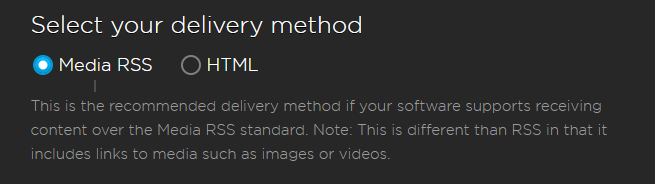
Select "Media RSS"
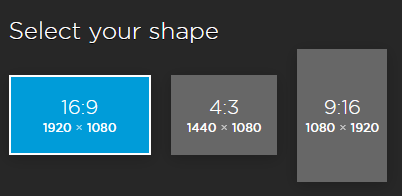
Select "16:9" (or 4:3 if thats your zone aspect)
Select with content you want to include (National or Regional) and configure options.
Name your feed
Done! It'll give you a feed URL, please save this somewhere as we'll need it later.
Configuring CablecastCG / Carousel
Navigate to your zone you want to create the map
Create a new Dynamic / RSS bulletin
Name your bulletin
Ensure you're in the "Dyanmic Tab"
Paste in your Feed URL from Screenfeed
You should see something like "This feed contains 6 items".
Change "Total Bulletins" to match that number
Items per bulletin should remain 1.
Go to the "Layout" tab
Delete all the blocks in the editor
Create a new block, give it a name of "image" and set the type to "Web Picture"
Drag the box to span the entire canvas / zone.
Go over to the "Content" tab
In the "Image" box, copy and paste in #ItemImageURL#
Go to the "Extras" tab
Turn off "Let the system decide dwell time" and set it to 1 second
Publish!
Create a few loops
Your feed will only loop once then move on. If you want your map to loop a few times, you need to duplicate the item a couple times.