Manually Sending Cablecast CG to Your Channel
Cablecast lets you fully automate your channel's workflow, but there are times when you'll want to take manual control. For example, if a live City Council meeting ends early, you can send Cablecast CG out to your channel right away so viewers see your bulletin board instead of dead air.
This is quick to do. There are two ways to do it: through a Control Room (recommended) or through the legacy Force Matrix.
Note: Cablecast CG runs on a VIO server, and how it reaches your channel depends on your hardware and configuration. On an all-in-one VIO server, Cablecast CG plays from the same output as your scheduled programming. On a VIO4, Cablecast CG may share that output or use a dedicated output on the server. A standalone VIO CG server is a dedicated CG server in its own right, but it is still a VIO server. Whichever applies, selecting your channel output under Switch To when you send Cablecast CG makes sure it reaches your channel, even if a source was previously routed there manually.
Using Control Rooms
Control Rooms are the recommended way to run live events and manual actions. A Control Room gives you a purpose-built interface that loads only the devices and outputs you need, and it can include Macros that perform multi-step actions in a single selection.
To open Control Rooms, select the gamepad icon in the left-hand menu.

You can also go to Autopilot → Control Rooms.
Sending Cablecast CG with a Force Event
Use these steps to send Cablecast CG to your channel manually:
Open Control Rooms. You can load the Control Room for your event, but you don't have to — a Force Event also works in the default All Devices view.
Select Actions, then Force Event. The Confirm Actions screen opens.

Set Device to the VIO playback device that plays your Cablecast CG.
Select the Play CG action.
Choose your channel output under Switch To. Selecting it makes sure Cablecast CG reaches your channel in any configuration — including cases where a source was previously routed directly to the channel, bypassing the server.
Select Take. Cablecast CG begins playing.

Tip: You can also switch a source to an output quickly by selecting the patch — the connection point between a device and an output — directly in the Control Room.
Sending Cablecast CG with a Macro
If your station has built an End Meeting (or similar) Macro that includes a Play CG step, you can put your channel on Cablecast CG in a single selection by running that Macro from the Actions dropdown or its assigned Hotkey. Macros are only available once a Control Room is loaded. For help building them, see Getting Started With Control Rooms.
Force Matrix
The Force Matrix is the predecessor to Control Rooms and still works if you prefer it. On the surface, it works much like a Control Room: it acts as the control panel for your routing switcher, letting you route sources to destinations and control device actions such as playback, recording, and stopping. The main difference is that the Force Matrix shows every device and output in a single matrix, while Control Rooms let you build focused views limited to the devices and outputs a particular event needs, and add Macros that combine several actions into one selection.
To send Cablecast CG to your channel:
Go to Autopilot → Force Matrix (LEGACY).


Select the Action button next to the VIO playback device that plays your Cablecast CG. The Confirm Actions dialog opens.

Select the Play CG action.
Choose your channel output under Switch To to make sure Cablecast CG reaches your channel.
Select Take. Cablecast CG begins playing.
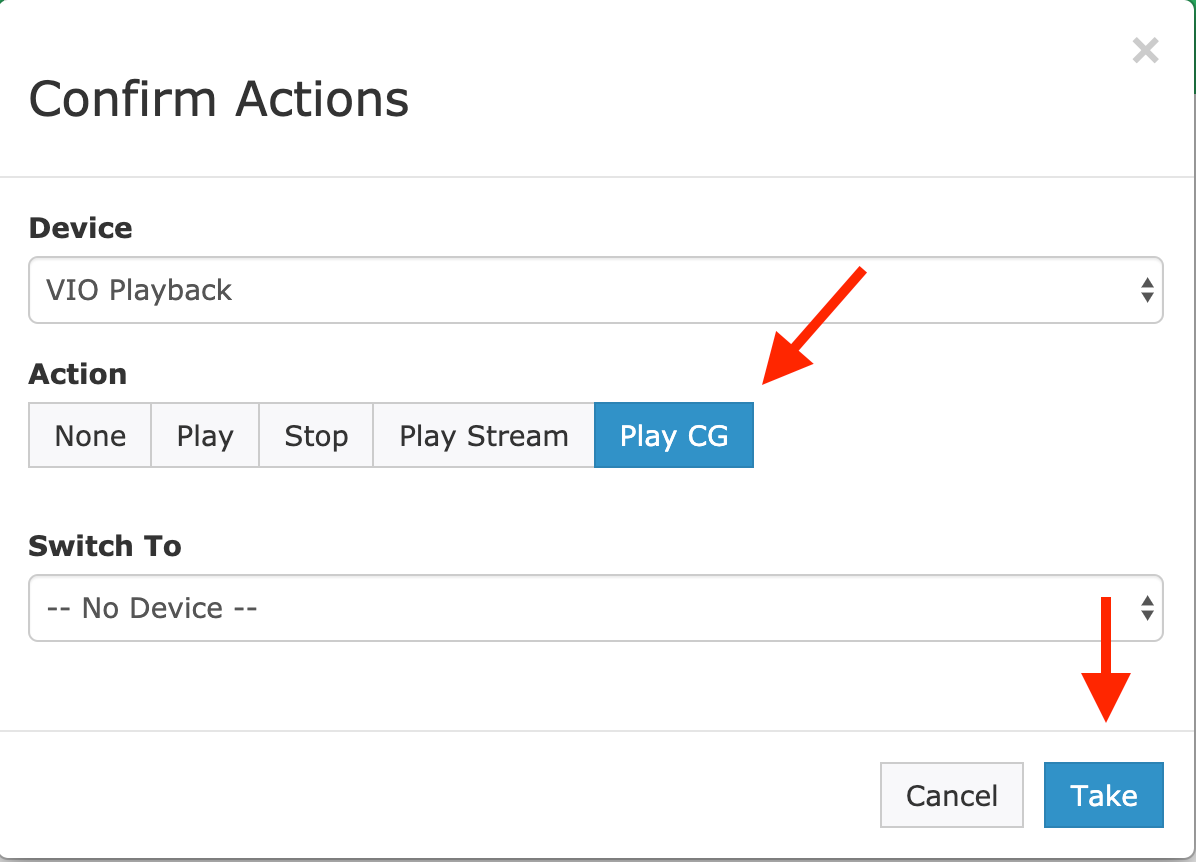
If you'd rather route the source separately, leave Switch To set to No Device and select Take. Then select the cross-point dot for the destination you want and select Take again to send Cablecast CG out to your channel.
What Happens Next
You don't need to make any changes to your schedule afterward. The next scheduled event on your channel switches automatically and starts playing where it left off.
Summary
When you need to take manual control — like ending a live event early — you can send Cablecast CG to your channel in just a few steps. Open a Control Room, select Actions → Force Event, set Device to your VIO playback device, choose Play CG, route it to your channel under Switch To, and select Take. The Force Matrix offers the same Play CG action if you're still using it. Either way, your schedule resumes on its own with the next scheduled event.
