How do I update Quatech USB to Serial Drivers and Firmware
Applies to
Any server using a Quatech USB to serial adapter
Answer
Check current Driver and Firmware version
Do the following from the Windows Desktop of the system with the Quatech adapter connected:
Right-click My Computer
Select Manage
Navigate to Device Manager
Expand the Multi-port serial adapters node
Double-click on the ESU2-400 Eight RS-232/422/485 Serial Ports item
Switch to the Driver tab
The Driver Version is listed towards the top of the page. The latest version as of this writing is version 7.60.0.0
Switch to the USB Serial Ports Advanced Options tab
The Device Firmware Version is listed at the bottom of the page. The latest version as of this writing is version 725
If you are already using Driver version 7.60.0.0 and Firmware version 725, there is no need to upgrade. If you are running an older version, or you were directed to upgrade by our support staff, please continue.
Downloading Latest Drivers and Firmware
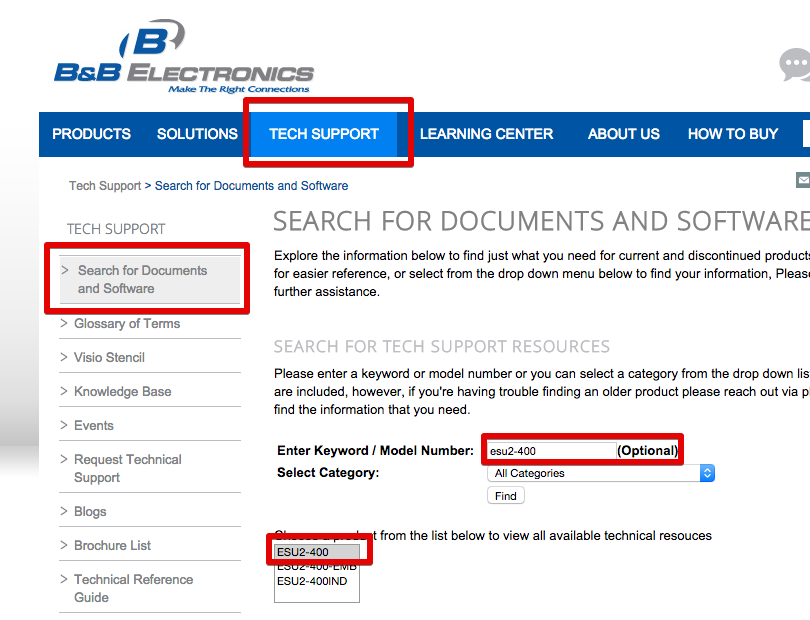
In a web browser, navigate to http://www.bb-elec.com/Tech-Support/Search-for-Documents-and-Software.aspx
Enter "esu2-400" into the Enter Keyword/ Model Number field
Click "find"
Select "ESU2-400" from the product list
Scroll down to Software/Drivers/Firmware
Download the most recent Windows driver.
Download the most recent USB2.0 firmware
Unzip the contents and place them somewhere on the computer where they can be easily accessed when the downloads finish
Note: The latest drivers and firmware at the time of writing have been attached to this knowledge base. Please comment on this article if you notice they are out of date.
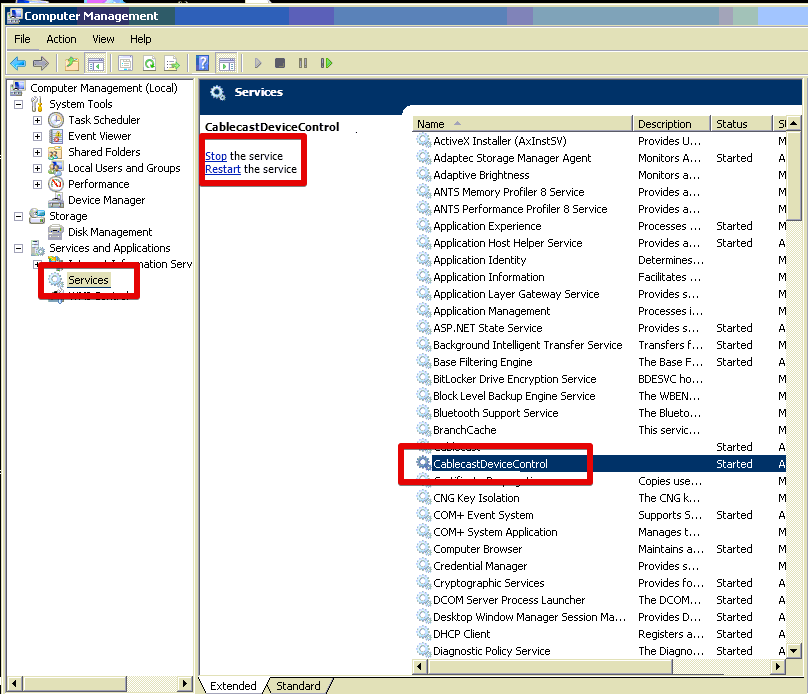
Stopping Cablecast Device Control
Before beginning the upgrade we will disable Cablecast Device Control to prevent Cablecast from attempting any serial communications during the upgrade. Its also important to turn off any other software that might be performing serial communications. To disable Cablecast Device Control:
Right Click on My Computer
Select Manage
Select the Services panel on the left
Find and select CablecastDeviceControl in the list of services.
Click Stop with the Cablecast Device Control service selected to disable the service.
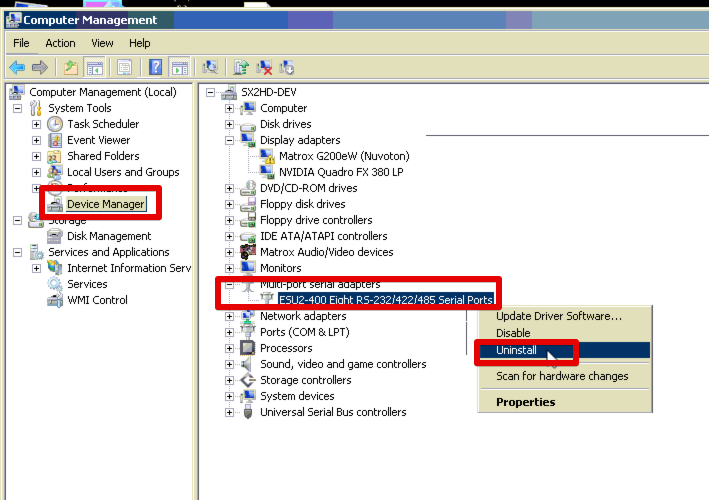
Uninstalling Existing Drivers
Next, we will uninstall the current drivers:
Right-click My Computer
Select Manage
Navigate to Device Manager
Expand the Multi-port serial adapters node
Right-click ESU2-400 Eight RS-232/422/485 Serial Ports
Select Uninstall
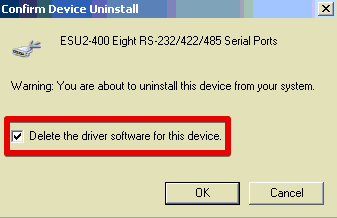
Check Delete the driver software for this device in the confirmation window that appears
Click OK to uninstall the Quatech drivers.
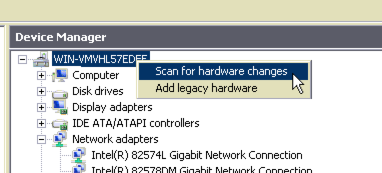
Once the drivers are uninstalled, right-click the computer name at the top of the device list and choose Scan for hardware changes. This will rediscover the Quatech device without the drivers installed. The scan can take a minute or two to complete. A warning that the system was unable to install the device correctly may pop up when you rescan. It is safe to ignore the message unless it comes up after the new driver has been installed.
Install Quatech Latest Drivers
Next, we can install the latest drivers:
Right-click My Computer
Select Manage
Navigate to Device Manager
Expand the Multi-port serial adapters node
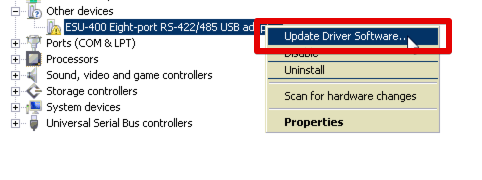
Right-click ESU2-400 Eight RS-232/422/485 Serial Ports
Select Update Driver Software
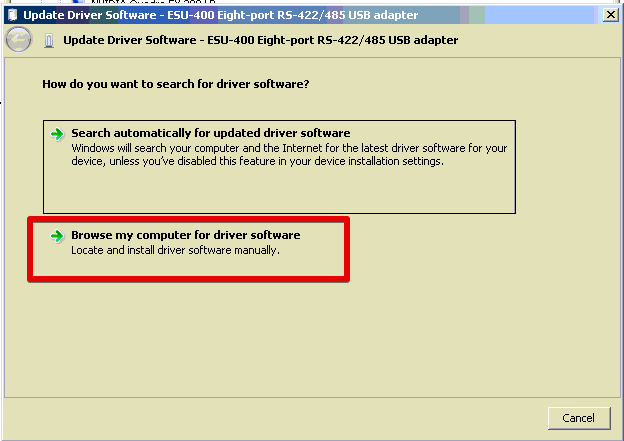
Click Browse my computer for driver software in the Update Driver Window
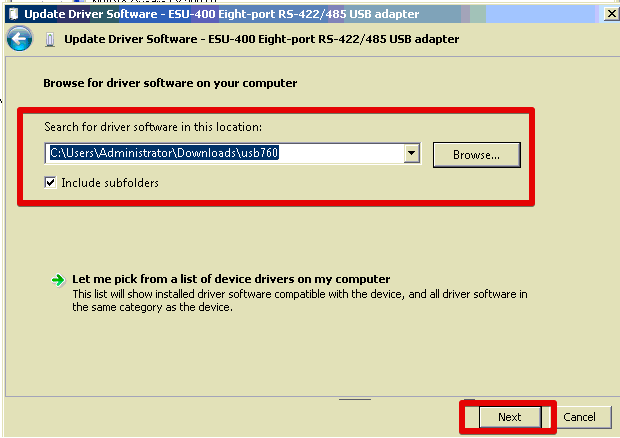
Browse the system and select the unzipped driver folder created in the step 8 of the Downloading Latest Drivers and Firmware section above.
Click Next to install the drivers.
After the initial driver install, the system will discover and install each of the serial ports made available by the Quatech adapter. Wait for this process to complete before moving on to the next step.
Upgrading the Firmware
Now that the drivers have been updated, its time to update the firmware:
Locate and double-click the firmware updater in the folder that the USB2.0 firmware zip folder was extracted to in step 8 of the Downloading Latest Drivers and Firmware section above. (For the current version as of this writing, it is called USBU_434.exe)
Click Run
Click OK
Click Load EEProm to begin the firmware update process
Click Yes after reading the warning message
Click OK when you are prompted to unplug and replug the Quatech device to finish the upgrade
Unplug your Quatech device
Plug your Quatech device back in
Wait till the Quatech device is visible in Device Manager
Reboot your computer to finalize the upgrade process
Checking Configuration
Now that the update is complete, your Quatech USB to Serial Adapter is ready to use. In some situations, the COM Address provided by the Quatech may have changed. Check your Cablecast configuration to confirm that the device and router port assignments are still configured correctly. Contact support@cablecast.tv if you need assistance reconfiguring Cablecast.