Navigating Between Zones in Cablecast CG
Cablecast CG supports multiple zones within a single bulletin board channel, allowing several pieces of content to display simultaneously as one rendered image. Each zone operates independently as its own playlist, running in parallel with the others.
Before you start working in Cablecast CG, make sure you're in the correct zone. Each zone has its own library of media and templates, so changes made in one zone do not affect others.
Identifying your current zone
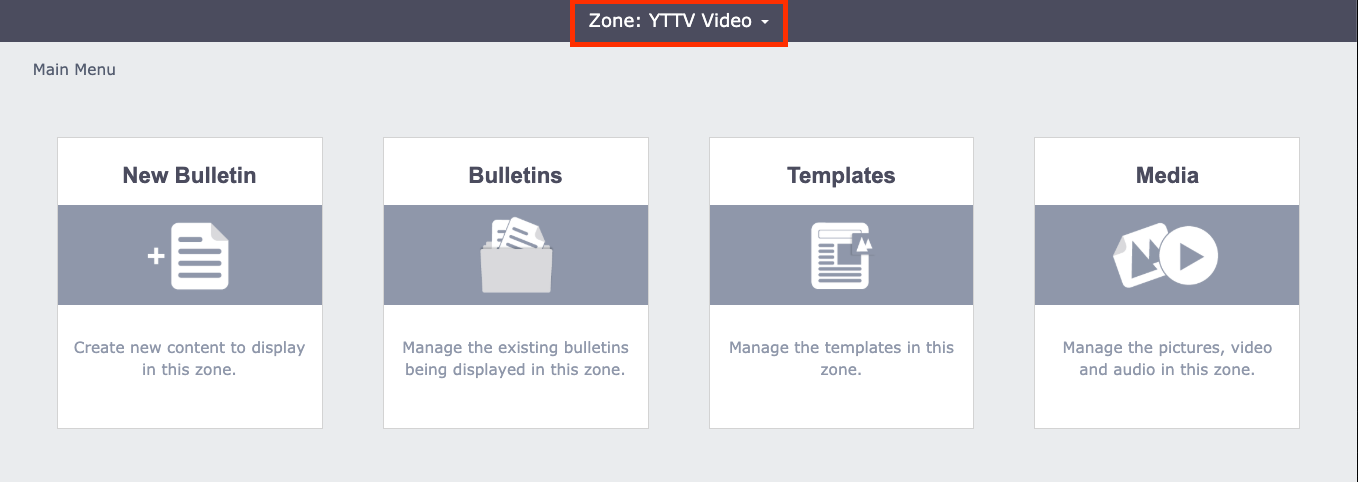
The zone you're currently working in is displayed at the top center of the Cablecast CG interface. If you need to switch zones, select the zone title to open the zone navigation dropdown.
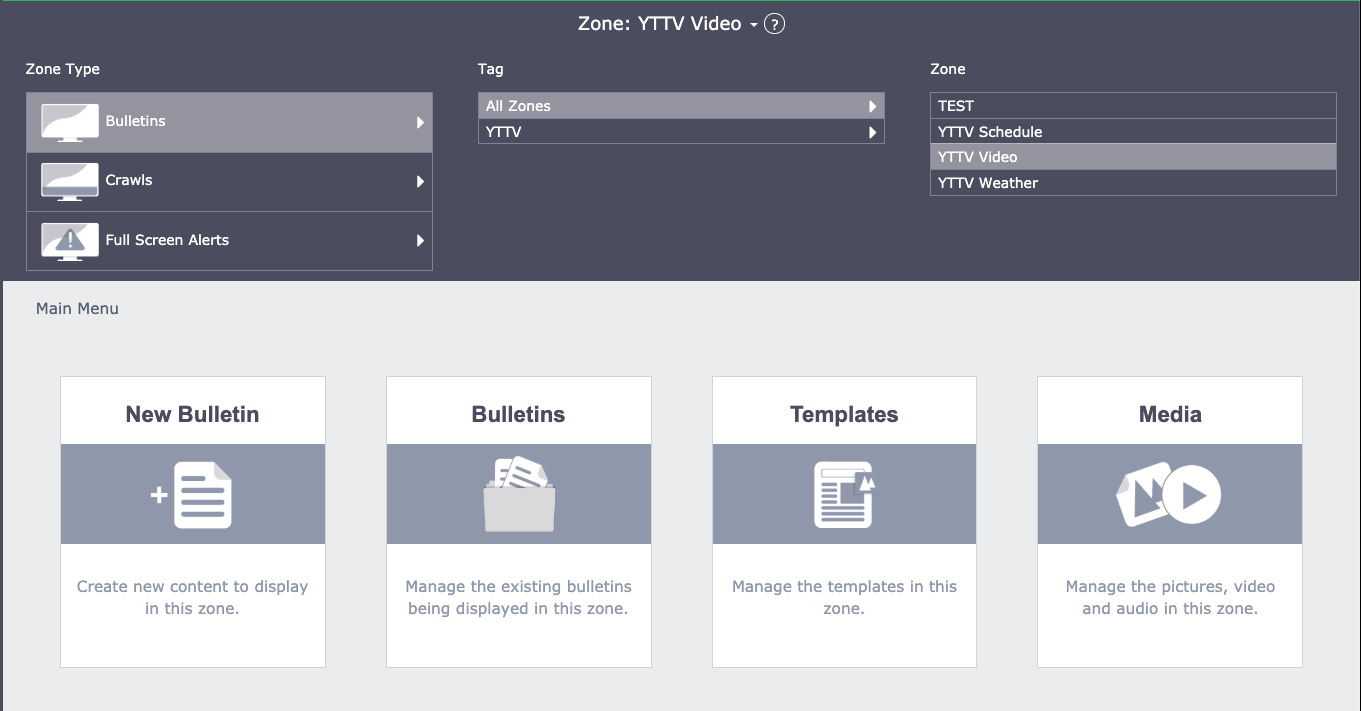
The dropdown includes three filters: Zone Type, Tag, and Zone.
Zone Type
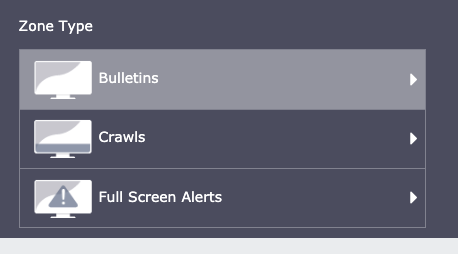
Zone Type lets you navigate between the three main content areas in Cablecast CG:
Bulletins — The primary workspace for creating messages that display on your channel.
Crawls — Where you create and manage scrolling ticker text, typically used for announcements, news, or weather, along the bottom of the channel.
Full Screen Alerts — A special section for emergency messages that override the entire Cablecast CG channel display.
Tag
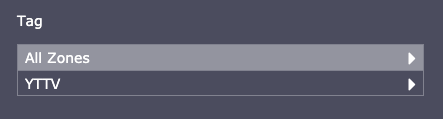
Tags are keywords you can assign to zones to help organize and filter them. For example, if you manage multiple Cablecast CG channels, you can tag zones by channel (such as "Educational" or "Municipal") and then filter the zone list by that tag to find what you need quickly.
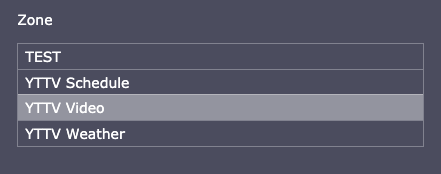
Zone
The Zone section lists all zones available to you. Select the zone you want to work in. Once selected, the dropdown closes, and the zone title appears at the top center of the interface.
Summary
Cablecast CG zones are independent workspaces within a channel, each with its own media and templates. Use the zone navigation dropdown at the top of the interface to switch between zones by Zone Type, Tag, or Zone name. Always confirm you're in the correct zone before making changes.
