Exporting from Carousel 7.x to CablecastCG
When you're going from Carousel to CablecastCG, either as a upgrade, or having both systems working side by side, you can export and import content across systems.
⚠ The ability to import / export content between Carousel & CablecastCG could be subject to change in the future. Please use at own risk.
Using your Cablecast server as a Digital Signage Server
We recommend that if you're going to be using your Cablecast server for digital-signage and not for broadcast purposes, you may want to break apart the two installations for maximum feature support and technical assistance.
"Carousel" is best suited for Digital-signage, while "CablecastCG" is a branch designed specifically for providing Bulletin-boards for air.
Importing Bulletins from Carousel 7.x to CablecastCG
This can be useful if you need to move specific bulletins from a older Carousel system, to CablecastCG. If you prefer a video walkthrough, you can view that here: https://soapbox.wistia.com/videos/cJk03WdhbE
Export Bulletin
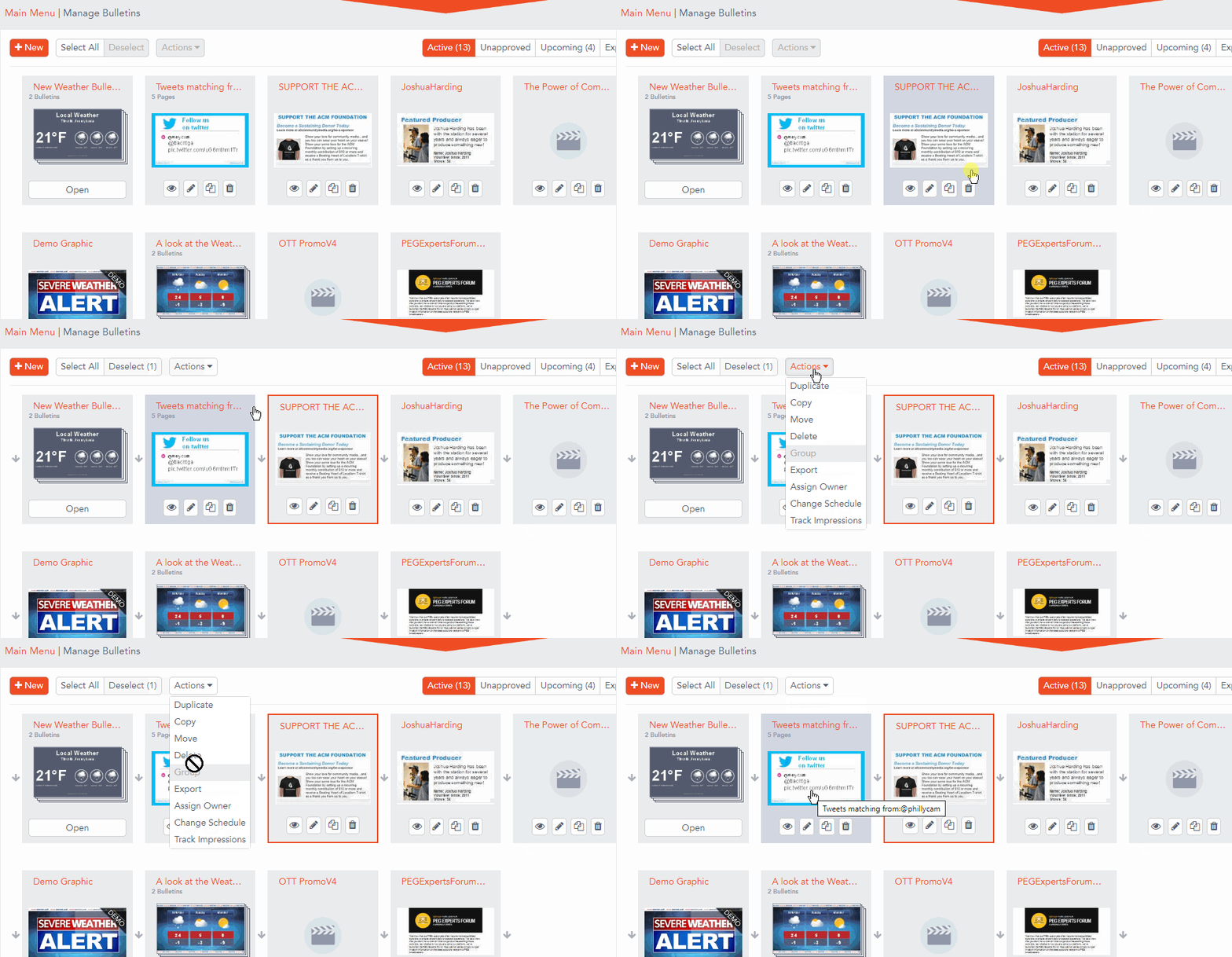
Login to your Carousel system that you want to export bulletins from.
Navigate and locate the bulletin to export, click on it to select it.
Click on the "Actions" drop-down and select "Export"
You will download a file called "Bulletins" with the date code. Example: "Bulletins-1-20-20-125137.zip".
Import Bulletin
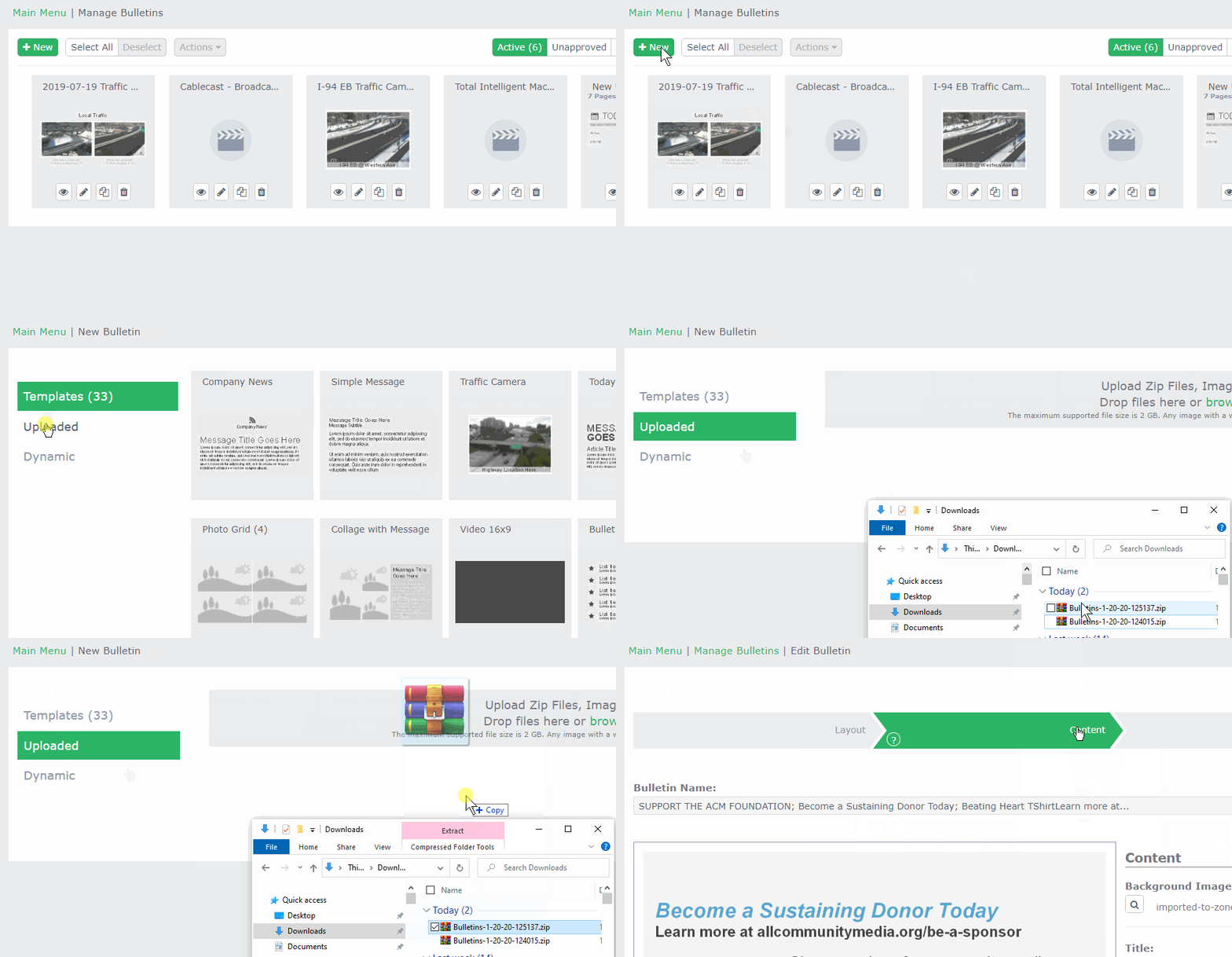
Login to your CablecastCG system and navigate to the zone that you want to import the bulletin into.
Click "New", and click on "Uploaded" on the left navigation bar.
Drag and drop (or click browse) to upload your .zip from earlier.
Finalize and adjust your bulletin as desired.
Click Publish.
Importing Channels from Carousel 7.x to CablecastCG
This is useful if you need to import an entire Bulletin-board (channel) from Carousel into CablecastCG.
Export Channel
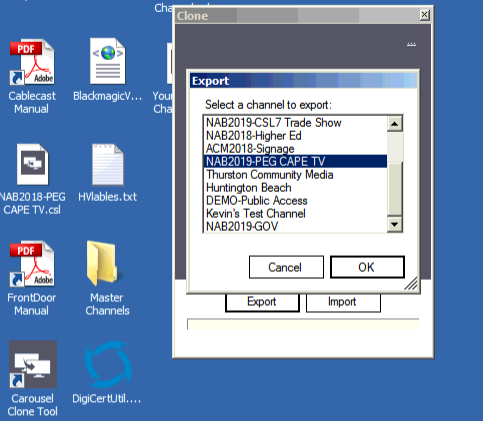
On the Head-unit thats housing the Carousel server, double click on the "Carousel Clone Tool" located on the desktop.
Click "Export"
Click the channel(s) you want to export.
Click "OK" and select a target destination
Your channel will export as a *.csl file.
Import Channel
On your Cablecast head unit acting as the CablecastCG server, double click on the "Cablecast CG Clone Tool" on the desktop
Click "Import"
Browse for the *.csl file that you created earlier
Fine tune / tweak how your CSL will import with zone mapping / naming / tags.
Your channel will import as a new channel