Creating Cablecast Schedule Bulletins in Cablecast CG
Overview
Cablecast CG lets you create bulletins that display between scheduled programming. Dynamic bulletins are a convenient way to show regularly updated content from a variety of sources without manual updates. This article covers the Cablecast schedule-based dynamic bulletins — the Cablecast Schedule bulletin, the Coming Up Next bulletin, the See It Again bulletin, and the Interrupt bulletin — all of which pull from your Cablecast schedule.
Navigating to Cablecast CG
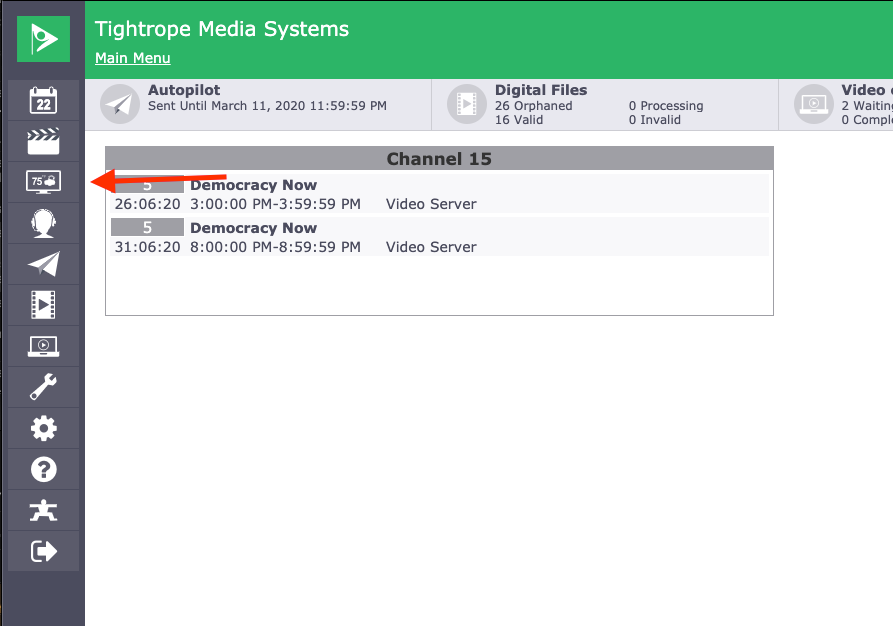
Go to Cablecast CG in the left-hand menu.
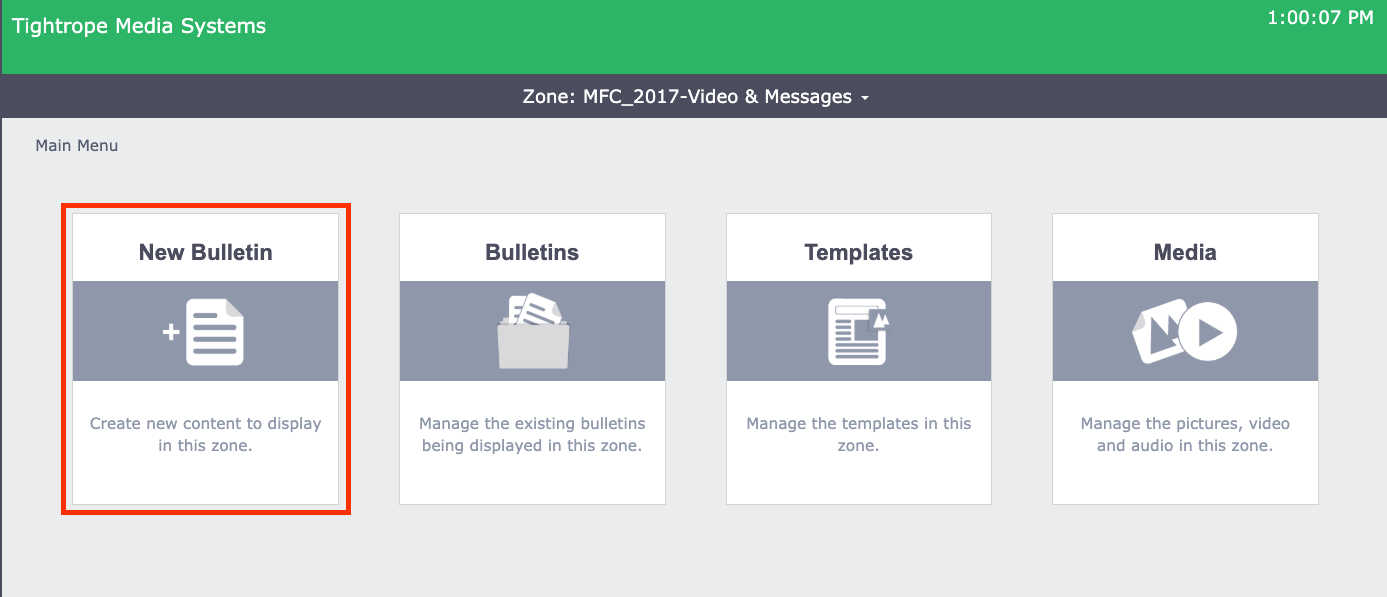
At the Cablecast CG main menu, make sure you're in the zone you want to work in (see Navigating Between Zones in Cablecast CG). Then select New Bulletin.
Creating a Dynamic Bulletin
A dynamic bulletin points to an outside source and updates automatically, keeping content fresh without manual edits. For the general dynamic-bulletin workflow, see Creating Basic Dynamic Bulletins in Cablecast CG. This article focuses on the four dynamic bulletins that pull from your Cablecast schedule.

Cablecast Schedule
The Cablecast Schedule bulletin gives viewers the full rundown of what's coming up on your schedule.
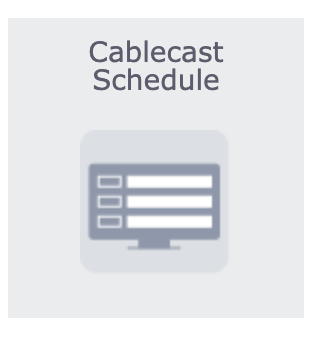
The bulletin opens on the Dynamic tab, where you set what and how much information it pulls. First, choose which channel's schedule to use. If you have multiple channels with their own bulletin boards, you can make this bulletin specific to one channel; if your channels share a bulletin board, you can create a separate bulletin for each.
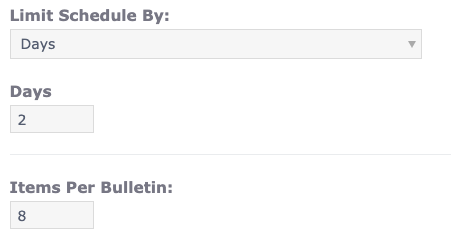
Next, set how much of the schedule to display. You can limit by Days or by Pages, and set the number of items per bulletin. For example, two pages with eight items each shows the next sixteen items; two days with eight items per page shows everything scheduled over the next 48 hours, across as many pages as needed.
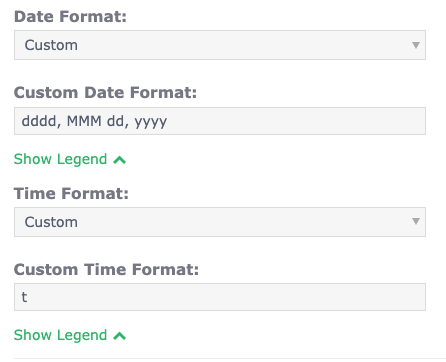
Then set the style and formatting for the Date and Time. You can choose a pre-made option or use the legend to build a custom format.
On the Content tab, set what the bulletin pulls from the schedule. To brand it to your channel, change the Header to something like "Coming Up On Channel 15." Most users keep the default dynamic fields, but you can open the Dynamic Fields List to see what else is available.
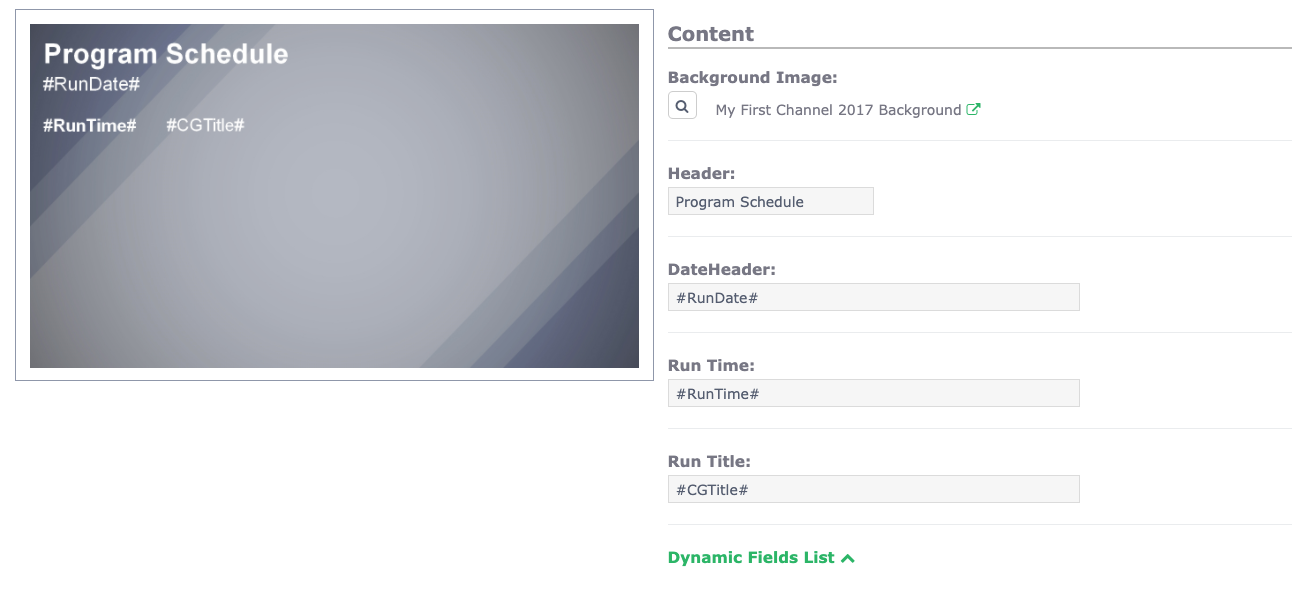
Like other dynamic bulletins, the Cablecast Schedule bulletin updates automatically, so you can leave it Always Active and it will continually refresh.
Cablecast Coming Up Next
The Coming Up Next bulletin is an alert bulletin that displays before a program to tell viewers to stay tuned.

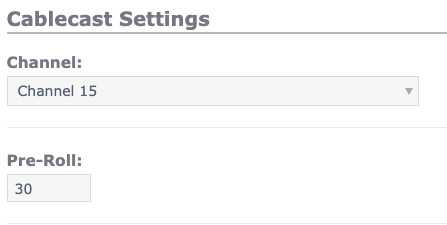
As with the Cablecast Schedule bulletin, set the channel you want to display content from. Then set the Pre-Roll — the amount of time the bulletin shows before a scheduled program. The default is 30 seconds, so 30 seconds before a program plays, the Coming Up Next bulletin appears as an alert bulletin, overriding the other bulletins in that zone until the program starts.
Set the Date and Time formatting the same way as in the Cablecast Schedule bulletin.
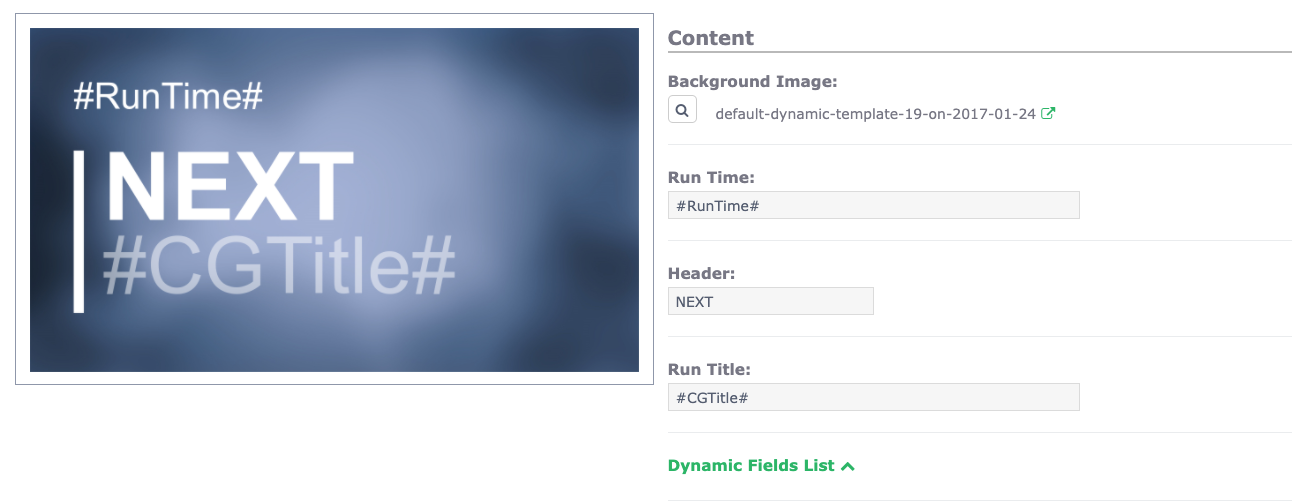
On the Content tab, the dynamic fields are usually left as is, but you can change the Header for a call to action like "Coming Up Next" or "Stay Tuned."
For scheduling, leave these Always Active. Because this acts like an alert bulletin (see The Extras Section in Cablecast CG), it sits in the Upcoming section of Bulletin Management until the pre-roll for the next program. At that point, it moves to Active and overrides the other bulletins in that zone until the pre-roll ends, then returns to Upcoming to wait for the next program.
Cablecast See It Again
See It Again bulletins are alert dynamic bulletins like Coming Up Next, but they play after a show instead of before.

As with the other two, set the channel you want to display content from. Then set the Post-Roll — the amount of time the See It Again bulletin shows after a scheduled program. The default is 30 seconds, so for 30 seconds after a program plays, the See It Again bulletin appears as an alert bulletin, overriding the other bulletins in that zone.
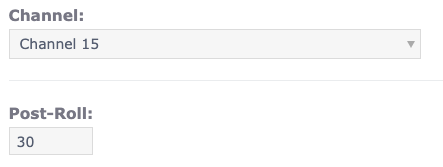
Set the Date and Time formatting the same way as in the other two bulletins.
On the Content tab, the dynamic fields are usually left as is, but you can change the Header for a call to action like "You Just Watched" or "See It Again." The See It Again bulletin also displays the next date and time the program is scheduled to play again, so viewers know when they can watch it.
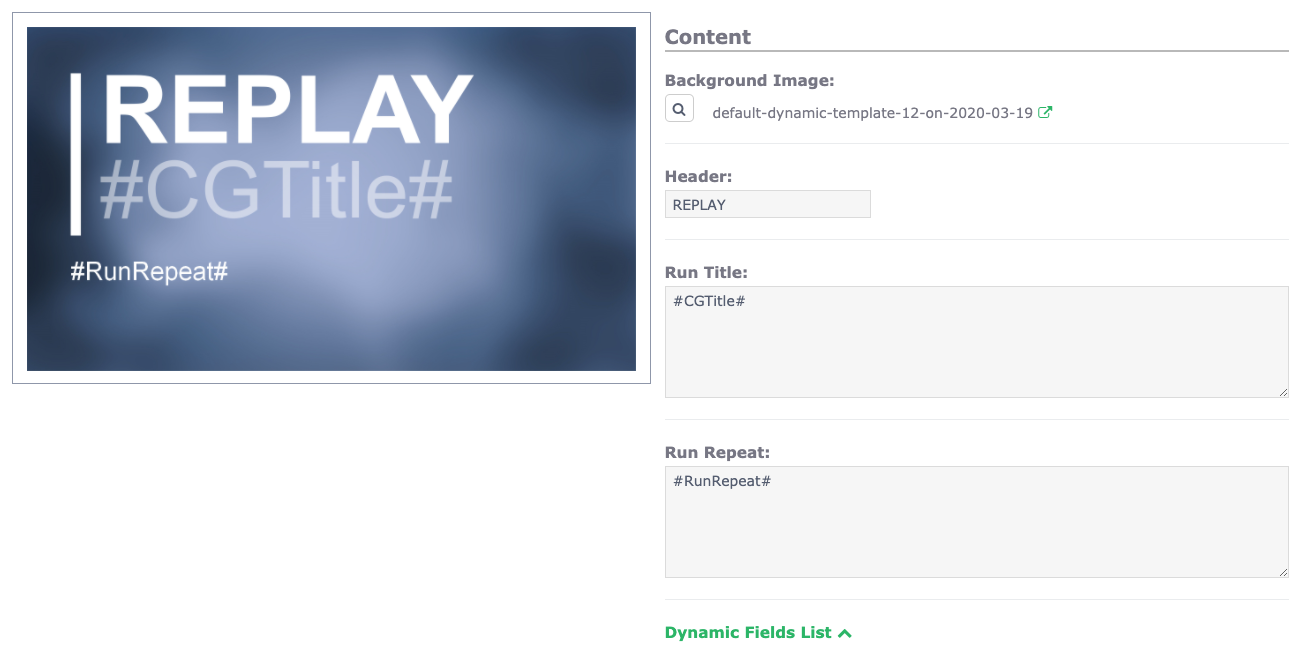
For scheduling, leave these Always Active. Because this acts like an alert bulletin, it sits in the Upcoming section until the scheduled program finishes. At that point, it moves to Active and overrides the other bulletins in that zone until the post-roll ends, then returns to Upcoming to wait for the next program.
Cablecast Interrupt
The Interrupt bulletin stays on screen while a program is playing on the selected channel, displaying the title of the program currently running. Unlike Coming Up Next and See It Again, which appear briefly around a program, the Interrupt bulletin remains in place for as long as the program is on the air.

As with the other schedule bulletins, set the channel you want to display content from on the Dynamic tab. There is no pre-roll or post-roll setting, because the bulletin is tied to the program itself rather than to a window before or after it. Set the Date and Time formatting the same way as in the other bulletins.

On the Content tab, change the Header to a label such as "ON NOW." The Run Title field uses the #CGTitle# dynamic field to display the program currently playing, and the Channel ID field uses #ChannelName# to show the channel. As with the other bulletins, you can open the Dynamic Fields List to see what else is available.

For scheduling, leave this Always Active. The bulletin displays whenever a program is running on the selected channel, overriding the other bulletins in that zone until the program ends.
Note: Depending on how your system is configured, you may rarely or never see the Interrupt bulletin. On systems where Cablecast CG shares an output with scheduled programming, Cablecast CG isn't running while a program plays out, so there is nothing to display the bulletin. The most common situation where it does appear is when a live event is scheduled to run long, the event ends early, and you switch the channel back to Cablecast CG. If that live event is still in the schedule at that point, Cablecast CG sees that the program should still be playing and displays the Interrupt bulletin until the scheduled end time of the event.
Summary
Cablecast schedule bulletins pull from your Cablecast schedule to keep viewers informed automatically. The Cablecast Schedule bulletin shows the upcoming rundown; Coming Up Next displays before a program (using a pre-roll) and See It Again displays after (using a post-roll), both acting as alert bulletins that briefly override the zone; and the Interrupt bulletin stays on screen for the duration of a program, showing the title of what's currently playing. For each, choose a channel, set your date and time format and content, and leave the bulletin Always Active so it updates on its own.
To see this in action, watch the Cablecast Bulletins section of the Cablecast CG Training Video.
