Creating Basic Dynamic Bulletins in Cablecast CG
Overview
Dynamic bulletins display regularly updated content from an outside source, so your bulletin board stays current without ongoing work. You point a bulletin at a source — a clock, a calendar feed, an RSS feed, or a weather service — and Cablecast CG refreshes it automatically. This article covers the basic dynamic bulletins: Clocks, Calendars, RSS, and Weather. Cablecast Schedule bulletins are covered in a separate article.
Navigating to Cablecast CG
Go to Cablecast CG in the left-hand menu.
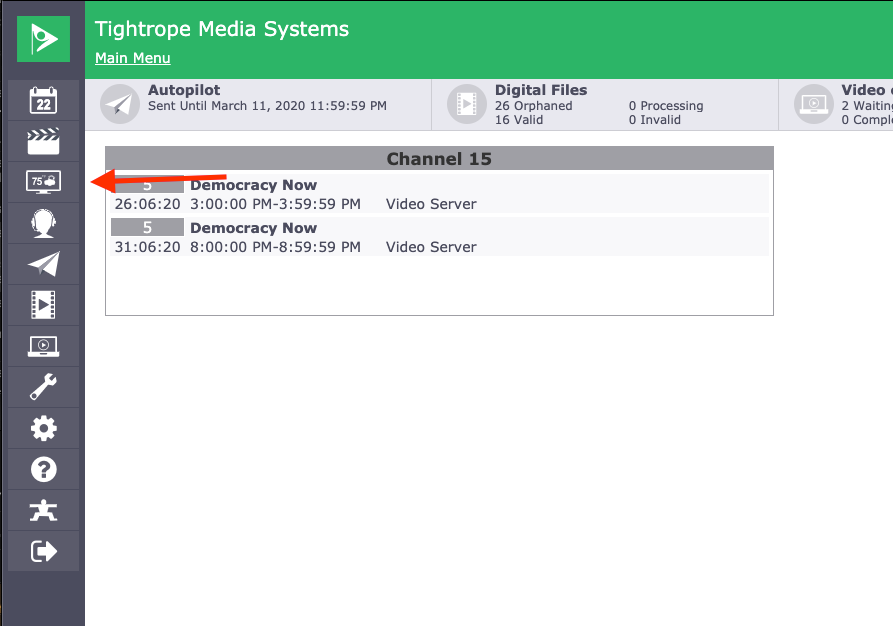
At the Cablecast CG main menu, make sure you are in the zone you want to work in. To learn more, see Navigating Between Zones in Cablecast CG.
Once you are in the correct zone, you will see four options. Select New Bulletin.
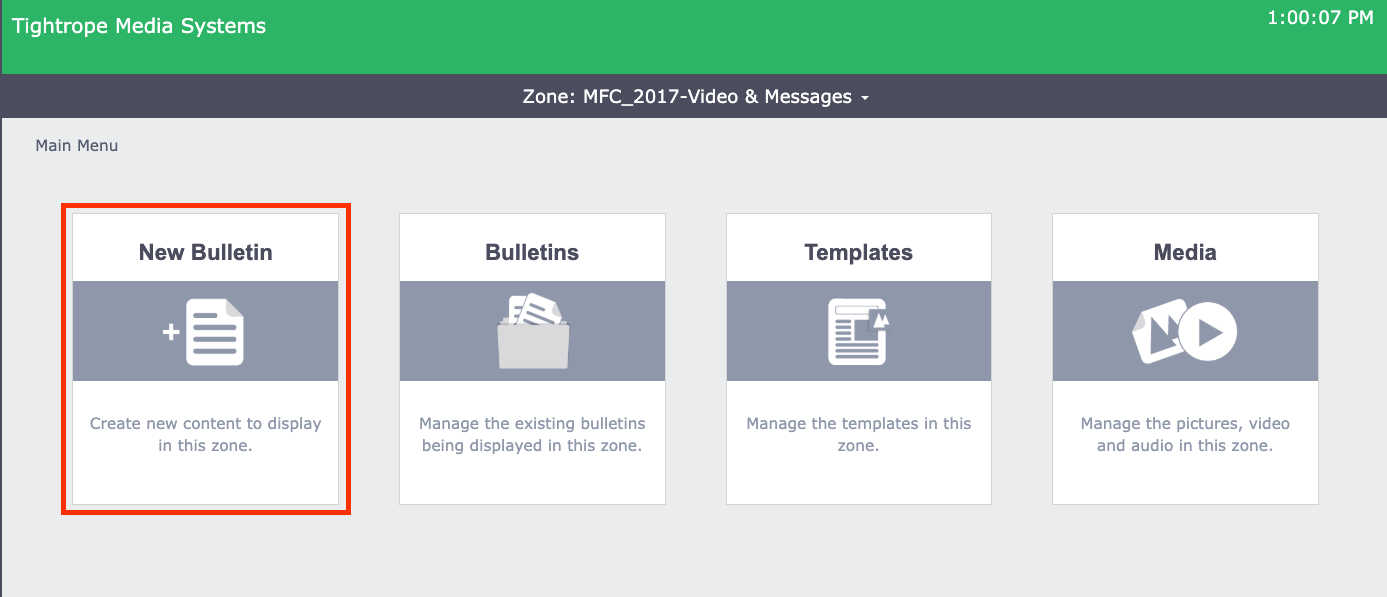
Creating a Dynamic Bulletin
There are three types of bulletins: Template, Uploaded, and Dynamic. The other two are covered in separate articles:
Dynamic bulletins are created in Cablecast CG but point to an outside source. Once connected, they update on their own with fresh content.

Clock Bulletins
Clock bulletins show your viewers the current time. There are two options: an Analog Clock and a Digital Date/Time clock.
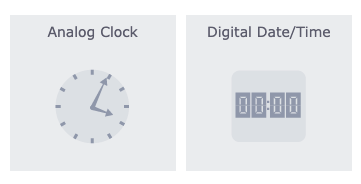
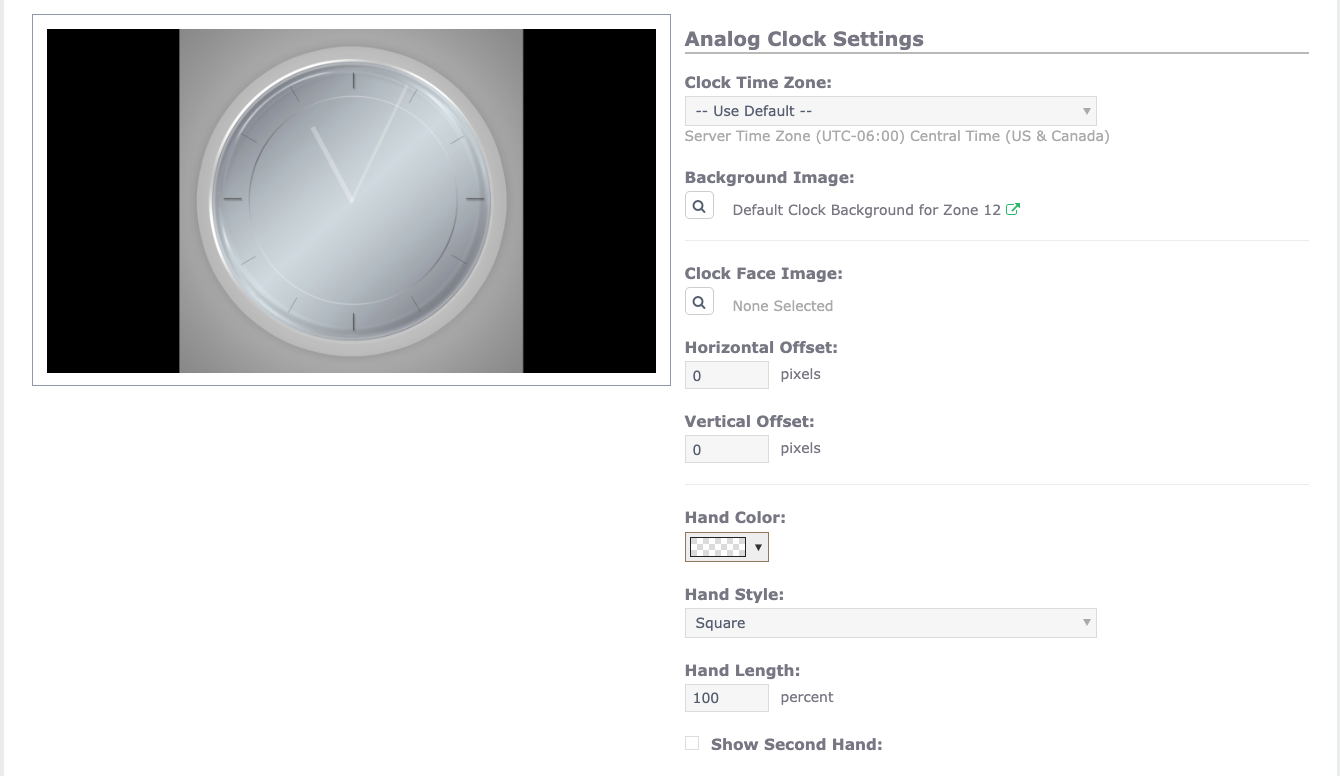
The Analog Clock is straightforward to set up. The bulletin opens on the Dynamic tab, where you adjust its settings. The clock's time zone defaults to the server's time zone; to show clocks for other regions, create a clock for each and choose its time zone.
As with all bulletins, you can keep the default background — a clock face — or select the magnifying glass to choose or upload a different one. Next, choose a Clock Face Image: select the magnifying glass to pick an existing image or upload your own, then set its horizontal and vertical offset. Finally, customize the clock's hands, including color, style, length, and whether to show a second hand.
Once the bulletin is set, schedule it. Because dynamic bulletins update on their own, you can leave the schedule set to Always Active.
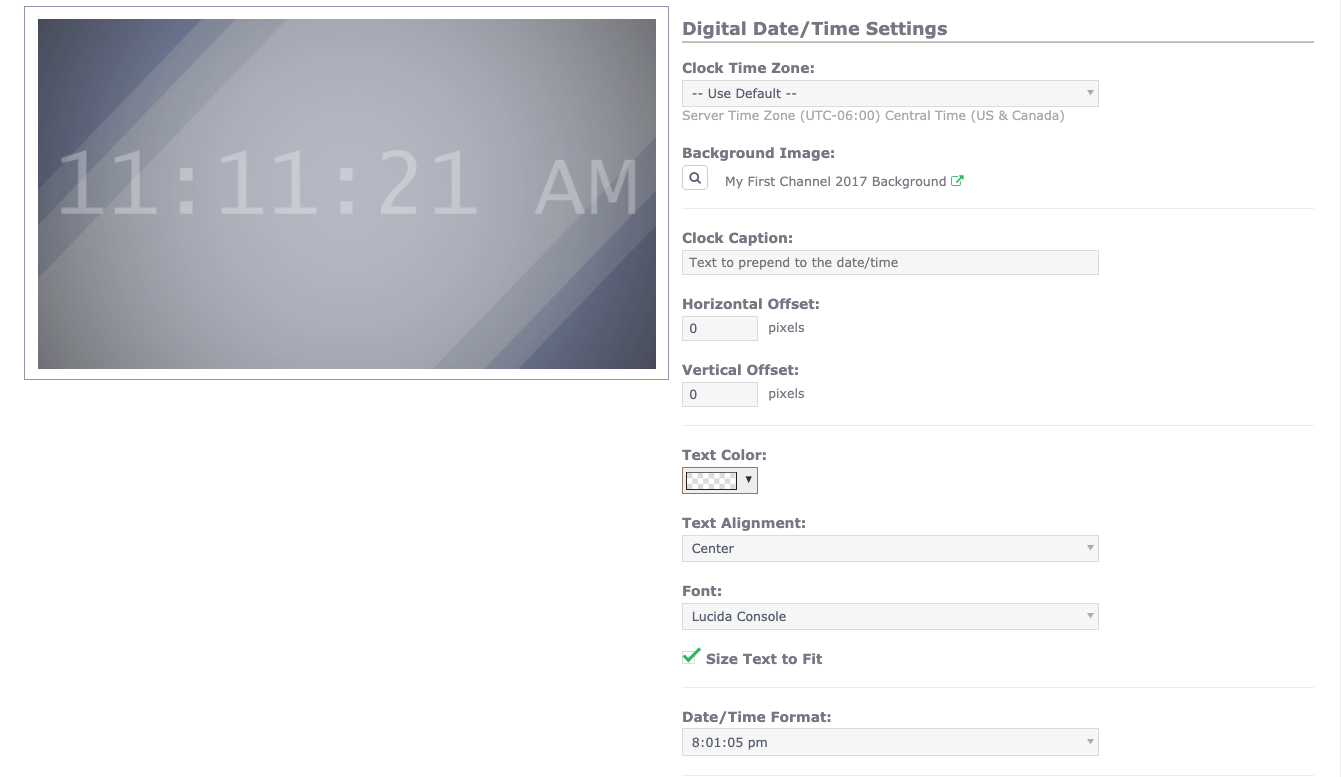
The Digital Date/Time clock settings are similar, with the addition of Text Alignment, Font, and Date/Time Formatting.
Calendar Bulletins
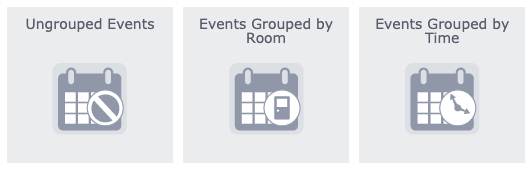
Calendar bulletins have three display options, depending on how you want events grouped: Ungrouped Events, Events Grouped by Room, and Events Grouped by Time.
Cablecast CG supports three calendar sources:
iCal
Google Calendar (which can generate an iCal feed)
Microsoft Exchange (including Office 365) — some additional authentication is required to connect to your Exchange server
EMS Software — scheduling software used by large convention centers and universities to manage room usage
The iCal feed is the most common, since it's widely available and needs no extra configuration.
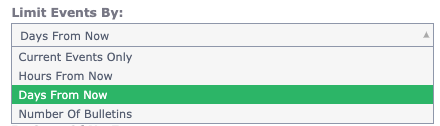
On the Dynamic tab, set the source you're pulling from and how much information to display. After selecting your calendar source and entering the URL, choose how much to show — limited to current events only, or by a number of hours or days.
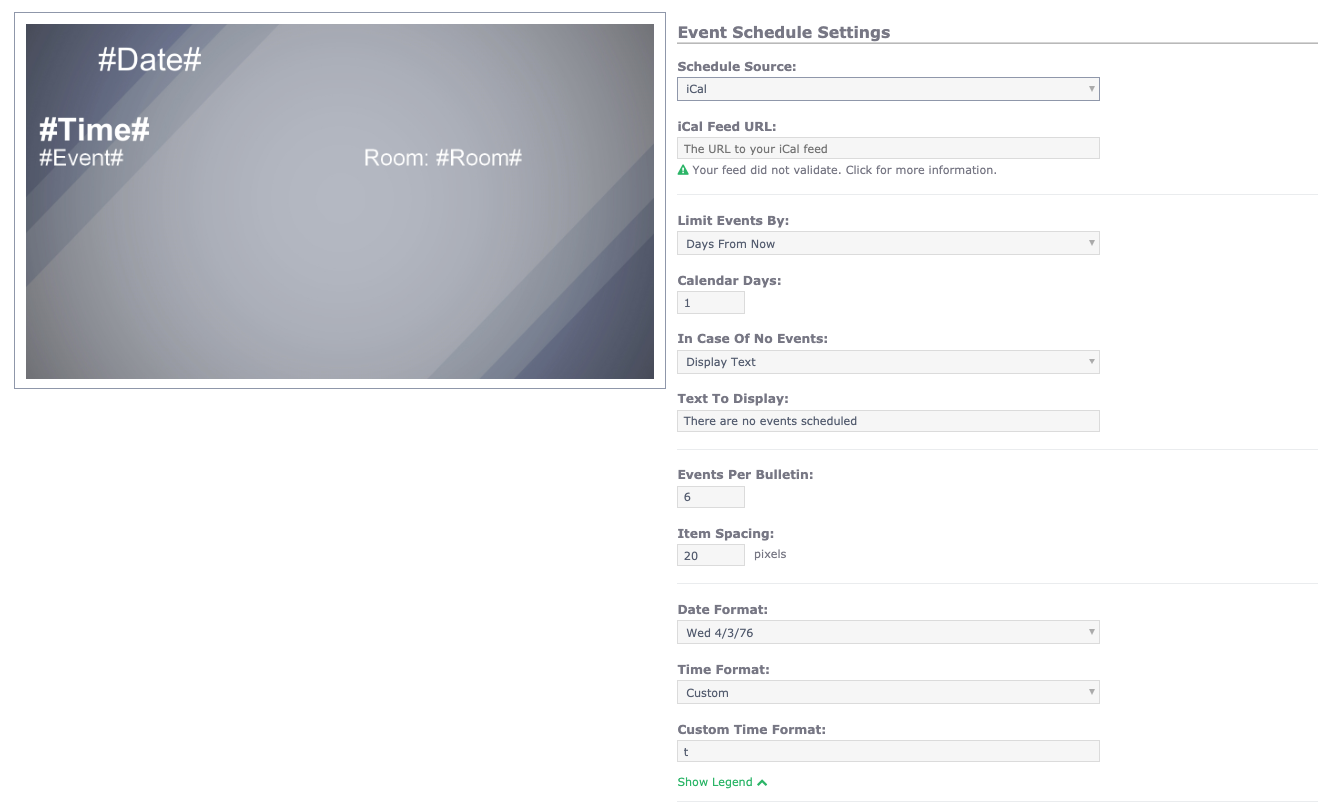
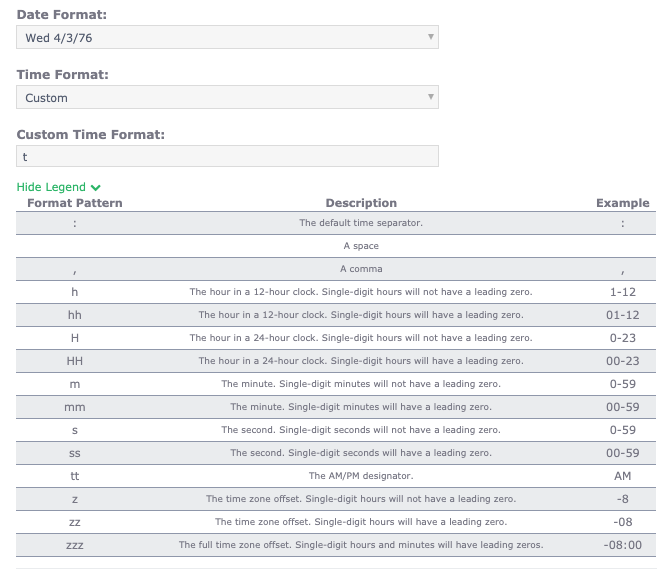
You can also set how many items appear per page and the spacing between them, and choose how the date and time are formatted. For Custom formatting, select Show Legend to see the available format patterns.
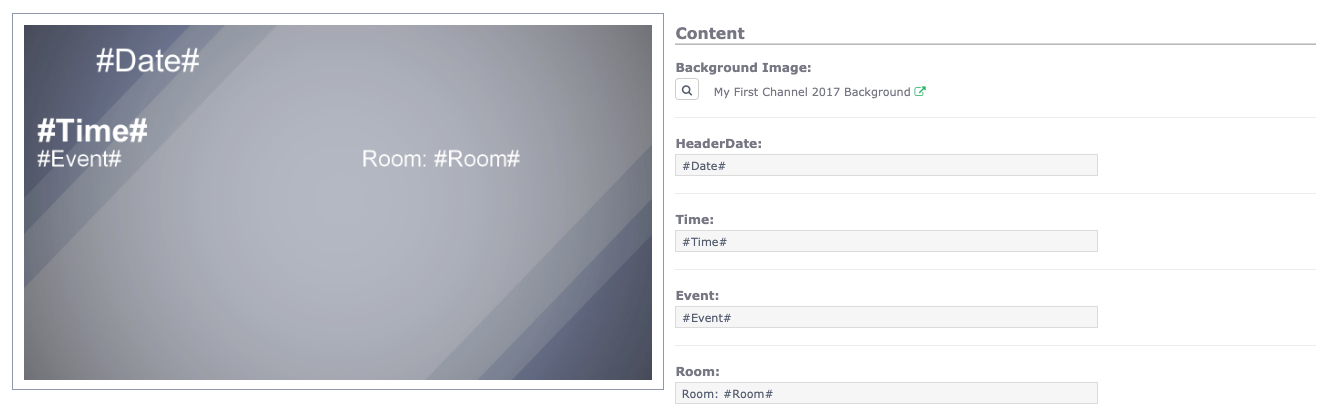
With the Dynamic tab set, go to the Content tab to choose which dynamic fields to use. These fields use a token format such as #Time# or #Event#, which tells the software what to pull from your source and where to place it in the bulletin.
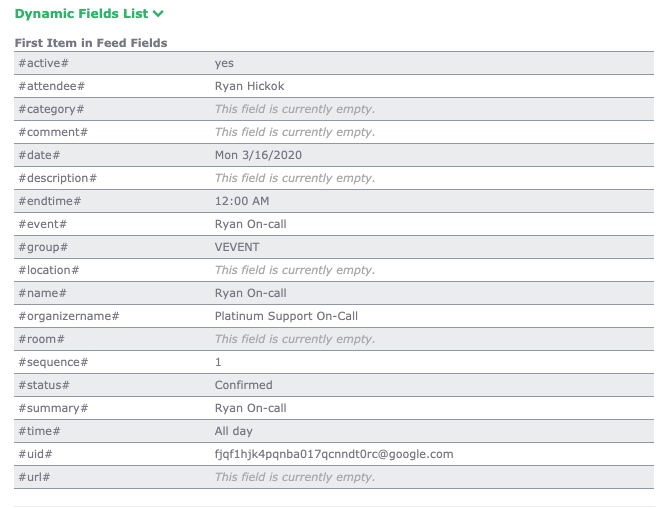
Most customers use the default fields, but you can review the Dynamic Fields List for a given bulletin to see every available field alongside a live example of its current value from your feed.
You can leave calendar bulletins set to Always Active; they update as time passes and as events are added.
RSS Bulletins
RSS bulletins are a good way to display content from news sources. RSS — Really Simple Syndication — is a standardized way for an online publisher to distribute content to readers.
Many news outlets publish RSS feeds you can use; a quick web search will turn up options, and some cities publish their own news and update feeds.
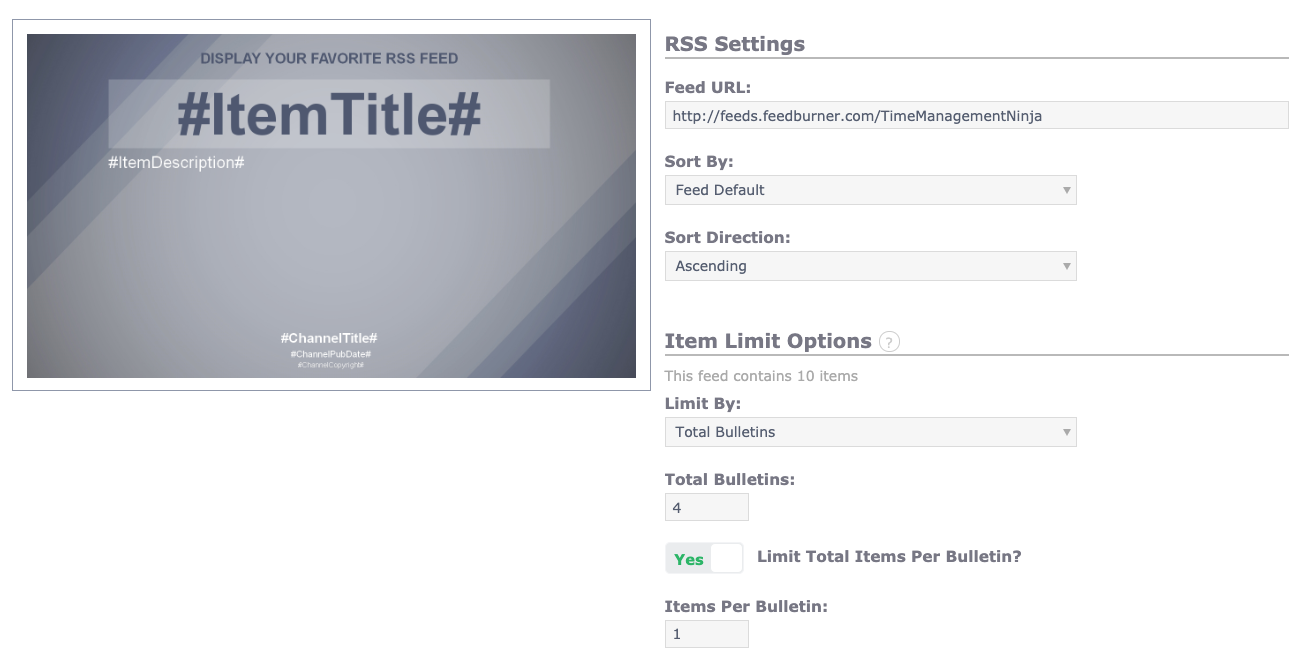
After entering your RSS feed URL, choose how items are sorted. The feed default is publication date, which shows the most recent items first — the most common setting — but you can also sort by title or author.
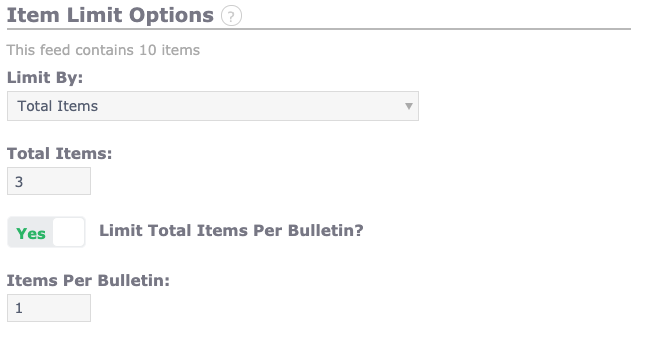
The next section sets how much of the feed to display. The first option is Limit By, which can be set to total bulletins or total items. Total Items is the most common: it tells the software to display only a set number of items, such as the three most recent articles from a news source.
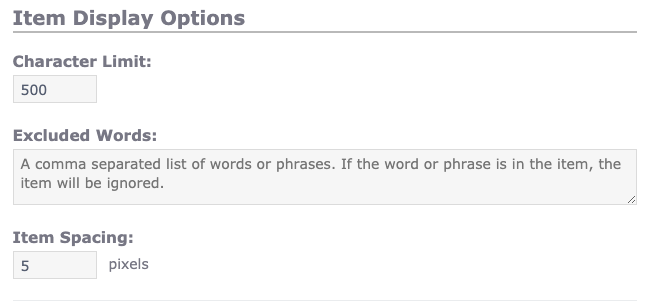
The last section of the Dynamic tab is Item Display Options. Here you can set character limits and spacing for the items being pulled, and you can use Excluded Words to keep specific keywords or phrases off your channel. If an excluded word or phrase appears in a feed item, Cablecast CG skips that item entirely — a simple way to keep unwanted language from reaching your channel.
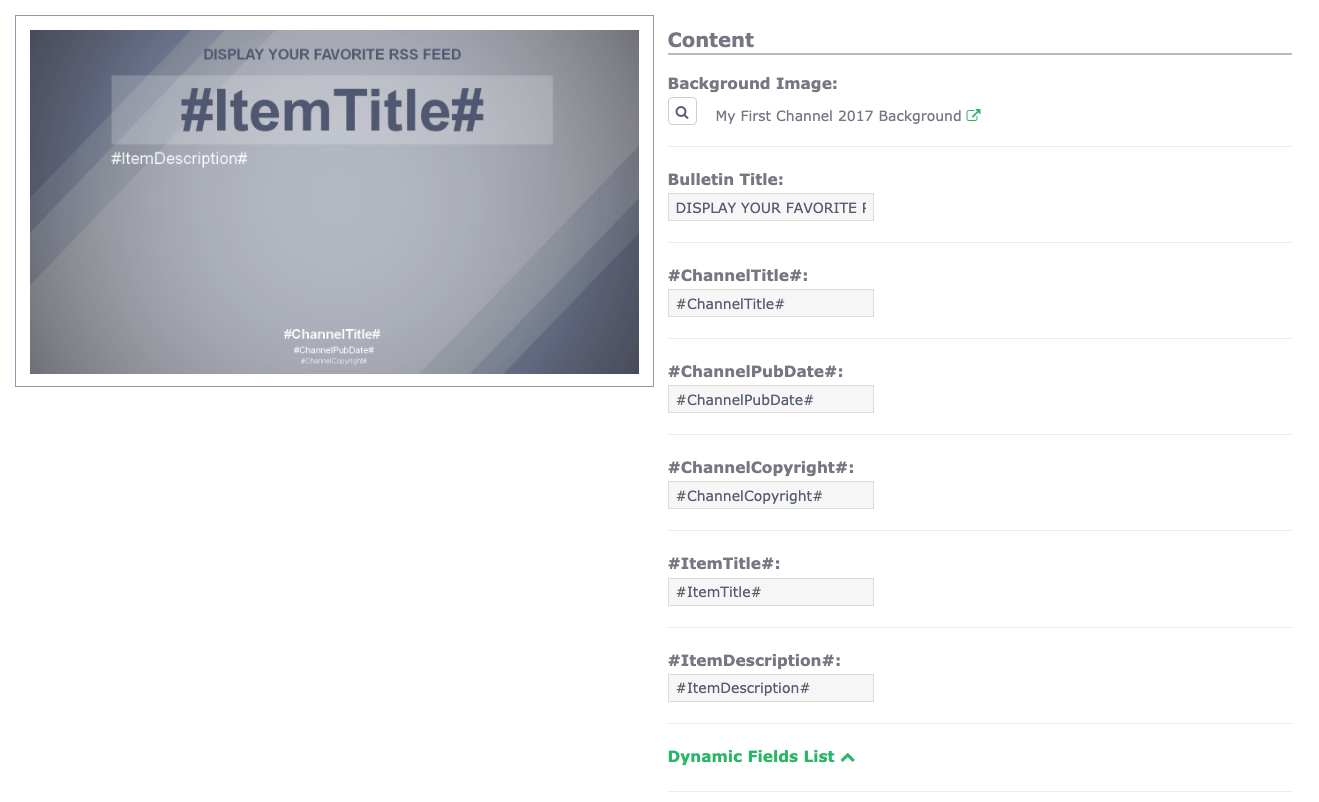
As with calendar bulletins, the Content tab lets you choose which dynamic fields to use. Most customers use the defaults, but check the Dynamic Fields List if there's something else you'd like to show.
RSS bulletins can stay Always Active; they update automatically as new items are added to the feed.
Weather Bulletins
Weather bulletins localize your bulletin board and are simple to set up. Cablecast CG pulls weather data from WeatherBug, so you don't need a separate account or feed — just set your location.
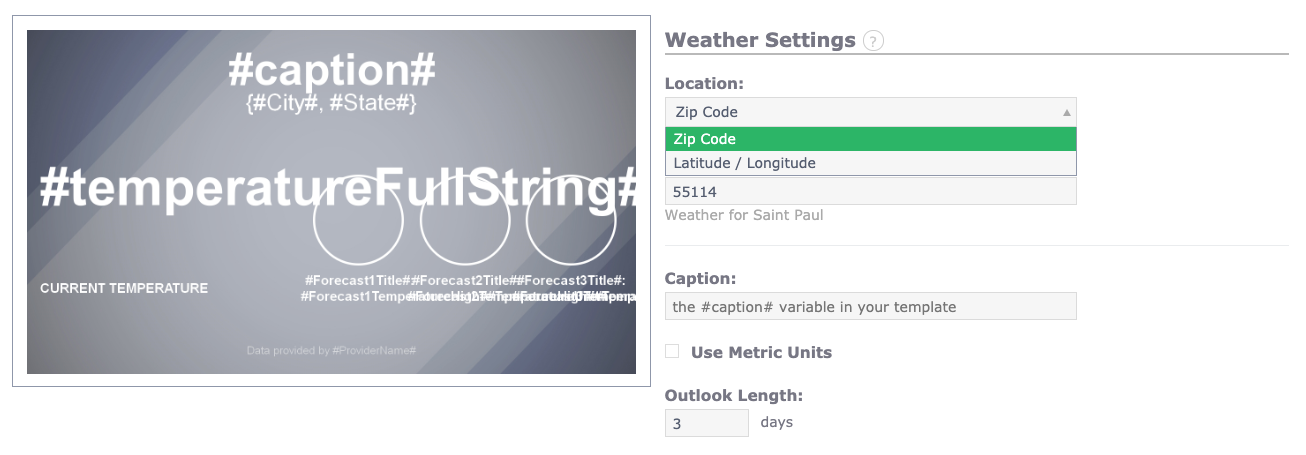
Set the weather bulletin to pull data by Zip Code or by Latitude and Longitude. You can also add a Caption to serve as the bulletin's header, such as "Local Weather" or "Channel 15 Weather."
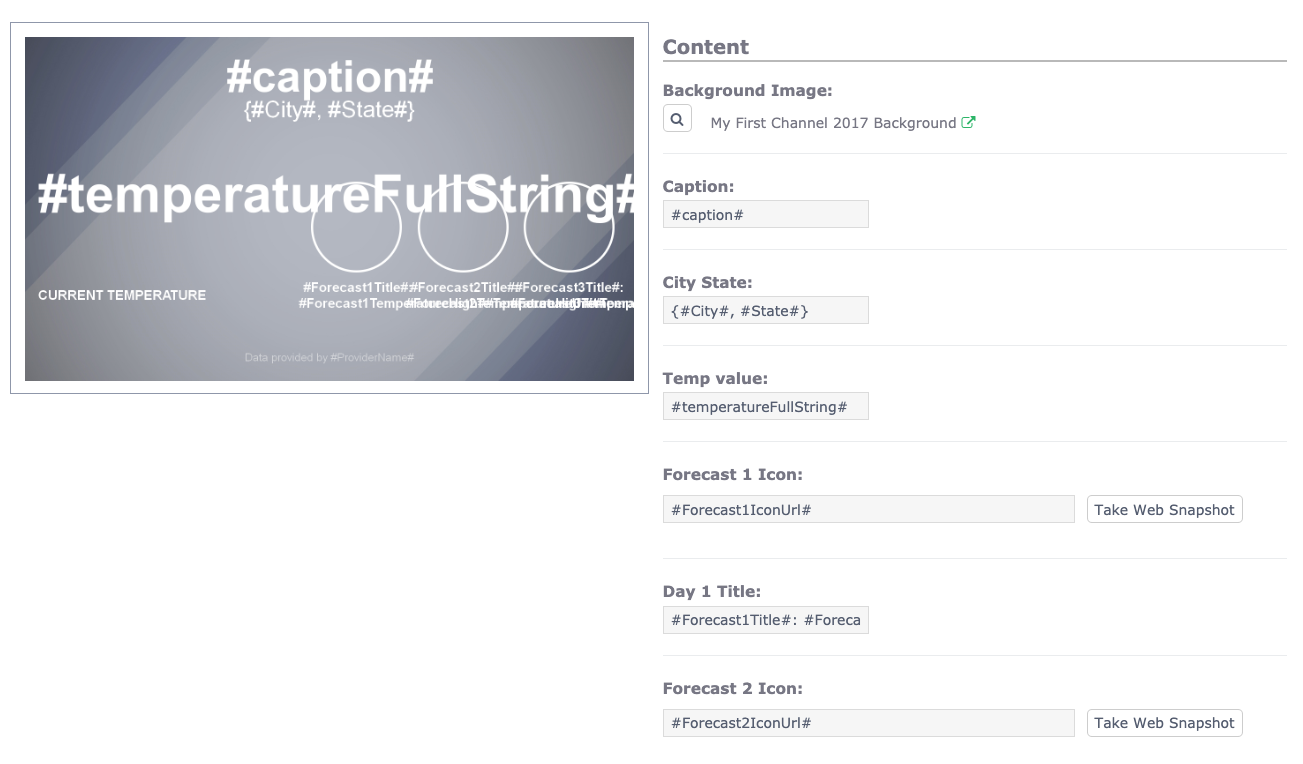
On the Content tab, use the dynamic fields already in place or choose your own. Weather bulletins include a wide range of fields — temperature, current conditions, multi-day forecasts, and more — so you can show as much or as little as you like. The defaults cover most needs, and you can add other fields from the Dynamic Fields List as you go.
You can leave weather bulletins set to Always Active; they update continuously as conditions change.
Summary
Dynamic bulletins keep your bulletin board current by pulling from an outside source and updating on their own. To create one, go to the correct zone, select New Bulletin, and choose Dynamic. Set the source and display options on the Dynamic tab, choose your dynamic fields on the Content tab, and leave the schedule Always Active so the bulletin keeps itself up to date. The basic dynamic bulletins — Clocks, Calendars, RSS, and Weather — each follow this same pattern.
To see this in action, watch the Dynamic Bulletins section of the Cablecast CG Training Video.
