Creating a Live Video Bulletin In Cablecast CG
Overview
Cablecast CG allows you to create Dynamic Bulletins that display a live network video stream. This is a great way to add localized, real-time content to your CG bulletin board that reflects your community.
Common use cases include:
A live camera view of a town square or park
A traffic or weather camera
Cablecast CG supports the following streaming formats:
HLS
RTP
RTSP
RTMP
Note: A Live Video Bulletin is best suited to ongoing, ambient feeds — such as a town square, park, traffic, or weather camera — that rotate alongside your other bulletins. To broadcast a live community event, such as a meeting or local program, directly on your channel, use Cablecast's Network Stream feature instead. See Network Streaming formats for the supported stream types, and Setting up Cablecast to use Network Streams to configure one.
Navigating to the Live Video Dynamic Bulletin
From the left-hand navigation menu, select Cablecast CG.
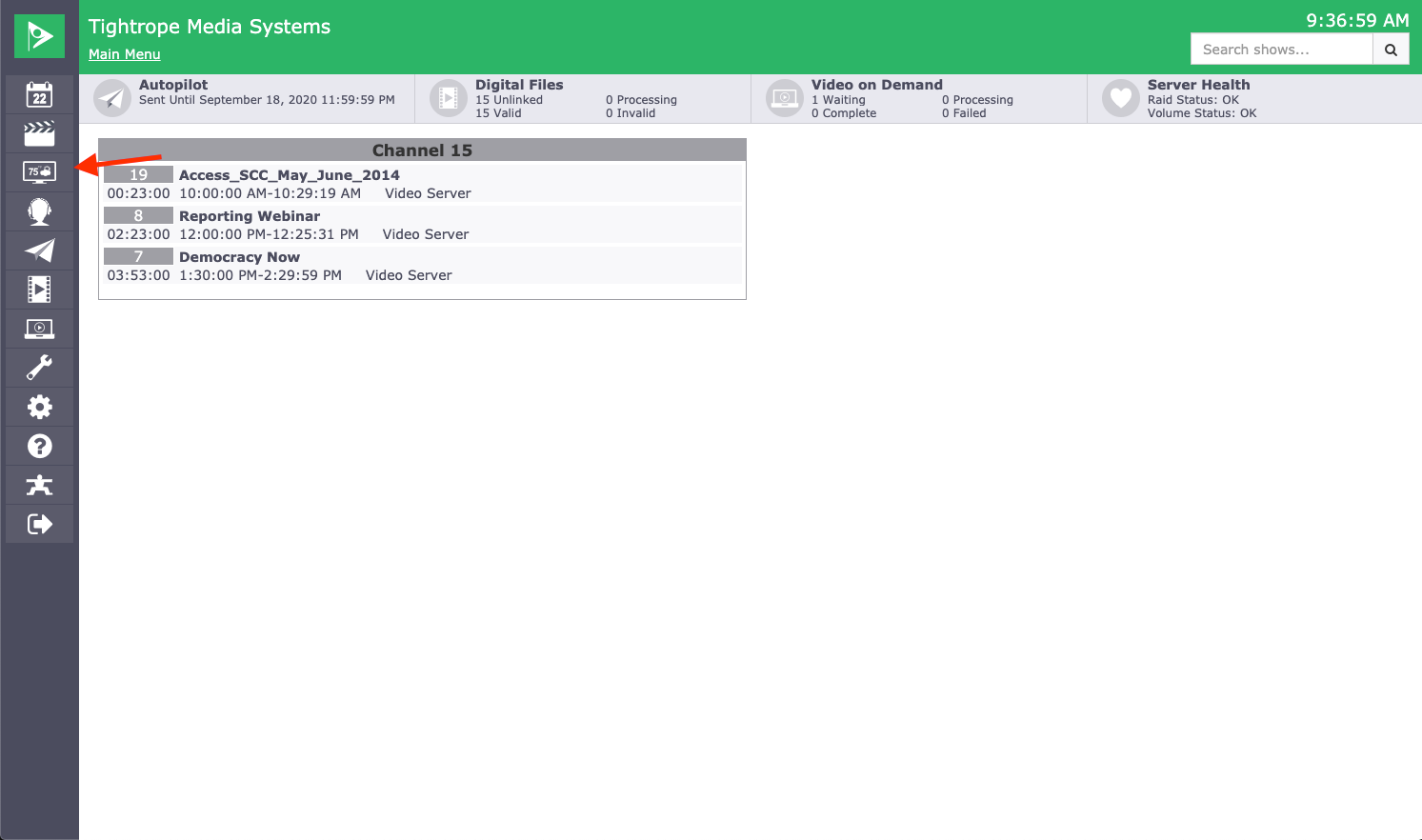
Navigate to the desired zone.
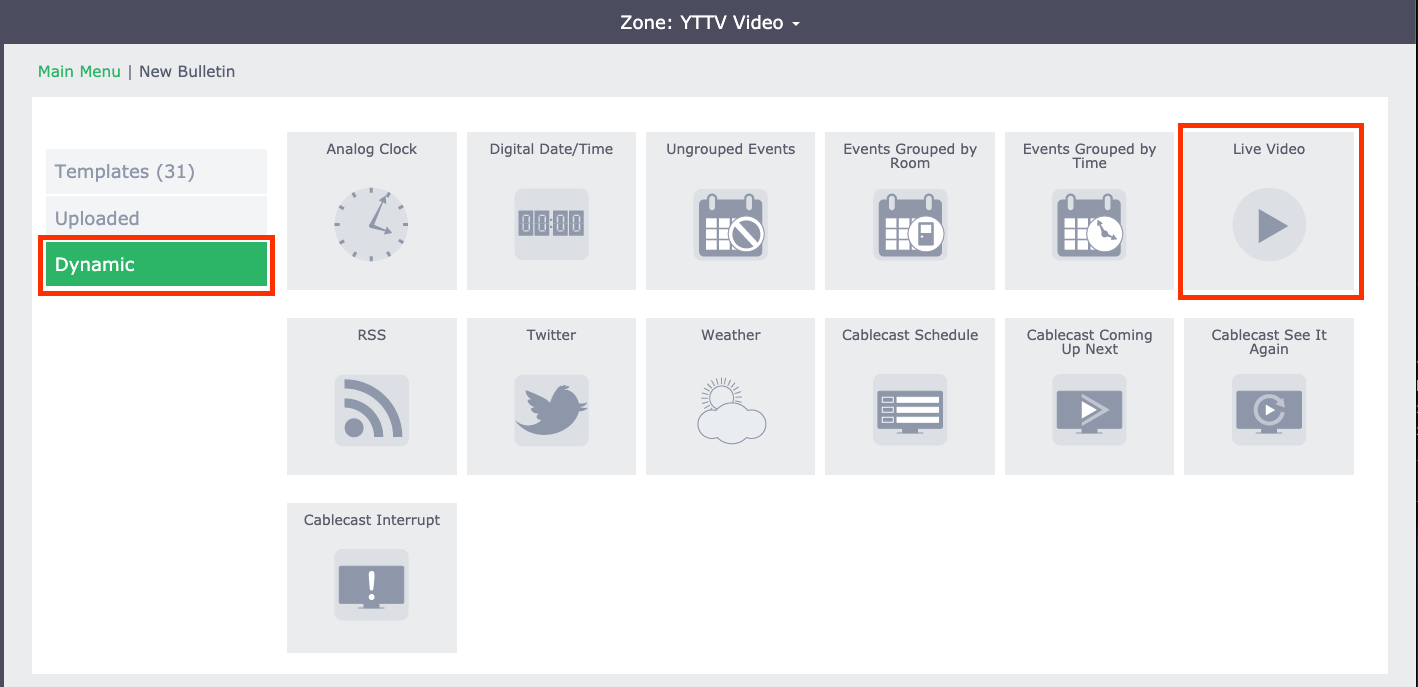
Select New Bulletin.

Select Dynamic as the bulletin type, then choose Live Video.
Note
If you're unfamiliar with working with zones in Cablecast CG, refer to the Zones section of the Cablecast CG training video for an overview.
Creating a Live Video Bulletin
In the Dynamic section of the Live Video Bulletin, enter the URL of the live stream you want to display. The stream may be in HLS, RTP, RTSP, or RTMP format.

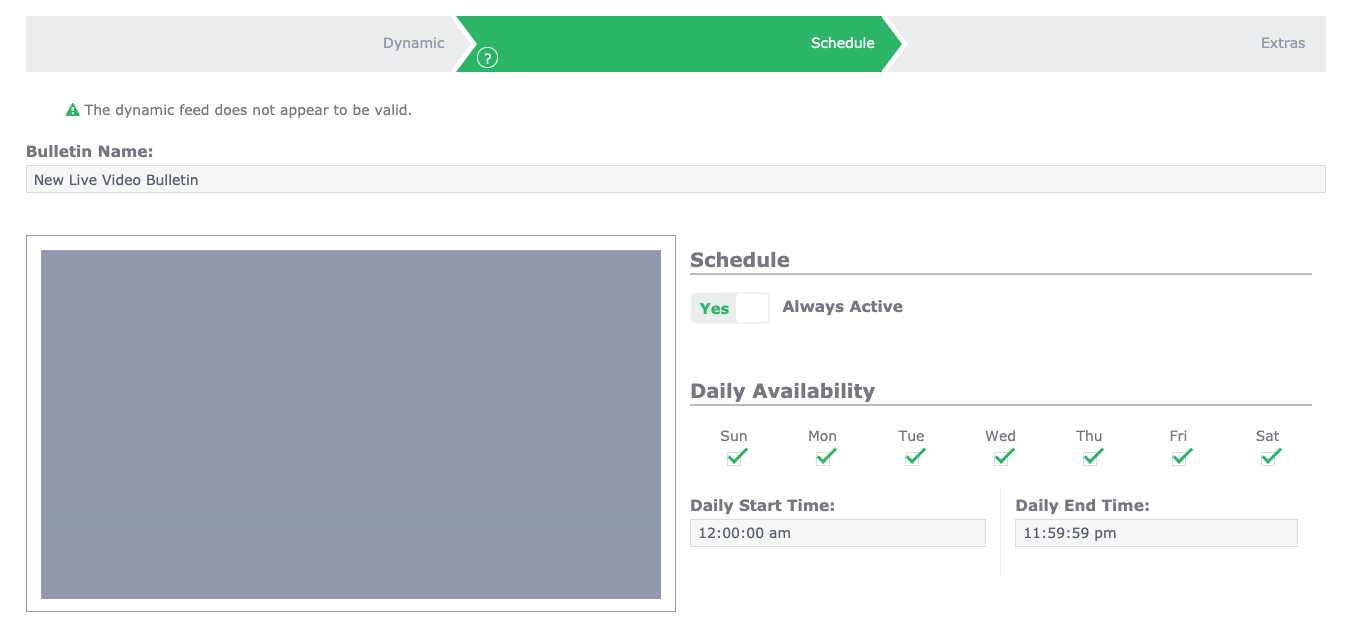
Next, configure the bulletin schedule:
For most use cases, set the bulletin to Always Active so it continuously rotates with your other bulletins.
If the stream is time-sensitive (for example, a seasonal display or limited-time event), set a start and end date just like any other bulletin.
Extras and Display Options
The Extras section allows you to customize how the Live Video Bulletin behaves.
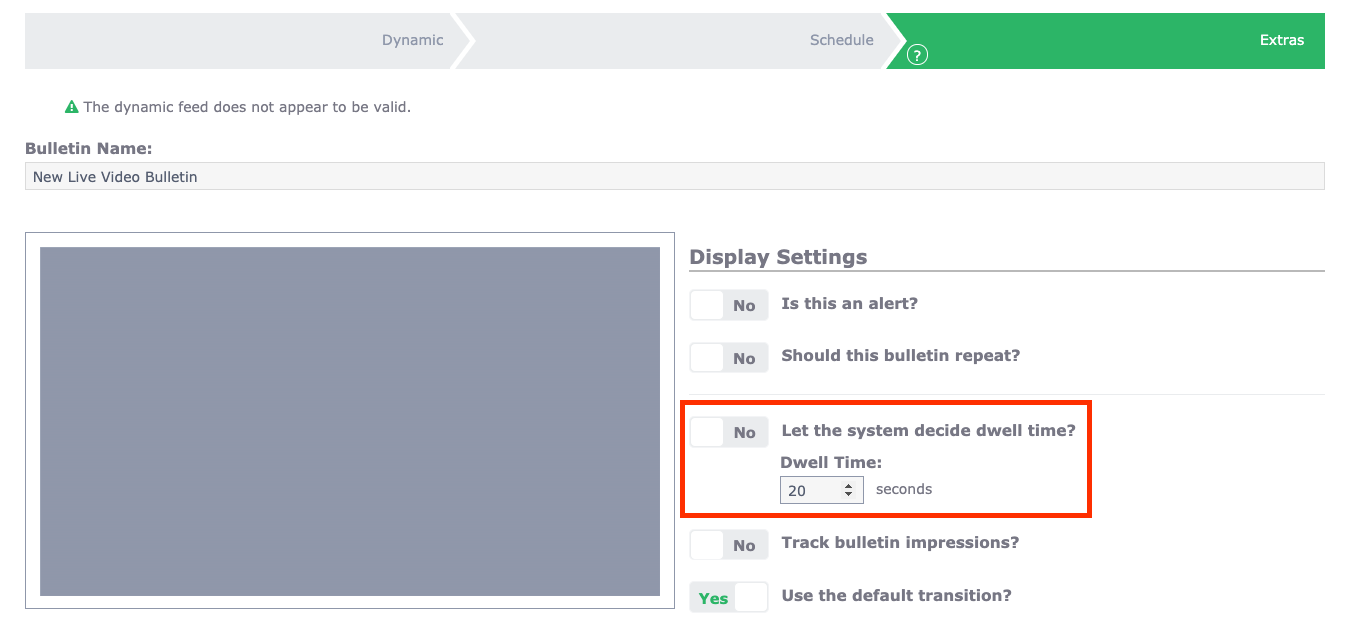
Dwell Time
By default, Cablecast CG uses a 10-second dwell time for bulletins. To keep the live video on screen longer:
Set Let the system decide the dwell time to No.
Enter a custom dwell duration.
Publishing the Bulletin
Once all settings are configured, select Publish to add the Live Video Bulletin to the zone.
Your live video stream will now appear as part of your CG bulletin board, adding dynamic, real-time content to your channel.
Summary
A Live Video Dynamic Bulletin brings a live network stream, such as a town square, park, traffic, or weather camera, directly into your Cablecast CG bulletin board. After selecting your zone, you create a Dynamic bulletin set to Live Video, enter the stream URL, set the schedule, adjust the dwell time if needed, and publish. The result is real-time, localized content rotating alongside your other bulletins.
