CablecastCG Player Support and Updating to Cablecast 7
Overview
With the release of Cablecast 7 we are bringing the many of the new features from the VIO servers to our older Cablecast models. One of those features is the support of CablecastCG. CablecastCG is the new bulletin board application that is taking the place of Carousel, but don't worry, the user interfaces are very similar.
With the new CablecastCG, you can turn your CG units into Standalone CablecastCG units. But there are limitations to doing this.
Cablecast 7+ (CablecastCG) can ONLY be installed and ran on Cablecast CG340 players.
With the new CablecastCG we have completely re-written the display engine from the ground up. Because of this there are hardware limitations on CG330 and older players preventing them from running the latest software. This is why we are only supporting Cablecast 7+ and CablecastCG on CG340's only.
Update Process
When you are ready to update your system to Cablecast 7 there will be a few steps that need to happen before you run the installer. On all Flex and CG hardware a Licensing process will need to be done before you update to 7. This process will need to be done by Cablecast staff when you request a download key.
Once your server is licensed for 7 you can run the installer. The CG units will have a different install process than your Flex server and we will walk you through that below.
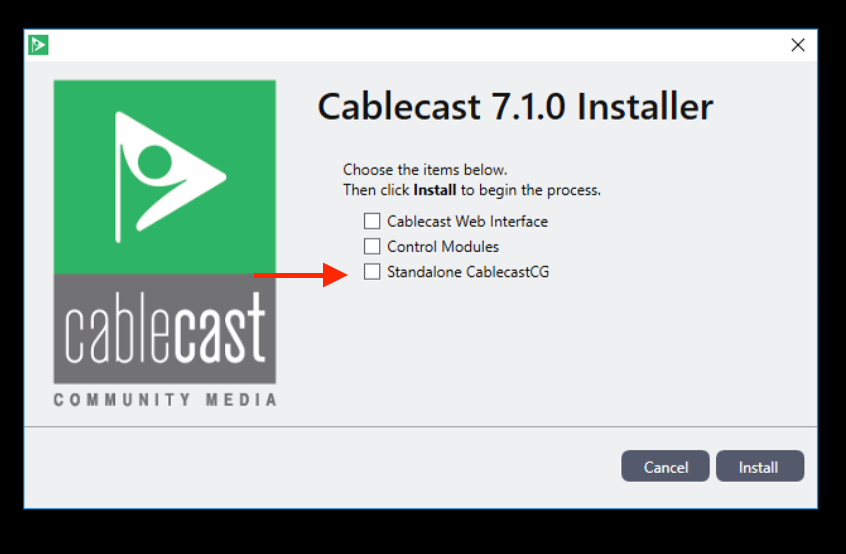
When you double click on the installer after downloading it, the installer window will open. It will give you 3 different options to choose from on what you would like to install. You will want to select the Standalone CablecastCG option and then click the install option. This will install the appropriate things to run the CablecastCG player. When the installer is finished, click the finish button.
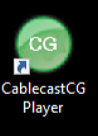
Now that CablecastCG is installed on your CG340 double click on the CablecastCG Player icon on the desktop to launch the player.
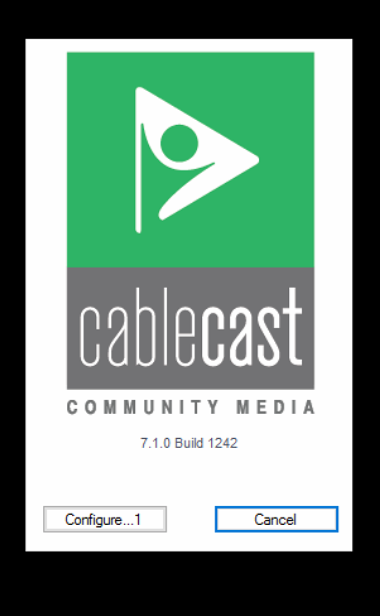
This will open the Cablecast Loading window with the Configure and Cancel button. Similar to what it was like in Carousel. To point the CablecastCG player to your Frontdoor server click the Configure button.
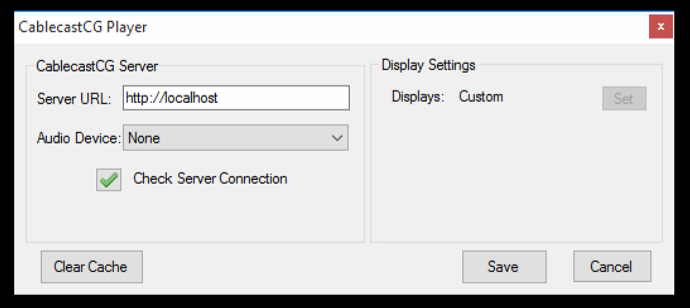
In the configuration menu, you are able to direct the player to your main server that is running Frontdoor which will then load and play the CablecastCG bulletin board. Type in that server's URL or IP address, select an audio device if you plan on using an external audio device, and then Click Save. This will go back out to the loading screen and launch your CablecastCG bulletin board.
And you are now running Cablecast 7 and CablecastCG.