Cablecast Cloud Services: REFLECT+ Dashboard
REFLECT and REFLECT+ are two similar but distinct services available through Cablecast Cloud Services.
REFLECT vs. REFLECT+
REFLECT requires your system to have a public-facing external address (preferably a named address, which allows Cablecast's Let's Encrypt engine to add SSL to your Host unit). Your Saved Searches and live feed are then pulled from your Host unit and made available to your Cablecast Apps for playback on OTT and mobile apps.
If you're looking for information on REFLECT (not REFLECT+), see these Knowledge Base articles instead:
REFLECT+ is a Cablecast service that provides cloud-based storage and delivery, operating in conjunction with both Cablecast LIVE and Cablecast VOD servers. Content is pushed to REFLECT+, eliminating the need to open a port in your firewall. Initial service includes 10 TB of storage, with additional storage available in 1 TB increments. REFLECT+ supports a virtually unlimited number of live and VOD streams over the web, OTT, and mobile apps.
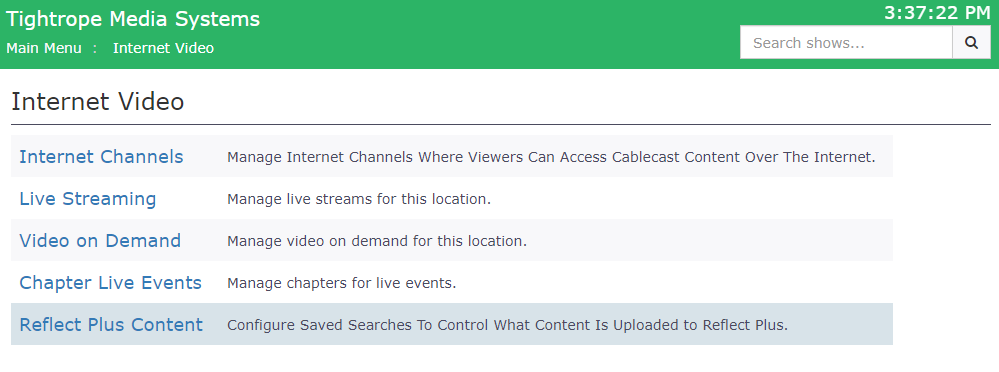
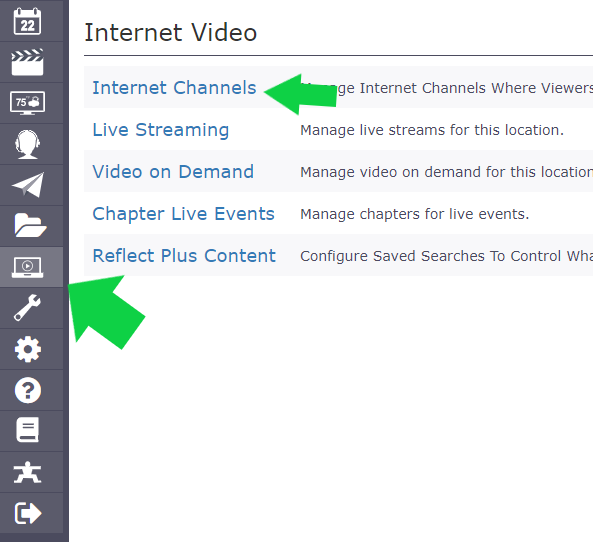
Once REFLECT+ is enabled by Cablecast personnel, the Cablecast user interface will show a Reflect Plus Content option under the Internet Video section.
Select Reflect Plus Content to open the window for configuring REFLECT+ content and viewing usage and job transfer statuses.
The Over Limit status area displays content that was specified for REFLECT+ but wasn't uploaded because storage limits were reached. As the results of your Saved Searches change over time, REFLECT+ removes older or lower-priority content to make room for newer, higher-priority content. Use your searches and their order to ensure your most important content stays uploaded and current on REFLECT+ within your storage limits.
Configuring REFLECT+ Content

The VOD content pushed to the REFLECT+ cloud is based on Cablecast Saved Searches. To choose which Saved Searches are used with REFLECT+, select the Configure Content button in the upper right of the REFLECT+ Content page.
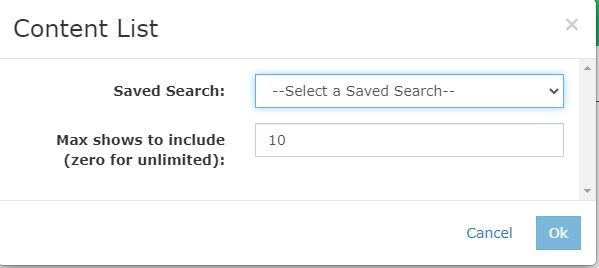
Once on the Configure REFLECT+ Content page, select +New to assign a previously created Saved Search to send programs to REFLECT+.
For details on searching for a show and creating a Saved Search, see Using Saved Searches in Cablecast.
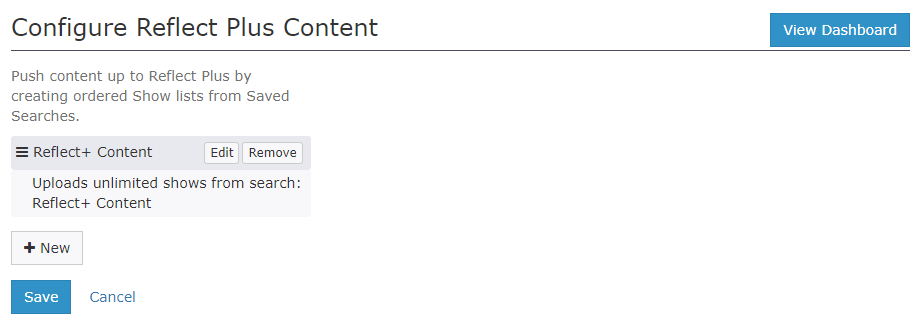
This screen also lets you rearrange the order of or remove the Saved Searches in the list. Order matters: REFLECT+ uploads content starting from the first search and proceeds down the list, continuing until the storage limit is reached.
Configuring Your Look: Internet Channels
To configure the look, feel, and content of the public Internet Channels served from REFLECT+, select Internet Channels under the Internet Video section.
For details on the settings available, see Customizing Cablecast Internet Channels.
Checking REFLECT+ Usage in Your Cablecast Cloud Services Account
In your Cablecast Cloud Services account, you can view each REFLECT+ instance, including storage used, total limit, and the instance name — which links directly to the Internet Channel that REFLECT+ is pulling content from.

