Cablecast Closed Captioning Translations
Cablecast Closed Captioning Translations lets you caption programming in over 70 different languages. See this article for a comprehensive list of supported languages.
A Note about Cablecast Translations
Cablecast Translations is a paid add-on that requires an active Cablecast Captions subscription. To purchase, contact the Sales team at sales@cablecast.tv.
For those who prefer a video walkthrough, the video below covers all of the steps in this article.
Cablecast Translations
Instructional video on the use of Cablecast Translate tools
Closed Captioning Languages
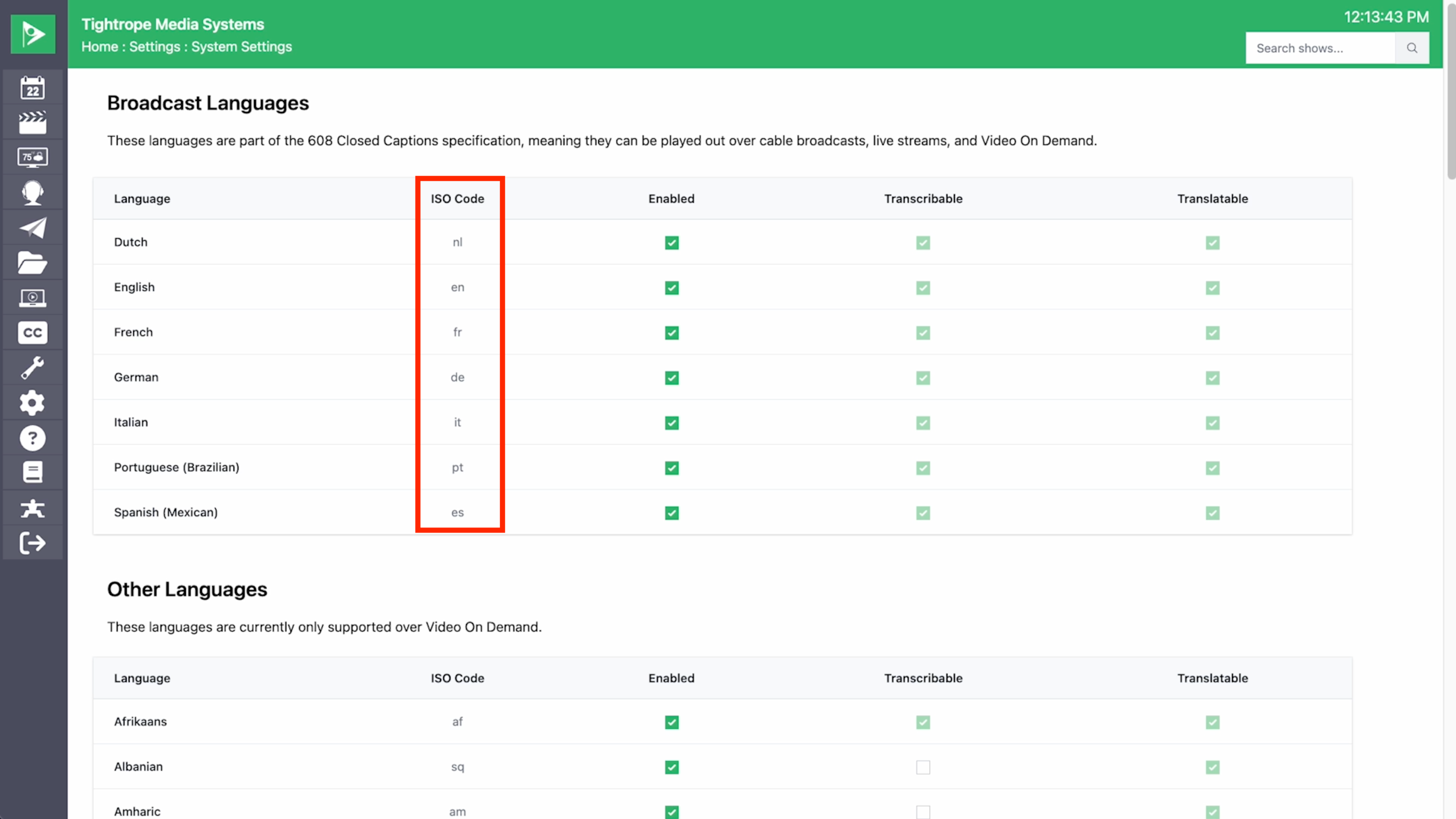
Go to Settings > System Settings > Languages. The languages listed at the top of the page are the 608-supported languages. Cablecast Captioning can both transcribe captions into those languages and translate captions from other languages. This also applies to your live stream if you have a Cablecast Live server.
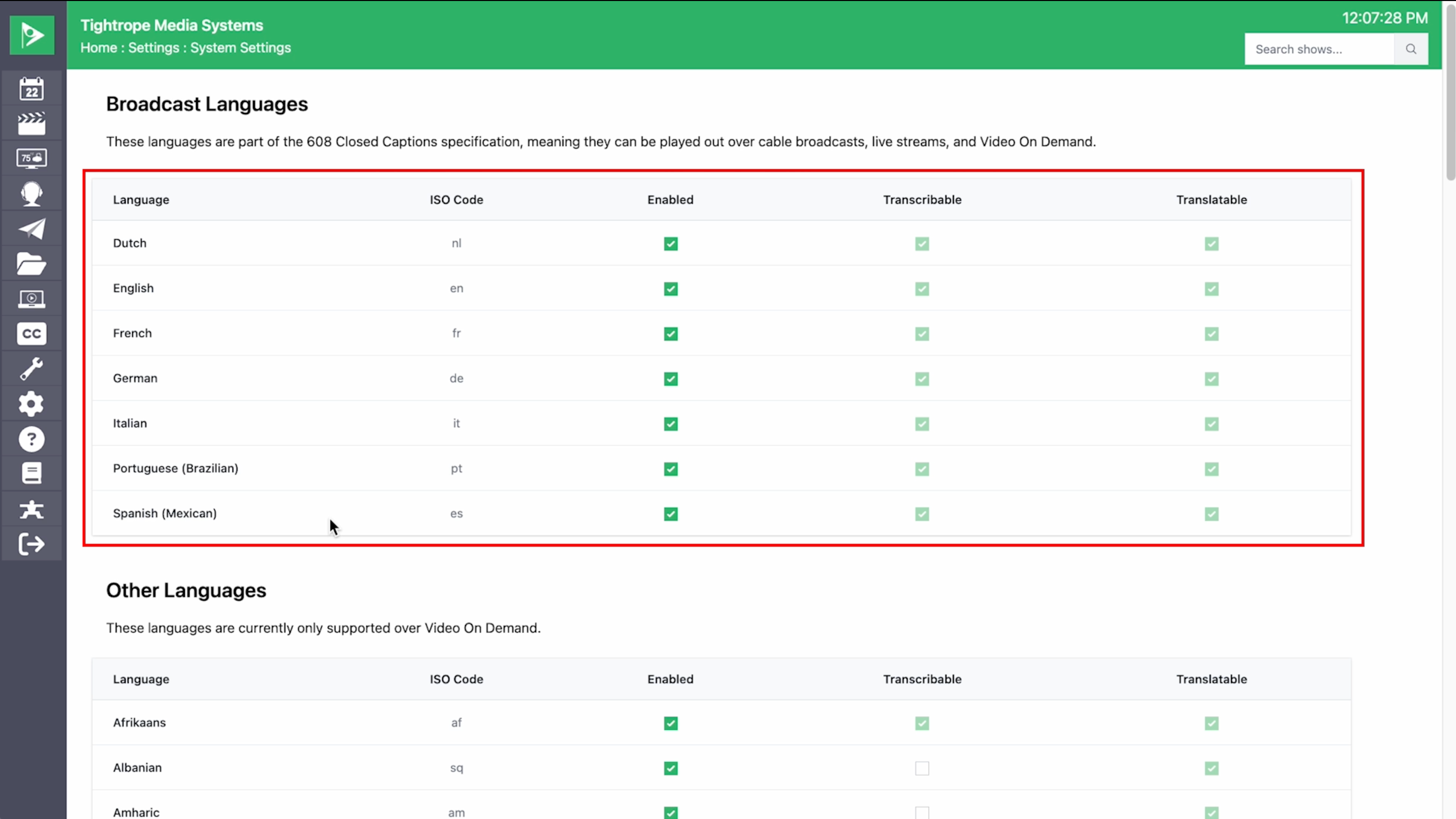
For the other languages listed on this page, you can caption and translate many of them, but because they are not supported by broadcast closed captions, these languages will only be visible for VOD programs. This applies to VOD content on your Internet Channel as well as your OTT apps.
Do Not Translate
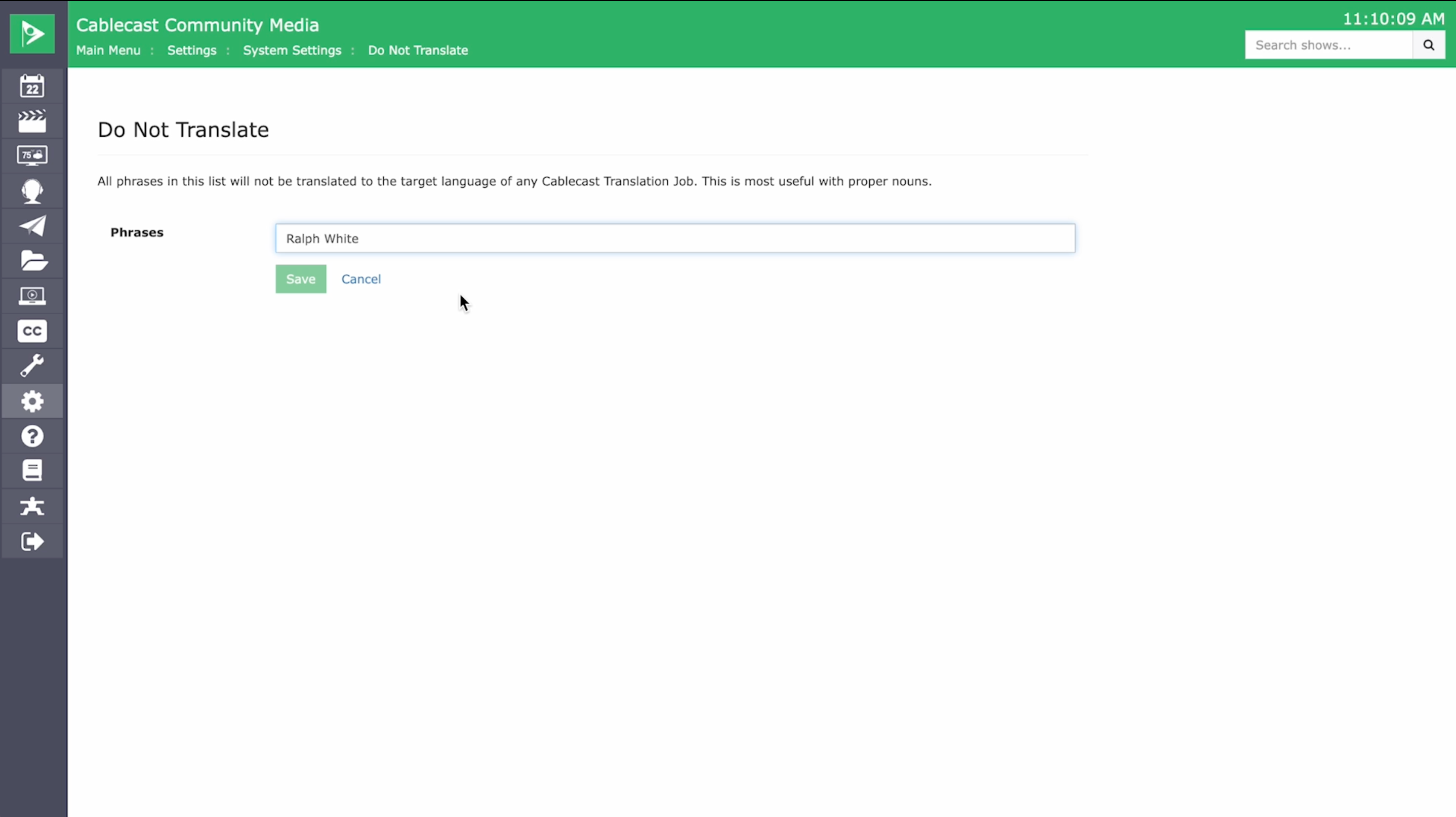
The Do Not Translate section is where you configure any words or phrases you do not want Cablecast to translate. For example, if a city council member named Ralph White does not want his name translated to Ralph Blanco in Spanish, you would add his name here. Once you enter a word or phrase, press Enter to add it, then select Save to save your list.
When working with a vocabulary, you can also mark the vocabulary itself as Do Not Translate in the vocabulary settings. This applies the same rules to any event that uses that vocabulary.
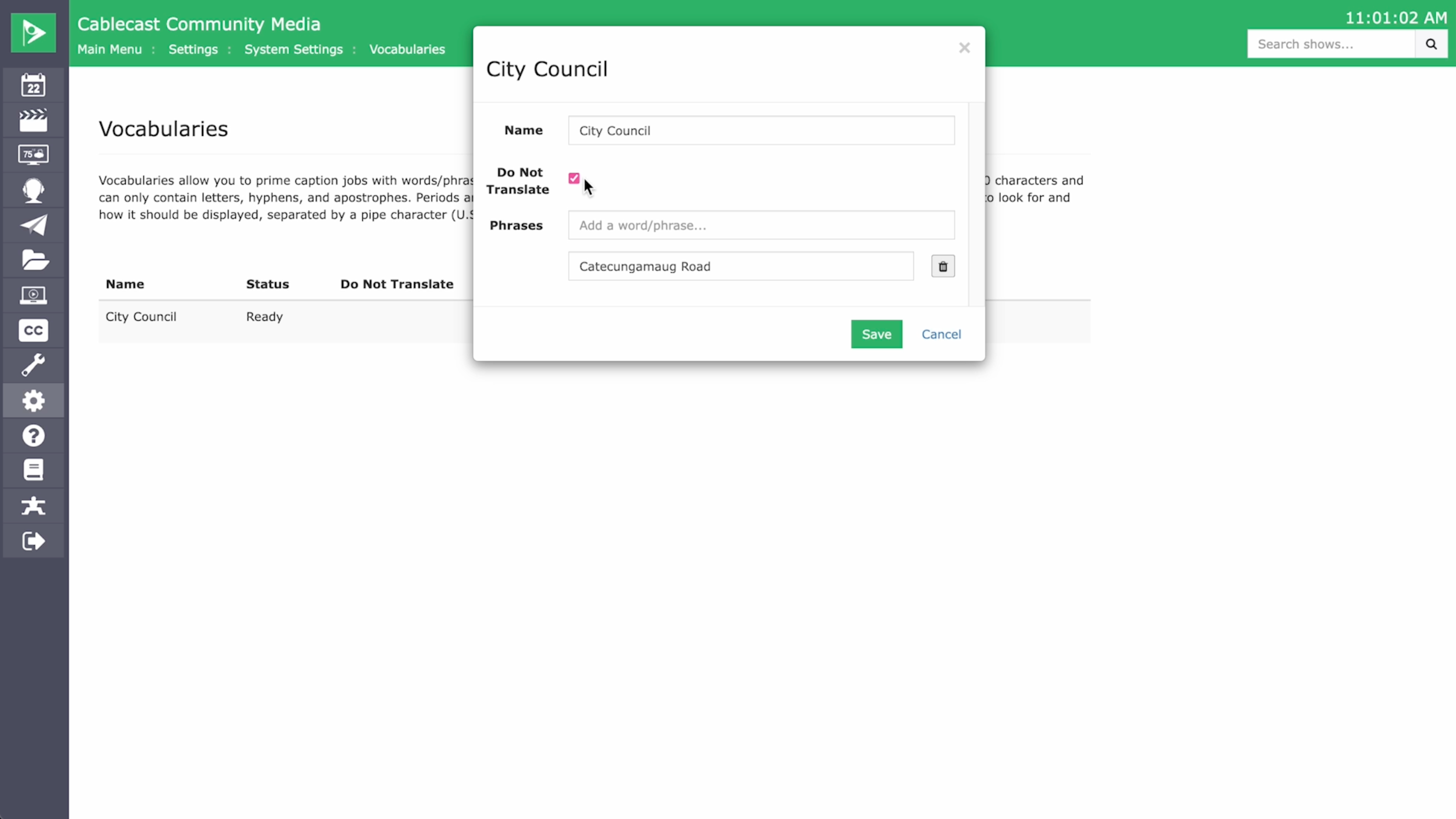
For example, if you always use the City Council vocabulary for council meetings and you select the Do Not Translate option on that vocabulary, Cablecast Translations will not translate Ralph White's name for any event using that vocabulary.
Enabling Primary/Secondary Languages on a Channel
To enable a primary and secondary language for a channel, go to Settings > System Settings > Channels, select the channel you want to configure, then open the Languages tab and set your primary and secondary languages.
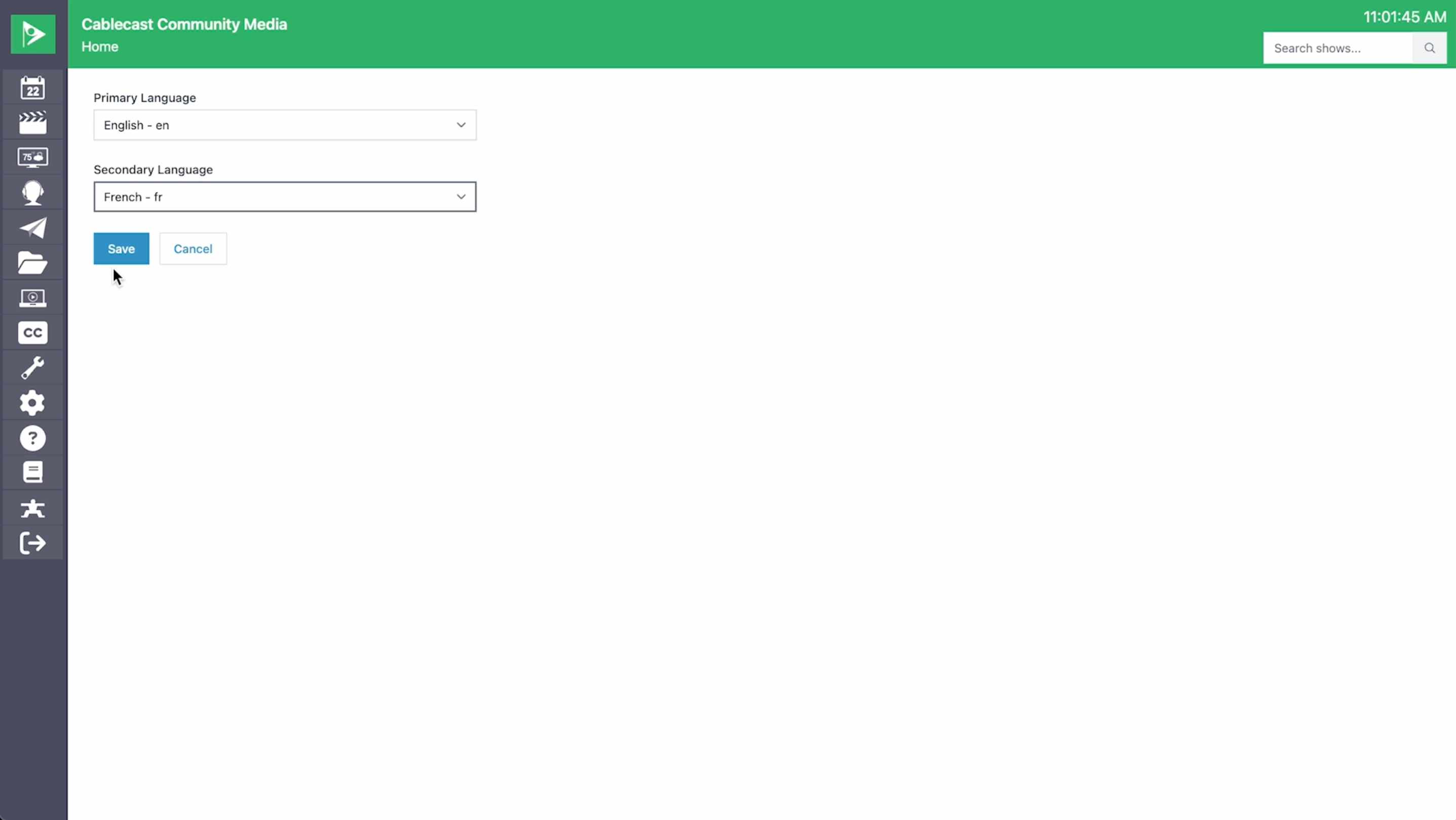
This lets you output captions in two languages simultaneously — with 608 captions over cable and on your Cablecast Live streams. While cable channels and live streams support up to two caption languages, VOD supports unlimited caption languages.
Note: Live streams will always display the primary and secondary language caption options when languages are configured for the channel, even if there is no secondary caption track for a specific program. This is due to how HLS streams work.
You can add up to two language caption tracks regardless of where the captions were generated, as long as the file naming convention is videofilename.ISOcode.scc. ISO codes for supported languages are listed under Settings > System Settings > Languages > Closed Captioning.
Setting Up a Caption Translation on an Existing Program
Open the Show Record for the program you want to caption and select the Text Tracks tab.
Enable the Auto Generate Captions toggle. A Captions Settings dialog will appear.

In the dialog, set the Provider, Vocabulary (if applicable), and Primary Audio Language (the source language of your program), then close the dialog.
Enable the Auto Translate toggle. A Translations Settings dialog will appear.

In the dialog, confirm the Source language and select one or more languages from the Language(s) drop-down, then close the dialog.

Cablecast will generate the captions first, then produce the translation from the primary caption file.
Setting Up a Caption Translation for a Live Event
Schedule your live program, then select the edit (pencil) icon on the far right of the scheduled run. The run details will open in a new window.

Select the Caption Settings tab.
Check Enable Live Captions and set the Source Language, Device, Provider, and Vocabulary as needed.
Check Enable Live Translations and select your Translation Language from the drop-down.

Select Save.
Note: For live sources, you can select only one translation language, and it must be a 608-supported language. This language should match the secondary language configured for the channel, but it is not enforced — so if a special event requires a different secondary language, you can set that here. Additional languages can always be added for VOD after the event has ended.
Manually Starting a Live Event Translation
You can also start a translation manually on a live event using the Force Matrix.
Note: Your live source must already be routed to an available encoder before starting a manual transcription. Manual transcription can also be started from the Force Matrix using the same general steps.

Go to Control Rooms from the left-hand menu.
Select Action next to the encoder. A Confirm Actions dialog will appear.
Set the Action to Start Transcribing, confirm the Device, and set the Source Language and Translate Language.

When the event is finished, return to the Force Matrix, select Action next to the encoder, choose Stop Transcribing, and select Take.

Important: If you do not stop the transcription manually, it will continue running until the next scheduled event or until someone stops it. This will result in additional caption minutes being consumed.
Summary
Cablecast Translations extends your captioning capabilities to over 70 languages, supporting both VOD and live content. Use the Do Not Translate settings and vocabulary options to protect proper nouns and names from being incorrectly translated. For live events, translations can be configured through scheduled run details or started manually via the Force Matrix — just make sure to stop the transcription when the event ends to avoid unnecessary minute usage.
