Cablecast CG Only Access
Cablecast CG, the bulletin board, is built directly into Cablecast — there is no separate application to launch. Because of this, anyone who works with bulletin boards needs a Cablecast account to reach Cablecast CG, even if they never touch the broadcast side of the system.
To give a user access to Cablecast CG without granting any broadcast permissions, create a Cablecast role that has no access rights, then assign that role to the user alongside their Cablecast CG roles. This article walks you through that process.
Create a CG-Only Role
User management is handled in Frontdoor.
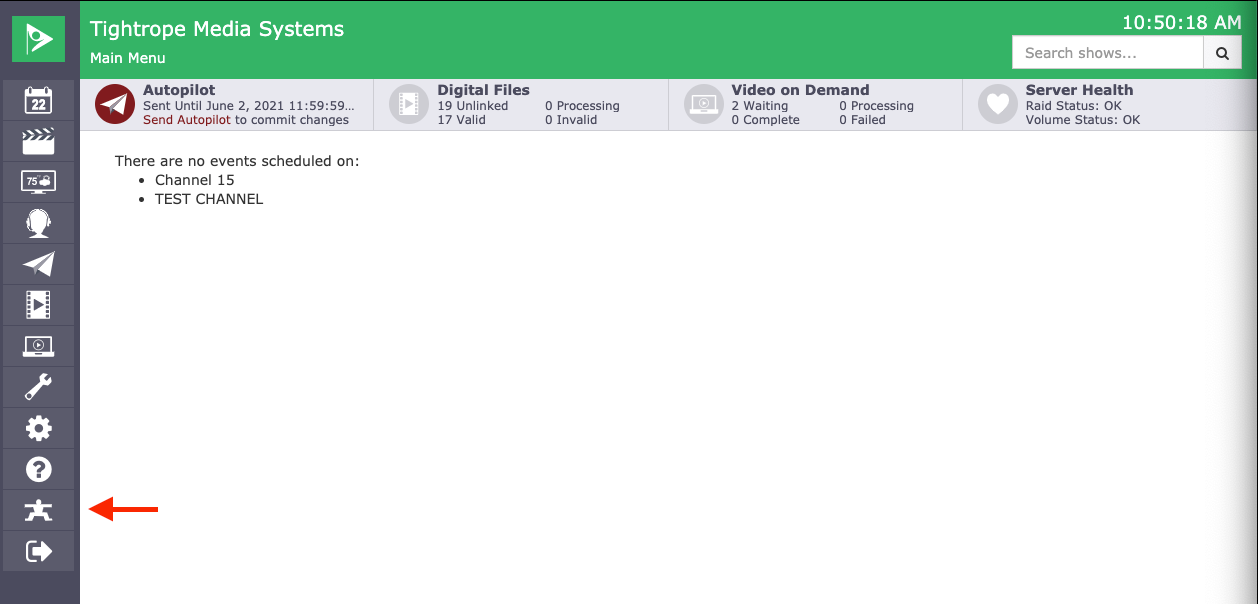
From the left-hand navigation menu, select the Tightrope icon at the bottom of the menu bar to open Frontdoor.
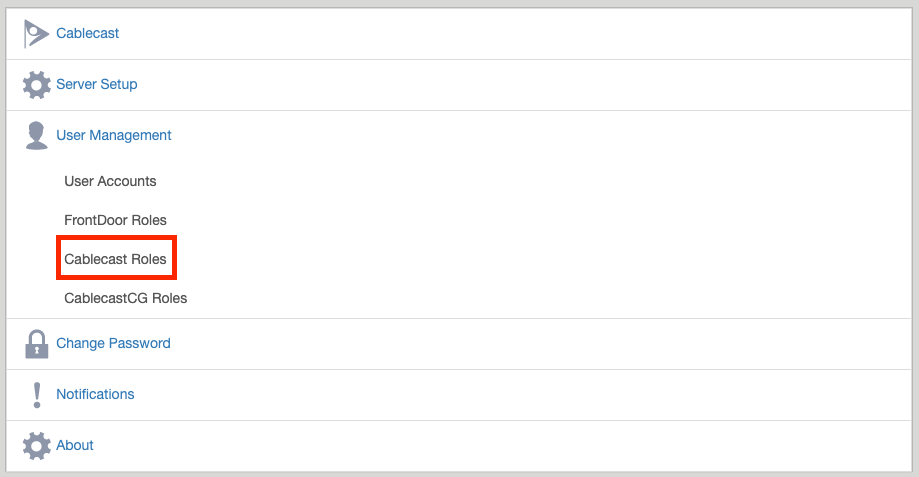
Select User Management → Cablecast Roles.
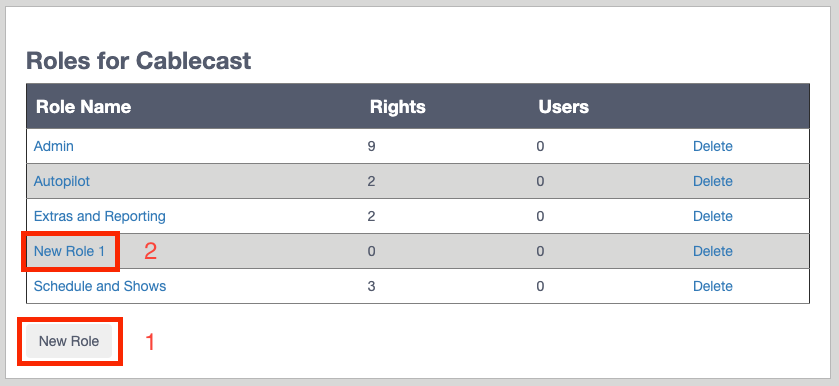
Select New Role at the bottom of the list, then select the new role that appears.
In the Role Name field, enter
CG Only Access(or a similar name).Leave every checkbox under Access Rights unchecked, then select Update.
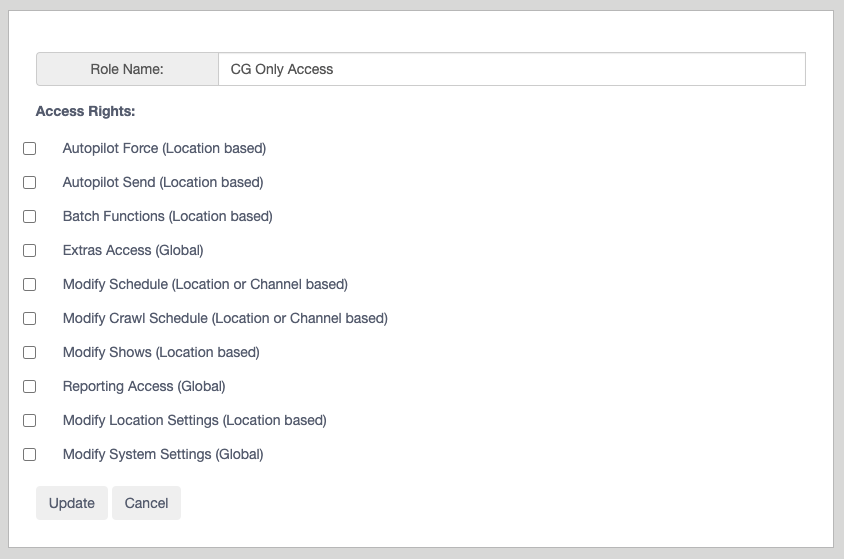
Note: Leaving all access rights unchecked is what makes this a CG-only role. The user can sign in to Cablecast but cannot modify schedules, show records, or settings on the broadcast side of the system.
Creating A User
If the user already has a Cablecast account, skip ahead to Assign Roles to the User.
Select User Management → User Accounts.
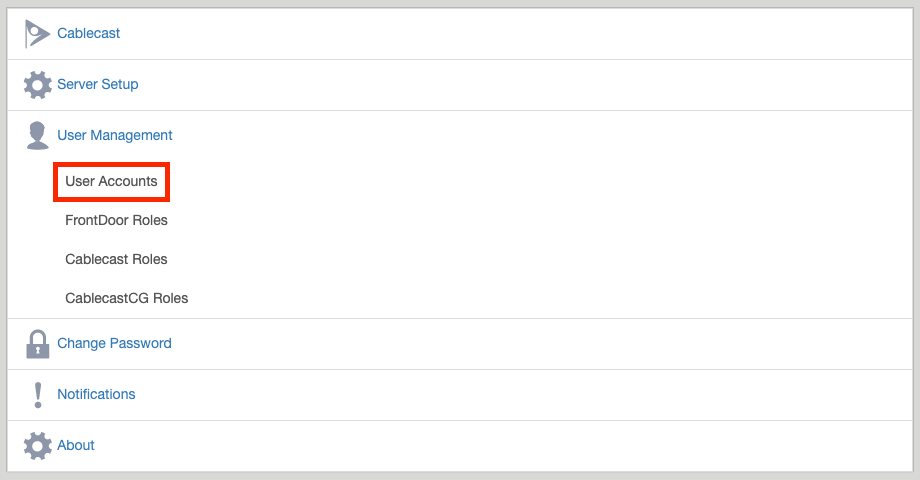
Select New User at the bottom of the screen.
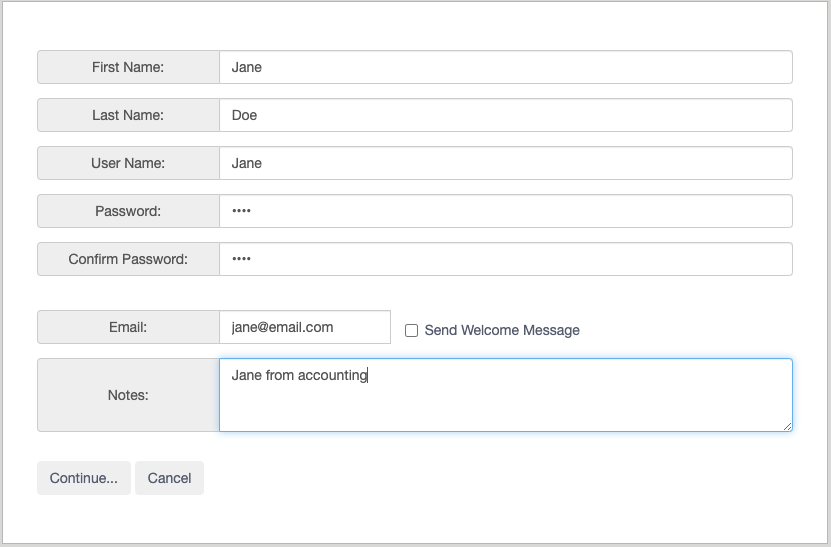
Complete the fields for the new user, then select Continue.
Assign Roles to the User
Assign the CG-only role you created, then add the Cablecast CG roles that determine what the user can do in the bulletin board.
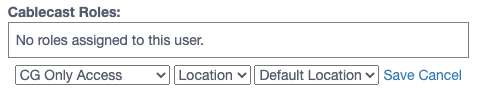
Under Cablecast Roles, select Assign New Role.
In the first dropdown, select CG Only Access. In the second dropdown, select Location. In the third dropdown, leave Default Location selected.
Select Save.
Under Cablecast CG Roles, select Assign New Role, choose the roles to grant the user, then select Save.

Select Return to User Accounts List.
The user can now sign in to Cablecast and access Cablecast CG with no broadcast permissions.
Summary
To set up CG-only access, create a Cablecast role with no access rights, then assign that role to the user along with the Cablecast CG roles they need. This lets the user reach the bulletin board through Cablecast without being able to make changes on the broadcast side.
