Audio Normalization and Processing in Cablecast
Using an older version of Cablecast?
If your system is running Cablecast 7.3–7.5, refer to the Legacy Audio Processing in Cablecast article instead.
Audio settings in Cablecast can be configured in two places, depending on what you need to adjust:
Device Settings — for Audio Normalization, Target Loudness, and Volume Adjustment on individual players
Servers — for Audio Device and Volume Adjustment when using a line input for Cablecast CG Background Audio
Device Settings: Audio Normalization and Volume Adjustment
Use Device Settings to configure Audio Normalization or Volume Adjustment for individual players. These controls apply to Video Players only (Video Server and Live devices).
To access Device Settings, go to Settings → Location Settings → I/O → Devices.
Select the player you want to configure, then click the Edit button to the right.
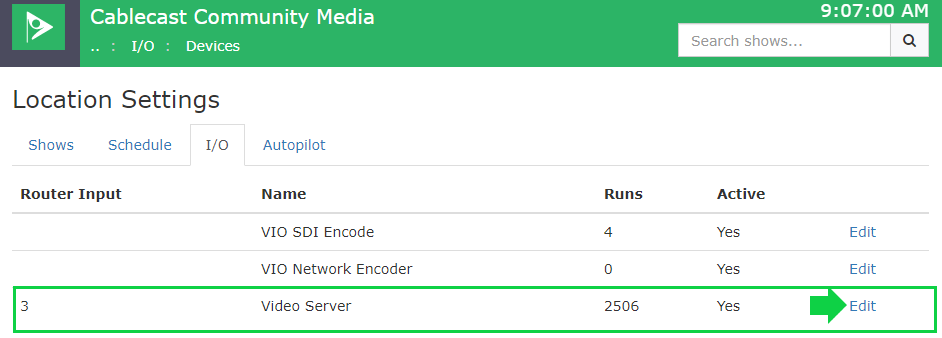
Scroll to the bottom of the Device Settings section to find the Audio Normalization controls.
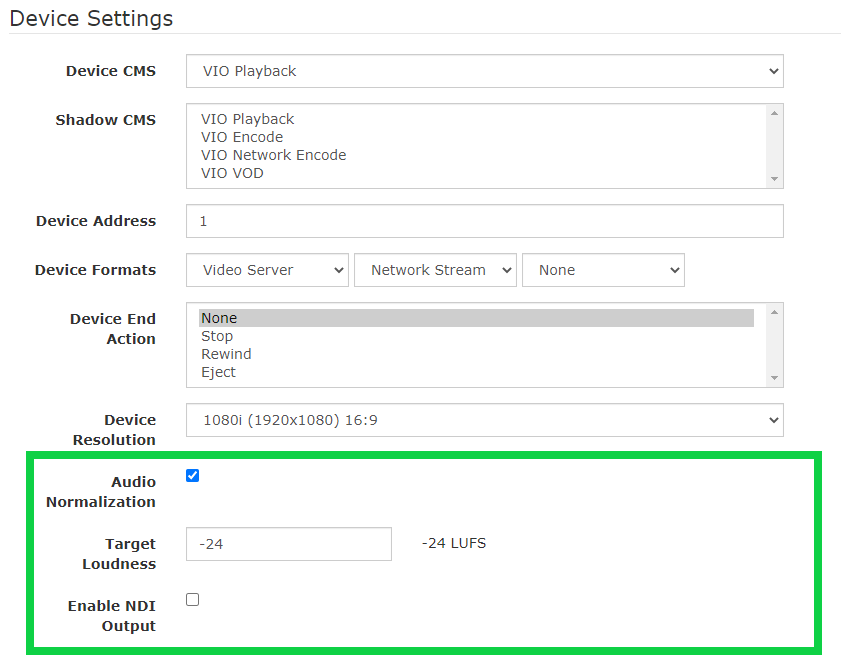
You'll see a checkbox for Audio Normalization. Its state determines which control is available:
Audio Normalization ON (checked): A Target Loudness field appears. Enter your target loudness value in LUFS (Loudness Units Full Scale — a standard unit for measuring audio loudness in broadcast and streaming).
Audio Normalization OFF (unchecked): A Volume Adjustment control is available instead.
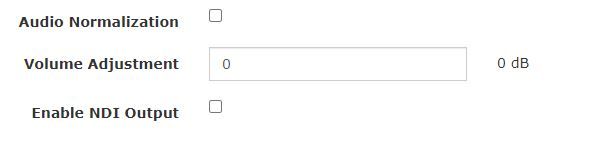
When you've finished making changes, scroll to the bottom of the page and click Save.
Note
Audio Normalization and Target Loudness settings only appear for Cablecast playback devices, such as your Video Output and Live servers.
Servers: Audio Device and Volume Adjustment for Cablecast CG Background Audio
If you're using a Line In to USB converter for Cablecast CG Background Audio, configure the Audio Device and Volume Adjustment from the Servers page.
Go to Settings → System Settings → Servers.
Find the server that your Cablecast CG background audio will connect to. The model name of the server is displayed in the list to help you identify the correct one. Click Edit.

Scroll down to the CG Background Audio Settings section. Here you can select the Audio Device from a dropdown menu and set the Volume Adjustment for that device. Volume Adjustment accepts values between -12.0 and +12.0 dB.

Both of these settings are global for the server. Once you click OK, the Video Server Engine will restart within a few seconds to apply the changes.
